Update 1: Here are some updated instructions via reader Virage (thanks):
The correct settings for iPhone 3GS on Rogers Wireless with Shaw email are as follows:
1. Create new mail account
2. Select POP (not IMAP) type of an account
3. Enter Name (user name of your email account ie. for us**@**aw.ca would be user)
4. Enter Address: this is your email address ie. us**@**aw.ca
5. Enter Description: whatever you want to display in your listing of Mail accounts
6. Incoming Mail Server:
– Host Name: pop.shaw.ca
– User Name: user (or whatever following instructions in #3 above)
– Password: the password you use to check email from your mail account with shaw.ca
7. Outgoing Mail Server:
– SMPT: smtp.rogerswirelessdata.com
– This entry will set it as the Primary Server; click on this entry to complete rest of the details
– User Name: blank – optional (do not attempt to enter your shaw.ca or Rogers account name here)
– Password: blank – optional (do not enter anything here either)
– Use SSL: set to OFF
– Authentication: leave at default Password
– Server Port: set to 25
Note: the Incoming Server Port is 110; outgoing is 25
==
Here are some revised steps to setup Shaw/Telus Email on your iPhone (Hotmail users click here):
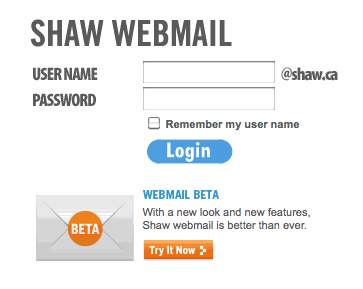
1. Go to https://webmail.shaw.ca/uwc/auth and click on the beta version and then log in.
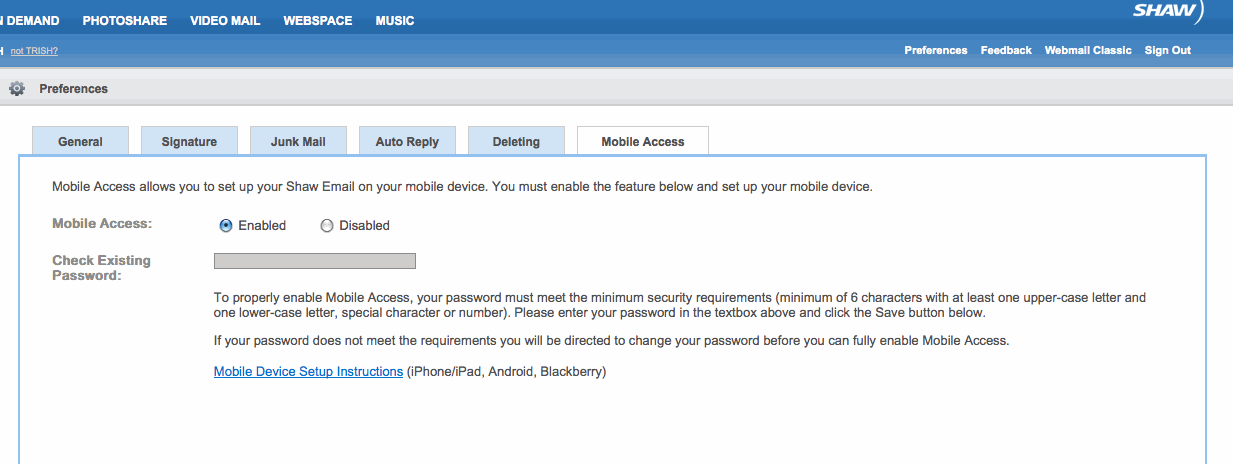
2. Click on preferences, mobile access, and then click on enabled.

3. Click on the mobile device instructions. Here’s what you’ll see:
iPhone / iPad
Setting up your Shaw webmail account to your iPhone/iPad is simple, just follow these short and simple steps. If you’re adding an additional account with software version 2.0 or later:
- Touch the Settings icon on the Home screen,
- Select Mail, Contacts, Calendars
- Select Add Account…
- Select Other
- Select Add Mail Account
- and enter your account information.
- Select Next
- Choose the POP account button
- Enter the following information in the spaces provided under Incoming Mail Server:
- Host Name – Enter ‘pop.shaw.ca’
- User Name – Your Shaw email address without the @shaw.ca
- Password – Enter your email password.
- Enter the following information in the spaces provided under Outgoing Mail Server:
- Host Name – Enter ‘mail.shaw.ca’
- User Name – Your Shaw email address without the @shaw.ca
- Password – Enter your email password.
- Click Save
- You will see a message: ‘Cannot Connect Using SSL’ – select Yes
In software version 2.0 or later, Mail can automatically setup many popular POP and IMAP email accounts using just your email address and password. As Mail looks up settings that match your email account you may see a note appear that will describe any limitations you may experience in using your email account.
The above instructions come straight from Shaw, and should now be the best way to setup your email with your iPhone/iPad.
Thanks to Mark D. for the heads up!



This works well but you can’t send email if you are not in the Home ( telus / shaw) Wifi Zone. Web based email ( hotmail / gmail / yahoo ) allow sending from anywhere.
Agreed. I had my Shaw email set up exactly like that and it worked fine for Wifi but not for EDGE.
I also switched to gmail and it works awesome. Just send a copy of your shaw account to your new gmail account.
It does work fantastic. You never have to go online in your computer to check your gmail account as the iphone does it all.
using a specific shaw server would probably work better
ie. shawmail.vc.shawcable.net
I could not seem to get this up and running. I tried it many times. Does anyone have other instructions?
I have configured my Shaw account to send and receive in any location on any network by using the solution:
Incoming:
Host: pop.shaw.ca
Username: Your Shaw username
Password: Your Shaw Password
Outgoing:
Host: My friend’s website’s mail server
Username: His username
Password: His password
I know of one other fellow iPhone user who has also used this solution. I’ve used this set-up for a couple months and it has worked all over Alberta, BC and Sask (I’m from Calgary).
Hope that helps.
For shaw you have to do the real url for incoming and outgoing servers: like shawmail.vc.shawcable.net and you also need to log into your account and allow your account to be accessed from outside domains. You do that from your member services area.
“””””you also need to log into your account and allow your account to be accessed from outside domains. You do that from your member services area.””””
How do you do this specifically? I do not find anything like this in the members area
iPhone with Rogers mail settings for Shawmail:
Incomoing Mail Server Host Name: pop.shaw.ca
Outgoing Mail Server(SMTP): smtp.broadband.rogers.com
This will work if you have a plan with rogers.
thank you! your rogers/shaw email setup worked brilliantly! thanks for filling the HUGE customer service gap left by rogers…
Thanks Ressan, it’s works great now. It was so annoying at first.
Iphone/shaw
Incomoing Mail Server Host Name: pop.shaw.ca
Outgoing Mail Server(SMTP): smtp.broadband.rogers.com
Hello Ressan,
I have tried the above incoming / outgoing properties but it did not work. Could you please detail the exact incoming and outgoing server information and I can check again. Would be much appreciated as Shaw and Rogers have no clue afterbeing on the phone with them for 2 hours.
Jeremy
Works fine as described above with Telus. Not sure if it is using WiFi when connected to both WiFi and 3G, but when I turn off WiFi it works well on 3G. You will need to change some Incoming and Outgoing server settings to match settings on your Outlook account. Plus… and this is important, I had to turn on the Rogers SMTP server rather than using Telus, but after that it worked.
It works fine if you put “shawmail.ed.shawcable.net” for both incoming and outgoing servers. obviusly substitute “ed” for where you live… use this link to help with that. http://www.shaw.ca/en-ca/CustomerCare/InternetSupport/Residential/RoutersandShawServerNames.htm
Hope this helps.
🙁 not working for me….. i am using fido,
“and you also need to log into your account and allow your account to be accessed from outside domains. You do that from your member services area.”
@ Different Andrew: Where exactly is this Member Services area? And the “outside domains” option? I’ve logged into my Shaw customer care area and have looked around quite a bit, but can’t the area or option you mentioned.
Thanks!
Aaaarg…. I use Telus and can’t send or recieve anything! Used above settings but all i get is sending …. but nothing is sent or recieved.
Can i forward my telus stuff to Gmail somehow?
Neil: You should be able to have telus set to forward…try the telus webmail site.
I just recently got a 3G and was having mucho problems trying to get shawmail on my iphone. I FINALLY got it to work on both wifi and 3G network! First, I synced my POP settings with my phone using ITunes. Just go to the summary page when your iphone is connected and click sync POP mail. This will allow for WIFI emailing when at home or on any shaw network. In the iphone, I then went to SETTINGS>MAIL>you email account>outgoing SMTP server. Once in the SMTP server, you can then scroll down and you will see Rogers SMTP server. Click on this and then turn it ON.
Once all of this is done, you will be able to send emails with your reply address being your shaw account! It will first cycle through the shaw outgoing server, and if it doesn’t work because you are on 3G, then it will cycle to the Rogers SMTP server. It isn’t instantaneous. It takes approx 3-4 minutes for the email to be sent, but at least it works!
I don’t like forwarding my mail to my me.com account and have a different reply address.
Hope this helps
FINALLY!!! Nothing worked until this. Thank you SO much for posting this.
I have a telus account and I found that outgoing mail could be sent without WiFi if I turned off STMP.TELUS.NET and turned on the rogers wireless STMP mail server on the iphone.
Hey all,
Thanks… got it. Used Johnny B’s advice and ran a SYNC through Itunes.
Works like a charm.
Now, my IPHONE is perfect.
Now I just need to find more toys and games to fool around with!
Thanks!
Ok, spoke too fast…. its taking a really long time to send email. Then, CANNOT SEND MAIL – One of the recipient addresses was invalid – comes up But I know the address is fine.
Any ideas?
Let me clarify what I did to get mine working.
First, I have to email accounts on my iphone.
1. The first one is for wi fi emailing (while at home). I synced my email with settings through i tunes. This worked like a charm.
2. The second account is for emailing through 3G network.
The incoming server is pop.shaw.ca
The outgoing server is shawmail.ed.shawcable.net (use your own city abbreviation in place of ed)
Make sure POP is clicked on the top of the set up menu.
After doing this the iphone should have no problems setting up the email.
Once this is done, you have to go to settings>mail>the second account. Scroll down to the outgoing server. open this and turn on Rogers SMTP server. This will then allow you to send email through your second account. It takes about 3 min to go through since it has to cycle through the shaw server then to the rogers server.
The downside is that you will get duplicate emails from account 1 and 2 when at home since wi fi and 3G will work. Also, it is a bit slow to send the email.
The upside is that the email actually comes from a shaw account and not another address. I hate when I reply to an email and a reply back comes back to me to that other address that I don’t check when I’m on my computer (me.com). otherwise, I can’t get shaw to work on 3G
Hope this helps! If anyone else has a better set up, please post!
Thanks for this Johnny. This is going to help out so many people—great write up! 😉
Yeah, darn Telus… I simply can’t send stuff reliably. It says SENDING for ever.
Any ideas: using:
smtp.telus.net for my outgoing.
Aarg!
(do i really have to change to SHAW? which i will to make the Iphone everything it should be!)
Ok, that’s enough.
Now I can send but recieving is unreliable.
Tried the 2 accounts for WIFI and 3G, seems good!
error:
connecting….
then:
connection to pop.telus.net failed
Shaw here I come?
Rogers?
This thing has to work more consistently than this! 😉
I emailed Shaw tech support on how to get email going on the iPhone, and they sent me the following. I tried it, and it worked like a charm. I’m posting it because the directions are a little different from what has already been posted. There is info specific to both Rogers and Fido in here.
touch Settings
touch Mail, Contacts, Calendars
touch Add Account…
touch Other
in the Name field, enter the display name that you would like to appear in your outgoing messages in the Address field, type your email address in the Password field, enter your password the Description field should be automatically completed with your email address touch Save touch POP in the Host Name field, type pop.shaw.ca in the username field, type the part of your email address before the @shaw.ca it will be necessary to use the outgoing mail server name of your wireless service provider (gprs.fido.ca for Fido, smtp.rogerswirelessdata.com for Rogers) touch Save if prompted to continue without SSL, touch Yes
Your iPhone should now be able to access your Shaw.ca email account through the cellular network or Wi-Fi.
Happy iPhoning! 😀
Hi thank you for your post…I just posted asking for this type of info
I am not clear on your direction…”type your email addy in the password field”
Is this correct? Pls reply…thanks, Donna
Thank you for your post, will you clarify that after your directions….I will be able to send, read, reply to email even when in 3g or wi fi? Because right now…shaw works fine on wi fi at home send and receive, but when out and about, I cant reply.
Pls help. Donna
Bill,
Thanks very much for your post!!! I’m a Shaw customer on Fido and my email works like a very shiny glimmering charm!!!
I was considering opening up a gmail account, but I already use a hotmail & shaw account…. the last thing I wanted was another account to manage. So, Bill thanks again it works great!
UPDATE:
my telus is working great now. USed all of the advice above and got it working.
the 2 mailboxes is the key:
pop.telus.net
turning off the smpt.telus for outgoing and going with ROGERS server.
Thanks everyone!
N.
wow, after much patience and trial and error it works!! thank you to Bill and Neil!!! I now can receive AND send!
Bill’s method worked perfect for me. I had just thought Edge was too slow, as mail worked fine on WIFI. Now it works great on both.
I am trying to set up my telus account on my iphone and my provider is fido. I used both the above method and bill’s method and i recieved this notification:
POP account verification failed
account is locked by another session or for maintenance, try again.
Does anybody have any ideas as to what is wrong or what i can do to get it working?
Thanks a lot
Hi need help with iphone set up for shaw.ca email account. I am with Rogers.
above when stated “2mailboxes” I am confused..Have had much problem and don’t want gmail ….Is there straightforward way to get this to work?
Sent back 2 iphone with other issues, and rogers nor shaw has any answers.
Been annoyed for 6 wks…Thanks, Donna
OK, try this… this is what I did and it works for my TELUS account…
all laymen terms:
stick your iphone in your computer so you can SYNC Itunes with your Iphone.
Under Mail go to INFO
You should see your email accounts on your computer.
Click the one you want to sync onto your phone (ie. bo******@***us.net)
Now, ALL of the settings should attomatically get set up just as they are on your home computer. If it works at home, it should work on your phone.
BUT – I had to change the SETTINGS on the phone.
go to Carrier and choose the ROGERS WIRELESS option.
(Wifi isn’t always available and if that was the default setting my mails never came or went… but on the Rogers Network I could access my mail wirelessly)
This should be the same with Shaw.
Of course, for what we are paying per month, ROGERS should have been making this WAY EASIER for us all!
Thank you for post. I will try this…and re: rogers….it would be nice if they knew how to work the product they are promoting. For the cost involved, they should come to my house and set up for me:) Thanks, Donna
Hi
I have been trying to setup my shaw mail account on my iphone 3g and I still cannot send or recieve any emails. I have tried all of the above combinations and still cant seem to get it to work.
Any suggestions
this is probably a dumb question.. but if outgoing mail is sent via the Rogers SMTP server, will Rogers charge me for that??? i’ve got the 6 gb data plan, so if it’s just data then that’s fine. as long as it’s not an extra charge on top of data!
I believe it is just data….
can someone else clarify?
its a great phone, ROGERS is dropping the ball with support however.
I was told by Shaw technical support that iPhone support is not possible as connection to their mail servers is permitted ONLY via Shaw Cable Modem – which of course, the iPhone doesn’t use. The only alternative is Shaw webmail via browser, or forwarding shaw accounts to mobile.me account. I found that a bit surprising based on comments here – however, seems quite likely.
guys just to help you out i am an Iphone tech support agent now if you cannot get your e-mail working when you are on the 3G network but it works when you go home and connect to your Wi-Fi chances are you created that account when connected to a Wi-Fi connection … few things to try at this point //1. delete your account // 2. turn OFF Wi-Fi // 3. reset network settings (settings – general {at the bottom} – reset – reset network settings // 4. recreate your account make sure Wi-Fi is OFF stay on 3G //5. once account is set up goto settings- mail contacts and calendars – go into your email details to see pop/imap info and where you can see host name for incoming mail server go and tap on SMTP – make sure primary is turned off and ROGERS SMTP SERVER ON //6. go into mail and see if you can get your emails // 7. check your info to make sure your address and description and username are all the same (your full email address ) try different combinations of ROGERS SMTP server and smtp.rogerswirelessdata.com 1 of them will work
hope this helps guys i am favouriting this page so if you have any questions or informations that you would like to ask plz do so and i’ll assist as much as possible
I just went through all the steps you described above, and I still get the same « cannot get mail », connection to pop server failed. I am so sick of this, I’ve had this for months, I’ve tried everything, saw a mac genius 4 times, called Rogers, who said it’s videotron, videotron says it’s apple, etc… I even went to OS 3.0 in the hope that it would fix it, but no. It’s only shows this error when I’m on 3G, only when connecting to the pop server. Everything else works perfectly. Help.
Thx
get your free iphonemail and no more trouble sending email 🙂
I got my shaw email to work on my iphone! *Finally* I followed Johnny B’s instructions from 2008-08-29 (thank you so much Johnny B). Maybe it was my setup, but after following Johnny B’s instructions I had to go back into the mail settings and set the incoming shaw mail server to pop.shaw.ca. The outgoing is as Johnny described and now I can send and receive email with my shaw.ca email address. woohoo!
I’m with Fido and here’s what I have done to sync with my Shaw outlook, works very well. Follow the original posting that spawned this thread BUT add the following
Incoming Mail Sever: pop.shaw.ca
username: (whatever you want)
Password: (whatever you want)
SSL: off
Server Port: 110
Outgoing Mail Server:
SMTP (Primary): gprs.fido.ca
SMTP (secondary): shawmail.gv.shawcable.net
SSL: On
Server Port: 25
Next go into settings and:
Click on “Fetch New Data”
Click “Push” button to “on”
Click “Manually” (helps to save battery life)
Click “Advanced”
Click your email address
Click “Fetch”
This works very well on both 3G and Wi-fi. The only thing that I have found less desirable, is that when using my iphone to send email from my shaw email account ,it does take on average 1-2 minutes to do so. This is why I also have a gmail account.
Darren
Yeah….. this is painfull. I’ve managed to receive mail now using pop.shaw.ca and
smtp.broadband.rogers.com. sending comes up “sender address was invalid”.
It’s weird seeing as I checked my account…. incoming and outgoing mail server is
set to shawmail.vc.shawcable.net. I’ve tried every combo possible that’s been up
with no luck. Not to worried about Wi-fi at home for now. Sounds like some variations work for shaw users….. not yet for me man.
any ideas?
yep Johnny B’s post was right
loook why he tell me pop3.live.com not respnding why and say get mail plus
Can’t get my Touch to accept the fact that I have several aliases for my Telus account. If I try to enter a new name that uses the same User Name I am told that “The POP account “…….” is already configured”. Any suggestions, please?
I prefer using iphonemail here: http://www.iphonemail.net
Ok…I have done a step-by-step how to..
Don;t call shaw for help, as an ex-shaw cable guy, each person you talk to has a diff opinion..they are never kept up to date, therefore each person you talk to has a diff answer.
Click Settings…
Click Mail, Contacts, Calenders
Click Add Account
Click Other
Name = Your Display Name
Address – yo******@**aw.ca
Password – your email password
Description – Iphone email (or whatever you want to put)
Click SAVE
Click POP
On Incoming Mail Server –
Click on Host Name
Enter – pop.shaw.ca
Username – your user name only non @shaw.ca prefix
Password – re-enter your email password
Scroll down to Outgoing Mail Server
Host Name – smtp.rogerswirelessdata.com
Leave Username and Password as-is.
Click Save
Wait for screen “Cannot Connect Using SSL” – click YES
Wait for screen “Cannot Connect Using SSL” – Click YES again
You will see “SMTP account verification Failed” – Click OK
Click Save
You will see a screen saying “This account may not be able to send or receive emails. Are you Sure you want to save?” – Click SAVE
Done…
Try sending and receiving mail…and it WILL work. Just tried it on mine.
thank you! this worked for me as well with a shawmail account out of lethbridge! many thanks!
Shaw Email settings – VERIFIED.
Click Settings…
Click Mail, Contacts, Calenders
Click Add Account
Click Other
Name = Your Display Name
Address – yo******@**aw.ca
Password – your email password
Description – Iphone email (or whatever you want to put)
Click SAVE
Click POP
On Incoming Mail Server –
Click on Host Name
Enter – pop.shaw.ca
Username – name only no @shaw.ca suffix
Password – re-enter your email password
Scroll down to Outgoing Mail Server
Host Name – smtp.rogerswirelessdata.com
Leave Username and Password as-is.
Click Save
Wait for screen “Cannot Connect Using SSL” – click YES
Wait for screen “Cannot Connect Using SSL” – Click YES again
You will see “SMTP account verification Failed” – Click OK
Click Save
You will see a screen saying “This account may not be able to send or receive emails. Are you Sure you want to save?” – Click SAVE
Done…
Try sending and receiving mail…and it WILL work. Just tried it on mine.
YOU ARE A GOD!!! Worked perfectly!!! GOD I TELL YOU! GOD!!!!!
The information stated here is inaccurate. Using “shawmail” under any circumstances is NOT the reccomended information. If you call shaw technical support they will tell you this. Use “shawmail.cg.shawcable.net” or replace “cg” with your local info (such as gv for greater victoria) for the outoging mail server ONLY. Use pop.shaw.ca for the incoming server otherwise you will not be able to retreieve email when you are connected to a non-shaw network (such as Roger’s 3G network, or 3rd party ISP wi-fi). Also you must use roger’s outgoing server while connected to their 3G network and shaw’s outgoing mail server shawmail.gv.shawcable.net when connected to a Shaw service via wi-fi.
I feel bad for all you people who have been wrestling with this one for months. I’ve been watching all the comments. I have a Shaw email account and all I did was start forwarding all my Shaw messages to my Gmail account. The iPhone checks Gmail just fine and I don’t have to keep separate inboxes for each account. (If you actually WANT separate inboxes, then this doesn’t help of course, but I’d still recommend setting up a separate Gmail account for that Shaw account then.)
I’ve travelled quite a bit and Shaw’s email always gave me trouble when I wasn’t within their IP range. I just quit trying to work within their system and went with this forwarding-to-Gmail one. I haven’t had any problems since.
@Neil B : I did creat a « forward-to »Gmail account, but I have 2 questions : – Gmail seems to take a certain delay (sometimes 20 minutes) between mail incoming in your pop account and showing up in Gmail inbox, and secondly, I’m interested to know how you don’t have seperate inboxes, which would make it much more manageable for me… Thx
This is also my issue with G Mail. I need to receive my e-mails as they are sent to me. If there is lag, which I hear there is from a few people, it would not be acceptable.
Maybe there are some people who use G Mail who would comment on the lag time involved in forwarding a shaw account through a g mail account.
Thanks,
Creu007
Martin Belanger:
I think you can just forward all of you other addresses to the one G Mail account & have everything sent to your ipod from there.
I got my e-mail to work through shaw finally. My problem was that the iPhone’s default is to set up an imap server for incomming mail. I spent many hours on the phone with rogers and shaw each saying it was the other guys issue.
So when you set up the new account, make sure you set up a pop3 account and not the default IMAP account.
I used an @shaw.ca email years ago and would be frustrated with backing up email everytime I had to format my PC, syncing email from different locations, etc.
In 2005 I fully converted to Gmail and it’s been a dream ever since. IMAP with Gmail is amazing since all your outgoing and incoming emails are synced to the server! No more POP3 issues with downloading in one place screws it up when you try to get it on another machine/device.
Seriously folks, try out Gmail it’s way better than @shaw.ca email! More storage and it works flawlessly on the iPhone! 🙂
This is also my issue with G Mail. I need to receive my e-mails as they are sent to me. If there is lag, which I hear there is from a few people, it would not be acceptable.
Maybe there are some people who use G Mail who would comment on the lag time involved in forwarding a shaw account through a g mail account.
Thanks,
Creu007
@Martin Belanger:
I haven’t noticed much of a delay myself, but email servers all seem to act differently at different times of day and in different weather. ie Our office’s email provider sometimes takes 30 mins to deliver a message from worker A to worker B, but only seconds (at the same time) to deliver an identical message from worker B to worker C. Who knows why? But if your email is THAT time critical and you’ve noticed a delay even once, don’t make mail forwarding any part of the flow.
As for having one inbox, it’s easy. I have a few email addressses (a Shaw one that family has, one that a friend set up at his company for when I work with him, an older Gmail one, a newer Gmail one). I just have all of them (except for the newer Gmail one) forward-the-original-not-just-a-copy of any message they get to my newer Gmail address. Then I just have the iPhone check that single Gmail account. Voilà – one inbox, either on your phone or computer. And I never have to deal with Shaw’s weirdness. Replies to any of those messages will course come from my newer Gmail account, but I don’t mind that at all. This system works for me.