Tired of listening to Siri try to pronounce those difficult names, and failing miserably? While one may give her an “E” for “Effort”, it may quickly become annoying. Here’s a tip that some of you may not know.
For each entry in the Contacts app, iOS allows you to enter fields called “Phonetic First Name” and “Phonetic Last Name”. This will not only enable Siri to pronounce the name better, but also allow her to better understand who you are referring to when speaking to her.
Here’s how to do it:
1. Open the “Contacts” app and tap the name of the Contact you’d like to edit
2. Tap on the “Edit” button in the top right-hand corner of the contact. This will open the entry for editing:
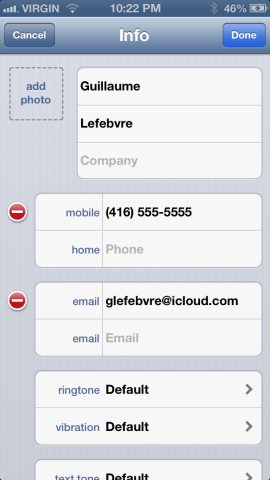
3. Scroll to the bottom of the screen and tap on “Add Field”.
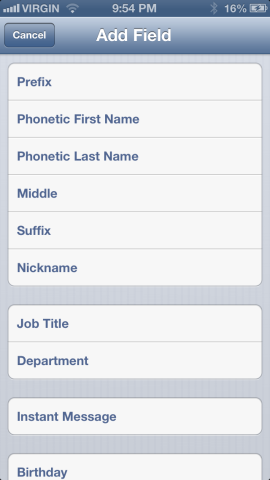
4. In the list of available fields, tap on “Phonetic Last Name”:

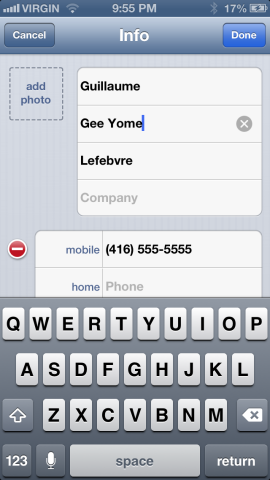
5. This will add the field to the Contact, and allow you to edit it. Enter the name of the person as it sounds phonetically. (i.e. how you would explain it to someone, if you were explaining the pronunciation in person.)
6. Repeat steps 2 through 5 for the “Phonetic First Name” field as well, if required.
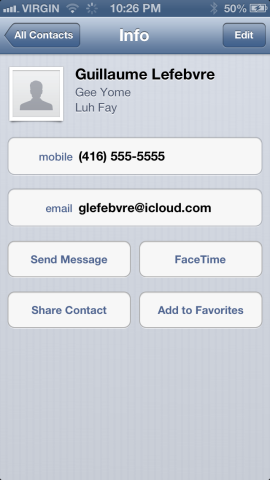
7. Tap “Done” to save the changes. The phonetic names will now display on the Contact:
That’s it! Siri should now be able to hear and pronounce the name correctly. Remember, when entering the phonetic names, use the combination of letters that makes the most sense and is simplest to understand. You’ll get better results that way!
Hope this tip helps those romantic conversations with Siri go a little smoother. 🙂
[via OS X Daily]



That’s awesome! Siri can’t pronounce my name. This is great!
Yah but take a look at how your contacts are sorted. Trey get sorted based on that phonetic last name instead of the real last name. For instance, I have some last names that start with ‘Aa’ and phonetically it is an ‘O’. I add the phonetic spelling and it now gets sorted under O instead of A. This has been a problem for over a year ever since Apple added this ‘feature’.
Mine sorted contacts with phonetics before contacts without phonetics. IOW – Zilda Smith (with a phonetic “Zelda”) appears before Ann Smith (with no phonetic name).
Thanks! this is great. this improves my relationship with siri
I’d rather NOT have the phonetic name right up there at the top. It looks silly so I removed all of mine.
Great tip!
Nice tip!
Best tip ever! Next, can we get Siri to stop pronouncing the Q.E.W. ‘Que’?
Signed, Mac Tahvish