
How to Use Mail on Your Mac [VIDEO]
Apple has shared a new tutorial detailing how you can use the Mail app on your Mac, including how to add an account, send an email, and more.
With the introduction of iOS 7’s revamped keyboard, Apple has removed the ‘.com’ button that was previously available by default on the iOS keyboard, allowing users to to type “.com” with a single key press when entering web addresses. Fortunately, there’s a simple way to type ‘.com’ with one-and-a-half key presses (via Kirkville).
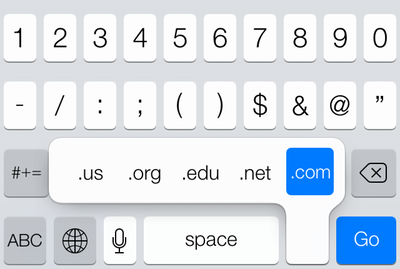
While Apple may never bring the dedicated ‘.com’ button back to iOS keyboard, here’s what you can do instead.
Step 1:
When you’re in a web browser, and want to type .com, just tap and hold the . button to the right of the space bar
Step 2:
You’ll see a popup menu which lets you choose from a number of top-level domains (shown above).
Step 3:
From here, you can quickly choose from .com, .net., .us, .org, and .edu domains.
That’s it. Enjoy!
Note that users in Canada or other regions outside the United States, will have some different options: for example, if you’re in the United Kingdom, you’ll see .co.uk; if you’re in France, you’ll see .fr; and so on.
Want to see more of our stories on Google?

P.S. Want to keep this site truly independent? Support us by buying us a beer, treating us to a coffee, or shopping through Amazon here. Links in this post are affiliate links, so we earn a tiny commission at no charge to you. Thanks for supporting independent Canadian media!


Once you’ve held down on the . buttom and the menu comes up, you can simply release your finger as .com is already the active selection. 😉
That’s always been a good tip (it’s not new to iOS7). However, if you specifically want “.com”, all you have to do is hold down the “.” button, because .com is automatically selected by default.