
Ming-Chi Kuo Refutes Claims of Massive Apple Chip Bottleneck
Supply chain analyst Ming-Chi Kuo has refuted claims that TSMC is sitting on $1 billion worth of unfinished Apple 2nm chips due to memory shortages.
If you like to like to listen to Beats 1 and Apple Music while falling asleep, we have great news for you as the folks over at iMore have shared a simple method on how to set up a sleep timer on your iPhone, iPad, or iPod touch while enjoying Apple’s new music streaming service. Turns out, all iOS devices comes with a sleep timer built right in. Here’s what you need to do to set it up correctly:
Step 1:
Select the music you want playing.
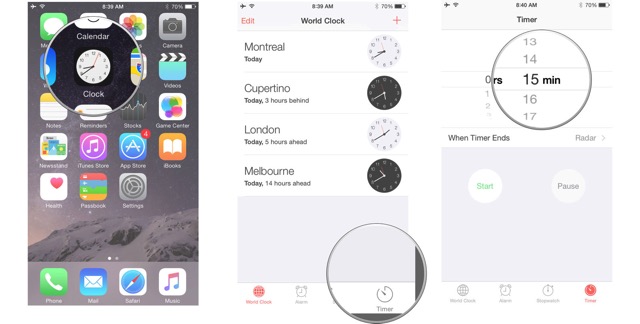
Step 2:
Launch the ‘Clock’ app from your Home screen.
Step 3:
Tap the ‘Timer’ tab and using the picker, set the amount of time you want let the music play.
Step 4:
Now tap ‘When Timer Ends’ and scroll all the way to the bottom of the screen.
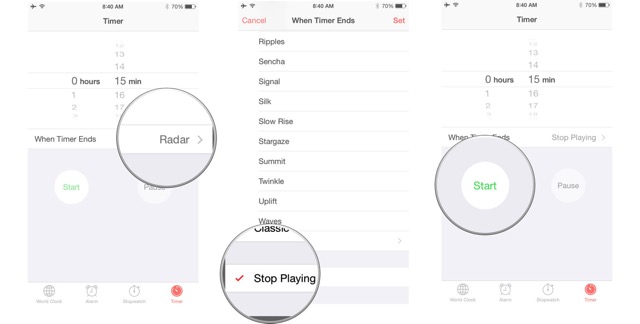
Step 5:
Select ‘Stop Playing’ and tap ‘Set’ at the top right.
Step 6:
Finally, tap ‘Start’ to begin the timer. Once the timer ends, your music playing on Apple Music or Beats 1 will stop as well.
That’s it. Enjoy!
Want to see more of our stories on Google?

P.S. Want to keep this site truly independent? Support us by buying us a beer, treating us to a coffee, or shopping through Amazon here. Links in this post are affiliate links, so we earn a tiny commission at no charge to you. Thanks for supporting independent Canadian media!


Just checked and it works with Spotify as well on iphone 4, iOS 7. This is the feature I wanted with the native Spotify app. Thanks for sharing!
cool thanks for sharing