
Rainbow Six Siege Operation Split Fire Adds New Operator Noor, Legend Division and Drone Racing
Operation Split Fire is a substantial update for Rainbow Six Siege, with a new Operator, Ranked changes, and an new competitive tier.
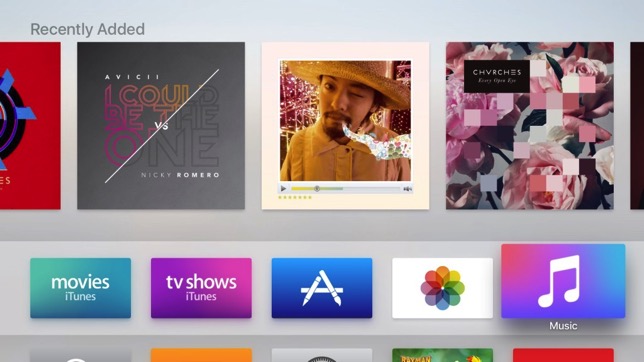
While taking a screenshot on an iOS device is a simple matter of pressing two buttons at once, it isn’t as straight forward on the new Apple TV that runs the all new tvOS. According to iDownloadBlog, it takes a USB-C Cable, a Mac, and Xcode to be able to take screenshots on tvOS. Here’s what you need to do:
Step 1:
First of all, connect your Apple TV to your Mac using a USB-C cable.
Step 2:
Now connect your Apple TV to power and HDMI, and hook it to your TV. If you don’t, screenshots will come out black.
Step 3:
Launch Xcode on your Mac and click Window > Devices in the menu bar.
Step 4:
Select your Apple TV, and click the Take Screenshot button. Screenshots will then be saved on your desktop in 1920×1080 resolution.
That’s it, enjoy!
Want to see more of our stories on Google?

P.S. Want to keep this site truly independent? Support us by buying us a beer, treating us to a coffee, or shopping through Amazon here. Links in this post are affiliate links, so we earn a tiny commission at no charge to you. Thanks for supporting independent Canadian media!


1. Take out iPhone
2. Take picture of TV
😛
Hahah so true
Where did you learn that trick? LOL