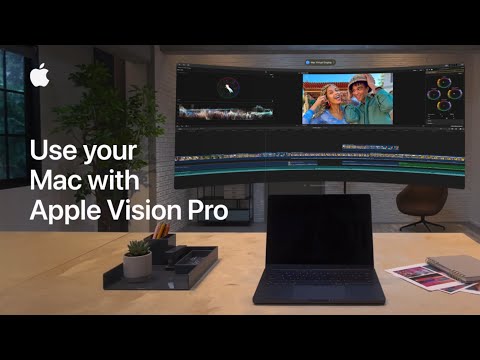
A new Apple support video on YouTube details how you can use Apple Vision Pro as a private, portable 5K display for your Mac with Mac Virtual Display.

To utilize the Mac Virtual Display feature, ensure that your Mac is running macOS 14.0 or later. Both your Mac and Apple Vision Pro should be signed into the same Apple ID with two-factor authentication enabled, have iCloud Keychain active, and be within 10 meters of each other with Bluetooth and Wi-Fi turned on.
Here’s how to connect your Mac to Apple Vision Pro.
For MacBook Users:
- Open your MacBook and ensure its display is active.
- While wearing the Apple Vision Pro, look directly at your MacBook’s screen.
- A “Connect” button will appear above the MacBook in your view; tap this button to initiate the connection.
For Desktop Mac Users (iMac, Mac mini, Mac Studio):
- Ensure your Mac is powered on.
- While wearing the Apple Vision Pro, access the Control Center by looking up and tapping the down arrow near the top of your view.
- Tap the Control Center toggle button to reveal more options.
- Select the “Mac Virtual Display” icon, which resembles a MacBook Pro next to an Apple Vision Pro.
- From the list of available devices, choose your Mac to establish the connection.
Once connected, your Mac’s display will appear as a window within the Apple Vision Pro environment. You can reposition this virtual display by pinching and dragging the window bar at the bottom.
You can use your Mac’s built-in keyboard and trackpad, or any connected Bluetooth peripherals, to operate your Mac within the Apple Vision Pro environment.
Check out Apple’s video below to learn more.