So you have your brand spankin’ new iPhone–but you’re looking to add some of your own videos! The screen on the iPhone is definitely one of the best out there, and the 480×320 3.5″ resolution display (at 163 ppi) is absolutely gorgeous.
I’m going to tell you guys the easiest way to convert your videos. This is the method that works for me, and is super easy. I know there a million other ways out there, but this method for me works perfectly, and the videos show up great on my iPhone.
How to Convert Videos for your iPhone
1. Download Videora, the free program needed to convert videos (such as .avi or .mpeg) to work on your iPhone.
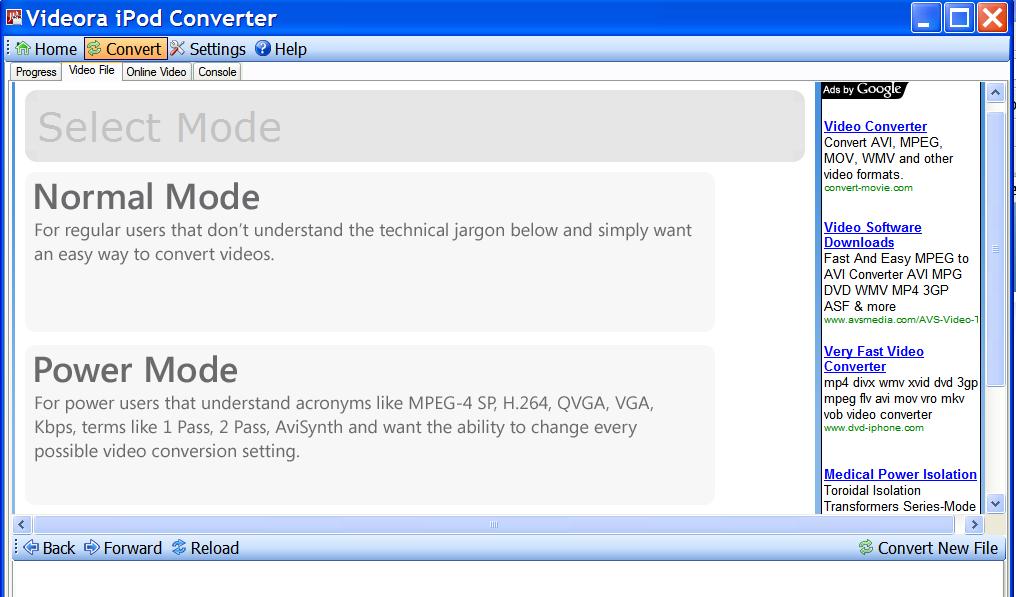
2. Install the program. Once you get to the main screen, click on “Convert” at the top, then click on the “Video File” tab. Then click on “Power Mode”…
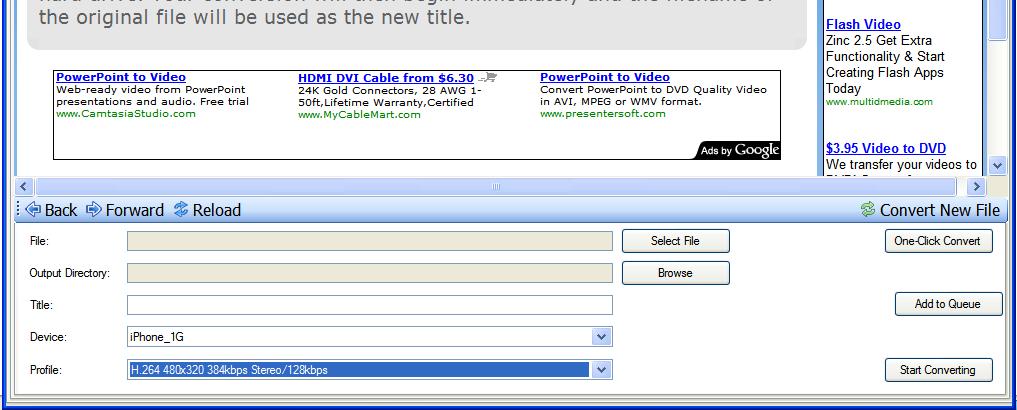
3. From here, click on “Select File” and locate the video you want to convert. Then click on “Browse” to choose where you want the file saved to (Desktop, for example).
4. Under the drop down menu for “Device”, select iPhone _1G; Under “Profile” the following settings will automatically be selected: “H.264 480×320 768kbps Stereo/128kbps”. Feel free to experiment to find the setting that works best for you.
5. Click on “Start Converting” and the rest will be history! Let me know if this method works for you! This program has helped me watch lots of videos on my iPhone. There’s nothing better than watching an episode of the Simpsons when you’re waiting for someone!
Today kicks off the 2024 NHL playoffs as 16 teams battle it out for the Stanley Cup, with playoff hockey marking the best time of the year for fans, especially since we have four Canadian teams in the postseason this year. How to watch and stream the 2024 NHL playoffs in Canada? You’ll be able...
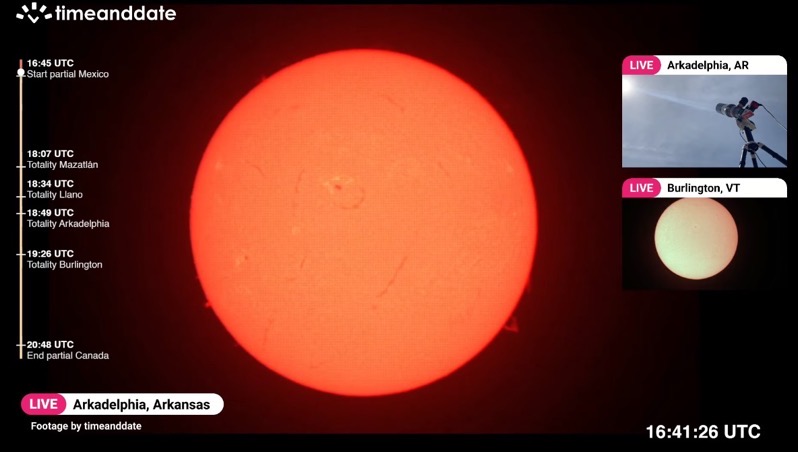
Today is the day where a once-in-a-lifetime event will take place with a total solar eclipse, where the moon will pass by in front of the sun and cast its shadow (umbra) on Earth. In order to see the total solar eclipse live, you’ll need to be in a location where the path of totality...
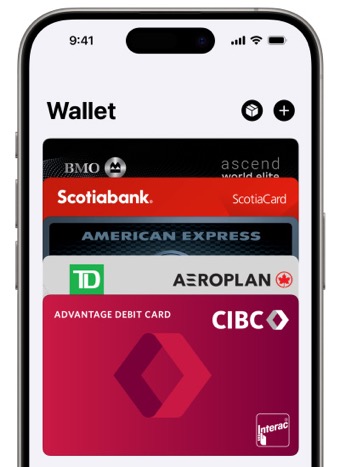
Last month, when we wrote about Ontario debuting its One Fare program, we noted that PRESTO Apple Wallet support was still missing in action on the TTC. But despite the lack of official PRESTO card support in Apple Wallet on the iPhone, it’s still possible to use the latter to tap to pay—without unlocking your...