
Microsoft Announces Copilot Refresh With Autonomous Agents, Built-In Office and App Creation
Microsoft's new Copilot refresh centers on three pillars, including Home, Code, and Autopilot.
Just when we think we know everything about the iOS, comes this Guest User mode or the ‘Guided Access’ mode that allows users to provide restricted access to an iOS device, hiding personal content such as photos, emails or messages, should any one need to lend it to another (via iMore). Apple has added the new feature in iOS 6 and is reportedly supported on iPhone, iPod touch as well as the iPad.
As the source notes:
“If you’ve ever wished your iPad — or iPhone or iPod touch — or be locked down into Safari web browsing only, or that you could let someone run a presentation or try a new game without snooping through your personal business, now you can”.
Wanna find out how to turn on Guided Access on your iOS 6 device? Follow these steps:
Step 1:
Go to Settings > General > Accessibility
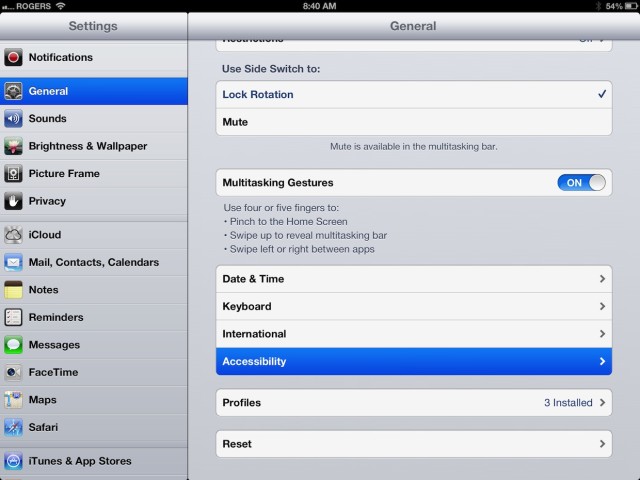
Step 2:
Scroll down to Guided Access and turn the toggle to ON.
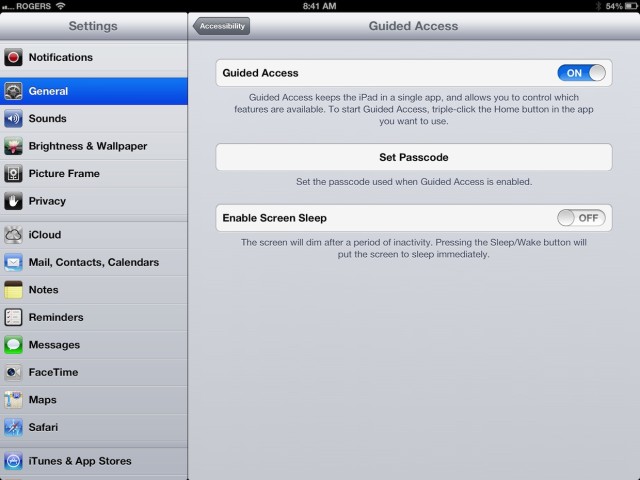
Step 3:
Now set an easy to remember Passcode.
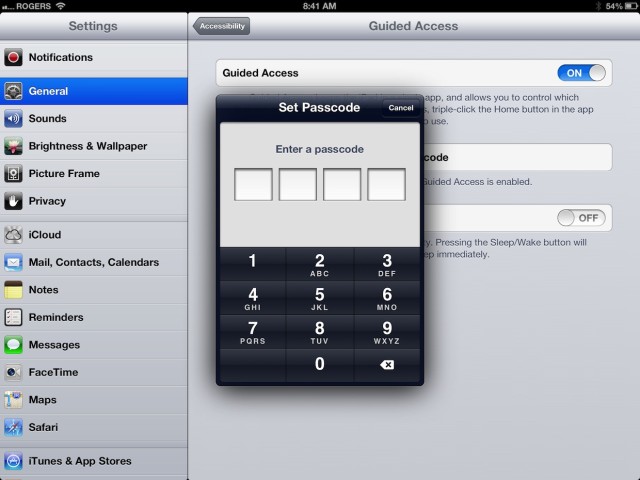
Step 4:
Now launch any app you want to provide limited or Guided Access to.
Step 5:
Triple-click the Home button and tap Guided Access on the popup menu.
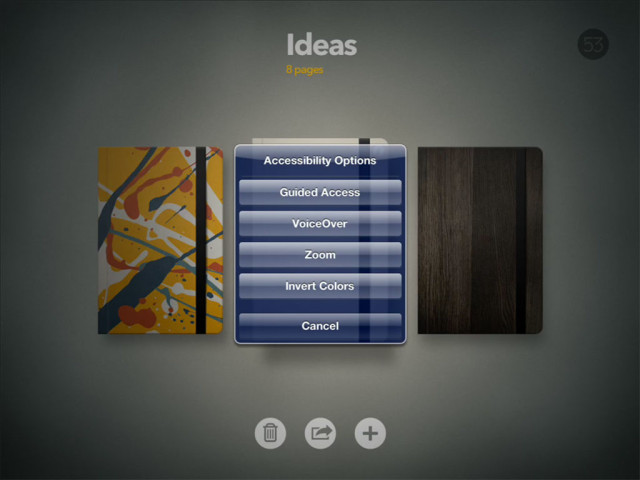
Step 6:
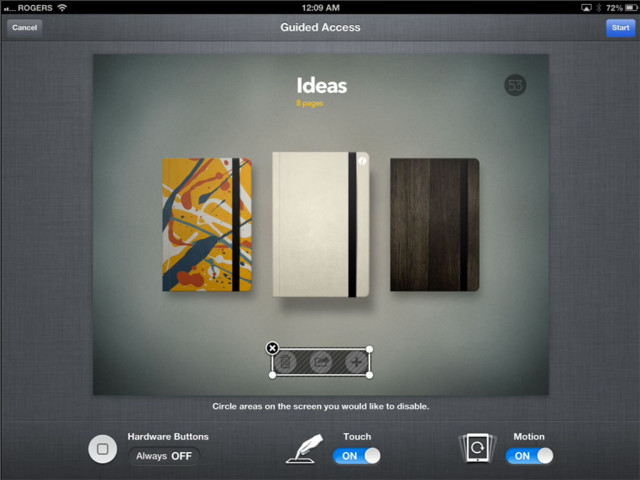
Configure any specific options you might like and then tap Start at the top right corner. The Home button will automatically be disabled so no one will be able to press it to exit the app. You can also use your finger to trace a circle around any additional controls you want to disable.
Step 7:
To exit the Guided Access more, triple-click the Home button and enter your Passcode. Then tap the End button at the top left.
That’s it!
Let us know how you plan on using this great new iOS feature.
Want to see more of our stories on Google?

P.S. Want to keep this site truly independent? Support us by buying us a beer, treating us to a coffee, or shopping through Amazon here. Links in this post are affiliate links, so we earn a tiny commission at no charge to you. Thanks for supporting independent Canadian media!


my mom wont like this
so thanks
“Triple-click the Home button”
This is getting silly. The phone is supposed to be easy to use because there’s only one button, but that breaks down when they make it do so many things.
quit whining.. you don’t have to use the ‘feature’
Cool, I’d use it when passing my phone to a coworker to show them a game (ie someone you don’t want snooping your photos or whatnot!)
Also, just tried it out, very easy to use and set up! @95525fc2bd13198f24d2fa8999fca46d:disqus Triple Clicking is not an issue btw, it works seamlessly.
Thanks. If the detection works well then triple-click is not too much of an issue. It’s not exactly discoverable, but it’s an expert-level user feature anyway.
If we haven’t set a pass code for the Guided Access how do we by pass this program?