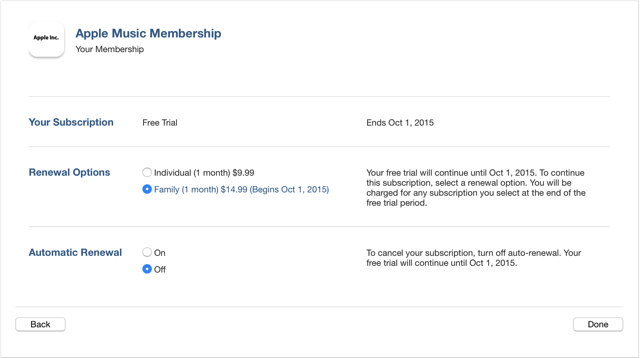
Following the official worldwide launch of Apple Music today, Apple has published a new support article explaining how to turn off automatic renewal of its new music streaming service, change from an Individual membership to a Family membership, or join Apple Music at a later time.
How to Turn off Automatic Renewal to Cancel your Membership:
If you want to cancel your Apple Music membership or turn off Automatic Renewal, follow these steps:
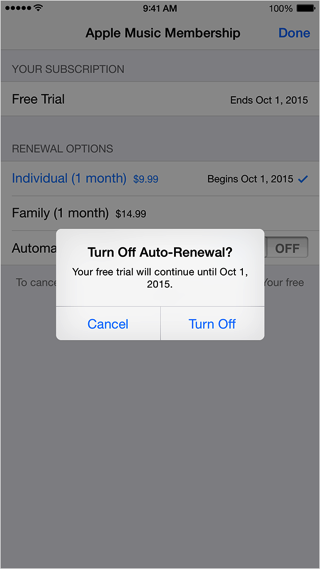
On your iPhone, iPad, or iPod touch:
- In the Music app, tap your profile icon in the upper-left corner.
- Tap View Apple ID.
- Under Subscriptions, tap Manage. If you have more than one subscription, tap Your Membership (Apple Music Membership) to see your membership options.
- Under Renewal Options, turn off Automatic Renewal. Confirm your selection, then tap Done.
- Tap Done to return to your Account screen, and then tap Done to return to the app.

On your Mac or PC:
- Open iTunes.
- Click Sign In and enter your Apple ID.
- Click your name, and select Account Info from the menu.
- Enter your password again.
- On the Account Information screen, scroll to the Settings section.
- To the right of Subscriptions, click Manage. If you have more than one subscription, then click Edit to the right of Your Membership (Apple Music Membership).
- To the right of Automatic Renewal, select Off. When asked to confirm, click Turn Off.
- Click Done to return to Account Information, and then click Done to return to the iTunes Store.
To know more about how to join Apple Music at a later date or switch from Individual membership to a Family membership, hit up this link.