
Code Reveals Apple is Bringing Siri AI to HomePod
Leaked Apple code confirms Siri AI is heading to HomePod, but older hardware might force users to buy new models to try it.
Previously, in order to take take Apple TV screenshots, users needed to connect the set top box to a Mac using wires and then use Xcode to capture what’s on their TV screen. But now, things have become a lot simpler and you can do it all wirelessly as well. As detailed by Kirk McElhearn, the process allows you to leave your Apple TV in the living room, and take screenshots from any Mac on the same network.
Here’s what you need to do:
Step 1:
Make sure your Apple TV is awake, and your TV is on.
Step 2:
Also ensure that your Mac is connected to the same network as your Apple TV.
Step 3:
Now launch Xcode on your Mac and go to Window > Devices & Simulators.
Step 4:
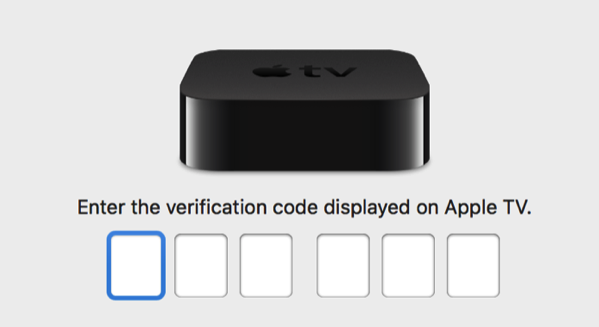
Click your Apple TV in the Discovered sidebar, and click Pair with your Apple TV. You’ll see a screen asking you to enter the six-digit code displayed on your TV, note it down and enter it.
Step 5:
Once done, you will see the ‘Take Screenshot’ option for your connected Apple TV on Xcode (see below).
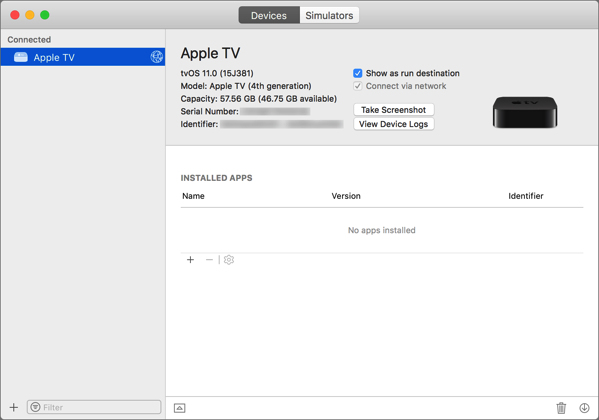
That’s it, you can capture all the screenshots you want, which will be saved on your Mac’s desktop.
Want to see more of our stories on Google?

P.S. Want to keep this site truly independent? Support us by buying us a beer, treating us to a coffee, or shopping through Amazon here. Links in this post are affiliate links, so we earn a tiny commission at no charge to you. Thanks for supporting independent Canadian media!


If you’re in a pinch, you can do it without Xcode. Just open QuickTime and Create a new Movie, setting your AppleTV as the source. Expand the window to fill your entire computer screen and then press command-shift-3 on the keyboard. You’ll end up with a screenshot on your desktop.