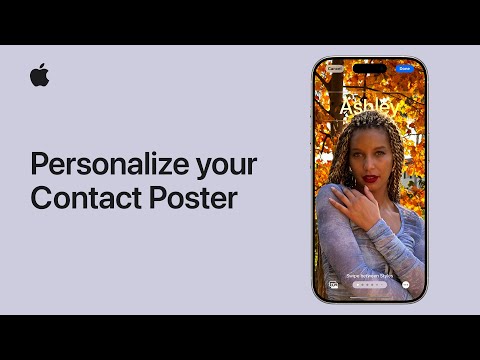
Another handy new Apple support video explains how you can update your contact photo, then design and personalize a Contact Poster that will appear on your friends’ devices when you call them.

iPhone uses your Apple Account to create your contact card, called My Card, in the Contacts app. You can also add or edit details—including your name, address, phone number, and birthday, as well as the Contact Poster, which you can share with people when you call or send a message to them.
To set a photo and poster to automatically appear when you call or send a message to others:
- Go to the Contacts app on your iPhone.
- Tap My Card at the top, then tap Contact Photo & Poster.
- Optionally, tap Name, enter your first and last name as you want it to appear to others, then tap Edit to pick a poster or create a new one.
You can also choose to share automatically with Contacts Only, or select Always Ask to be prompted before your name, photo, and poster are shared with anyone you’re communicating with.
Watch the video below to learn more.