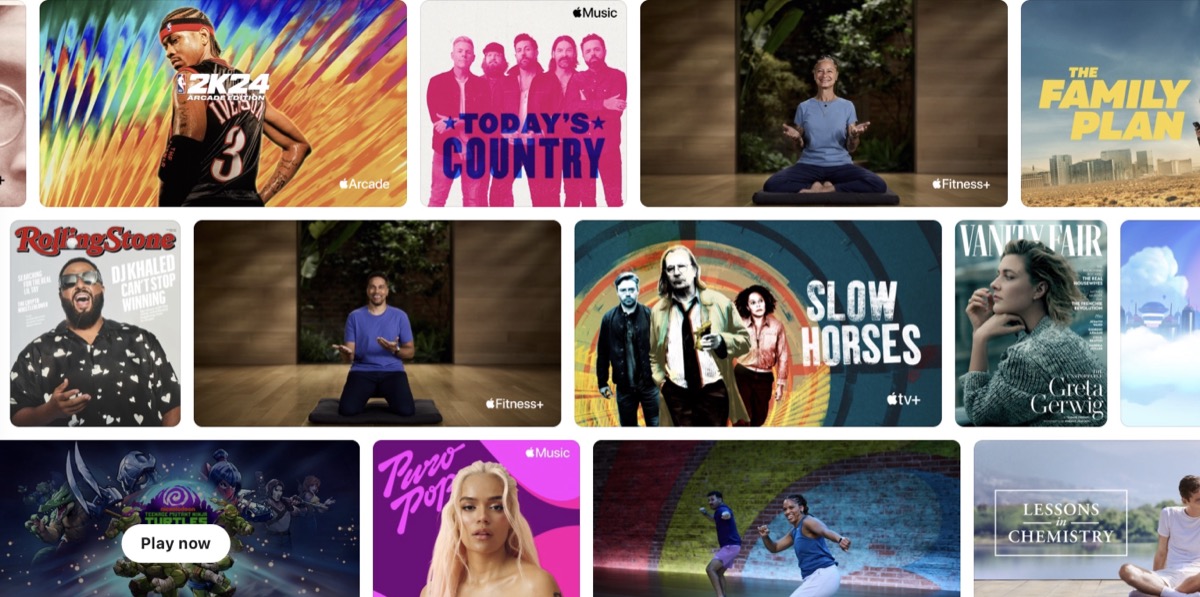
Apple Offers 3 Months of Apple One Free to New Device Buyers
Apple is offering three free months of Apple One with the purchase of a new iPhone, iPad or Mac in Canada, for new and qualified returning subscribers.
Apple has shared a new video tutorial, detailing how you can customize Home View on your Apple Vision Pro by rearranging your apps and adding them to folders in visionOS 26.

Your apps appear in a grid in Home View. You can create folders to organize your apps. Home View also includes the More Apps folder, which has apps designed for iPhone and iPad that you can use with Apple Vision Pro.
To create an app folder:
To rearrange apps and folders in Home View:
Watch the following video to learn more.

Want to see more of our stories on Google?

P.S. Want to keep this site truly independent? Support us by buying us a beer, treating us to a coffee, or shopping through Amazon here. Links in this post are affiliate links, so we earn a tiny commission at no charge to you. Thanks for supporting independent Canadian media!

