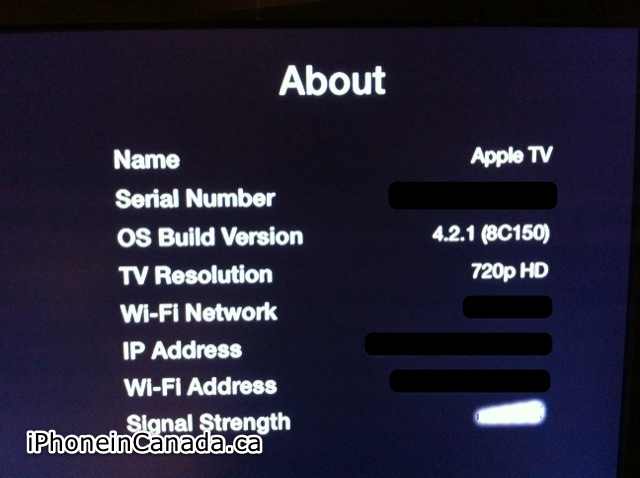
Update: Looks like Apple TV does in fact have iOS 4.2.1. If you click the select button a few times on your Apple TV remote, it’ll show in the About screen. 4.1 is the firmware version, but 4.2.1 is the iOS version. Man, talk about confusing. Thanks to Andrez1 for the tip!
With the release of iOS 4.2 for the iPhone, iPad, and iPod touch, Apple TV also got an update to 4.1 firmware. This latest firmware has the following new features:
AirPlay: With the new AirPlay feature, Videos, Photos, and Music can be streamed to Apple TV from iPhone, iPad, and iPod touch with iOS 4.2 or later. AirPlay also enables video and music to be streamed to Apple TV from a Mac or PC running iTunes 10.1 or later.
VoiceOver: The VoiceOver accessibility feature brings screen reading to Apple TV, making it easier to use for those who are blind or have impaired vision. You will hear a description of the menu item currently being highlighted by the cursor, other onscreen text, and feedback on video and audio controls. VoiceOver speaks all 18 languages available on Apple TV.
Connectivity and performance fixes: Apple TV Software update 4.1 includes performance and connectivity fixes for Apple TV.
Here are instructions on how to update your 2nd generation Apple TV to 4.1 firmware (via Apple):
To update your Apple TV to the current software version:
Select Settings > General using your Apple Remote.
Click Update Software. At this time your Apple TV checks to see if an update is available and a download message should appear if an update is available.
Click Download and Install to start the download process (or Download Now on an Apple TV 1st generation with Apple TVÂ software 1.x). Important:Â Do not disconnect your Apple TV during the update process. An Apple TV (1st generation) may flash an amber light; this is expected behavior.
On an Apple TVÂ (1st generation) with software version 1.x:Â When the update has finished downloading, an Update Now message should appear. To start the update process, click Update Now.
During the update process, your Apple TV may restart, then display one or two Apple logos and status bars, depending on which Apple TV you have. On Apple TV (1st generation), after the final restart your Apple TV will play the opening video and return to the main menu.
I just updated my Apple TV to 4.1 and it took just under 10 minutes. It did exhibit a couple restarts and status bars as mentioned above. I will have a video coming to show the entire process shortly.
Update: Here’s the video of the update from start to end:
How did you update go? Next up, AirPlay!
Want to see more of our stories on Google?
P.S. Want to keep this site truly independent? Support us by buying us a beer, treating us to a coffee, or shopping through Amazon here. Links in this post are affiliate links, so we earn a tiny commission at no charge to you. Thanks for supporting independent Canadian media!
Subscribe
5 Comments
Oldest
NewestMost Voted
Anonymous
15 years ago
The latest Apple TV firmware is actually 4.2.1 – same as the other IOS devices.
The Ontario Teachers' Pension Plan (OTPP) is sitting on what could be a huge payday from an early bet it made on Elon Musk's SpaceX, which is gearing up for a blockbuster IPO next week. According to a report by The Globe and Mail, the Toronto-based pension fund could see its original investment balloon into...
The Google Health app has received an update on iOS that addresses some bugs with the initial release. This new app from Google released just in time for the new Fitbit Air, replaced the former Fitbit app. The design is a bit of hit and miss, as there’s so much data but it’s all over...
Chinese electric vehicle giant BYD is gearing up for a real push into Canada, and it's leaving some pretty clear breadcrumbs in the form of new job listings out of Toronto. The automaker has posted at least 10 senior corporate roles based in Toronto, a strong sign it's actively building out a local leadership team...



The latest Apple TV firmware is actually 4.2.1 – same as the other IOS devices.
Actually, it’s 4.1. That’s what it says on the Apple TV firmware screen after the update.
Hit your select button a couple of times on the about screen. You’ll see it is OS version 4.2.1
The 4.1 is the software version of the interface.
Damn, nice find. You’re right, it does show iOS 4.2.1. Apple has confused everyone. hehe 😛