
How to Recover and Restore an Apple Watch
Learn how to recover and restore your Apple Watch with an iPhone or iPad, based on Apple's official Support video.
Hey, everyone! It’s been a while since I’ve done a theme tutorial, so I thought I’d show you a quick an easy one today. If you’ve upgraded your device to iOS 4, you’re probably enjoying the new multitasking and folder features. iOS4 uses the same background for both, and is easily changed, if you have your device jailbroken, with Winterboard installed.
Here’s the tools you need to accomplish this: Your device must be running iOS 4, or newer. Your device must be jailbroken. You must have access to your root folders, to install the new background (via SSH or USB). You must have Winterboard installed. You must have some kind of image editing software on you computer (I’ll be using Photoshop).
First thing you need to do pick or create an image. It can be just about anything you can imagine. I’m making an iPhone in Canada one, for my iPhone 4. Once you have your image you have to get it to the right size and format. For iPhone 4, the image should be 640 x 960, and for older devices it should be 320 x 480. You’ll want to save in PNG format. Just save it to your desktop, for now.

Next we need to package it up, for use with Winterboard. On you desktop, create a new folder and name it what ever your new background is called. Mine will be “iPiC FolderSwitcher Background“. In that folder create another, and call it “Bundles“. Then in that folder, create another, and call it “com.apple.springboard“.
Now, you need to rename your image, so Winterboard recognizes it. For iPhone 4, name your image “FolderSwitcherBG@2x.png“. For older devices name it “FolderSwitcherBG.png“. Place that image in the “com.apple.springboard” folder. The folder hierarchy should look something like this:

Your theme is now complete. You just have to install it on your device and enable it in Winterboard. Access your root folders on your iDevice, and navigate to Library/Themes, and transfer your theme here. There are many tutorials around the net on how to do this, so just use Google. The most common method, is to install OpenSSH on your device, and use an FTP client on your computer to transfer the files. I like to use the USB method, with DiskAid.
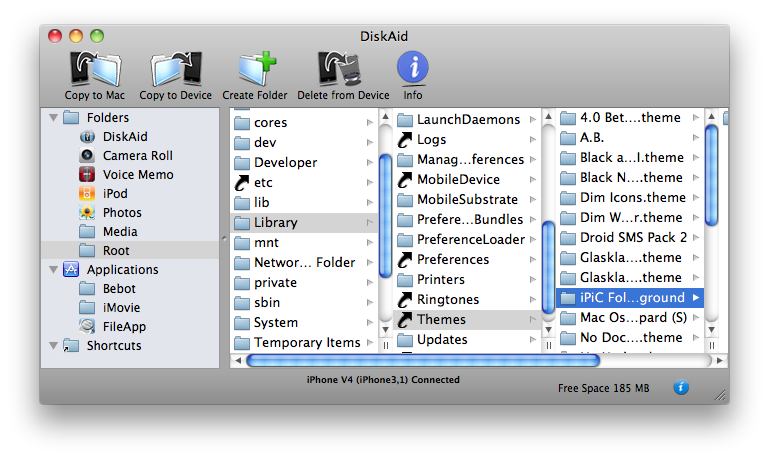
Once your theme is installed, simply enable in Winterboard, and respring. Hope this was easy to follow. If you have any questions, feel free to comment below, and I’ll do my best to help out.
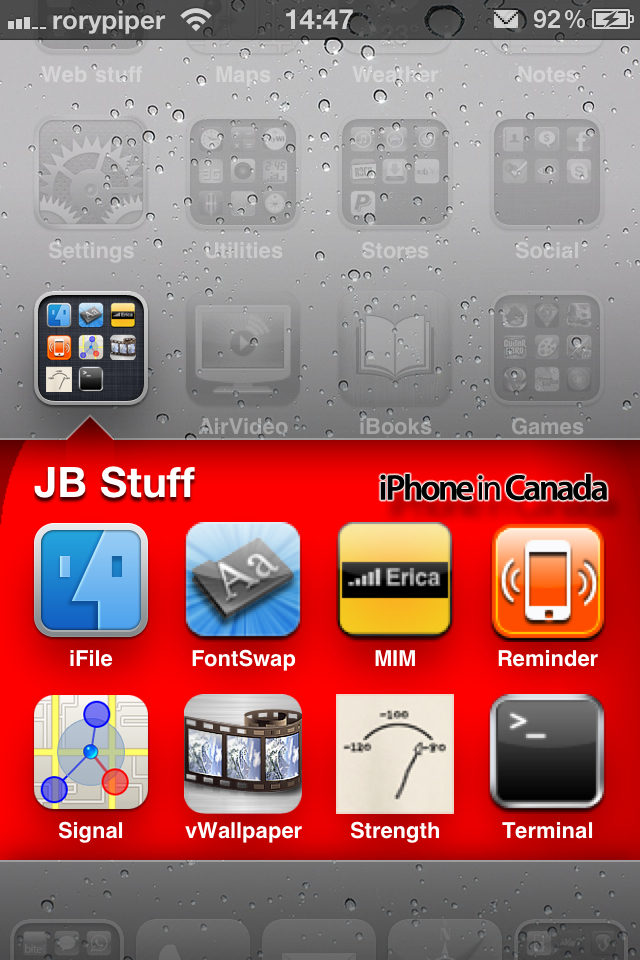

Check out more jailbreak news and how to’s at www.iEvolution.ca. You can also follow me on Twitter: @rorypiper. rorypiper

written by Mike McKinnon
Want to see more of our stories on Google?

P.S. Want to keep this site truly independent? Support us by buying us a beer, treating us to a coffee, or shopping through Amazon here. Links in this post are affiliate links, so we earn a tiny commission at no charge to you. Thanks for supporting independent Canadian media!


Very cool tutorial! How do you get the mail icon in your status bar?
Awesome. I might just take that background. And do you know how to get terminal working for iOS4.
Nice tutorial. Do you suppose there is a way to change the folder background within the folder icon as well? It seems that it’s the same default theme but just a smaller image.
Sweet tutorial! That actually looks pretty awesome. Never even thought about changing that background!
This looks great, I’ll have to get an Oilers one going ASAP
Rory u are one fugly SOB lol
Thanks for the cool tutorial
Is there anyway you can leave it clear so you see the home screen background instead. I did that for the folders and it looks great!
Let’s see your mug shot, Bieber!
Yes, but it’s just changing the entire icon. For iPhone 4 it is “FolderIconBG@2x.png” at 118 x 124, and for older devices it is “FolderIconBG.png” at 59 x 62. Put it in the same folder as the background.
Terminal for iOS 4 isn’t really released yet, but if you follow Saurik on Twitter, he has a link to try out the beta.
“Notifier” is what gives you status bar alert icons. It’s free in Cydia. You may need to install “IntelliStatusBarIcons” (from Rock) as well, to get it to work. I had some trouble when iOS4 first came out. Don’t know if that is fixed.
Does anyone have a link to the original folder background? I’d like to use it as my home screen background.
Thanks!
This is indeed a very good tutorial that provides a very good insight into the use of the folder to our requirements and setting the backgrounds of our choice. I think that this would be a very good thing to have and on top of that would help to make the phone look even more oriented to the way we like it to be.
Hi,
I have tried to follow your tutorial but am not having much luck.
I have an iPhone 3Gs OS 4.1, it is Jailbroken and I have Winterboard installed and use iPhone browser.
I installed a theme via Winterboard but unfortunately the folder backgrounds & the switcher background did not change.
I found the FolderIconBG & FolderSwitcherBG by using iPhone browser, copied them to my PC and then editied them as I wanted. Then I dragged them back into same folder that they came from to overwrite.
When I checked my iPhone, the FolderIconBG had changed to my new style but the switcher background was still the standard Linen style.
I then followed your tutorial, making my own theme, installed it via Winterboard and hit respring but it is still showing up as the default Linen style.
Any ideas..,
Regards..,
I installed the theme and it shows up in Winterboard but everytime i respring it doesnt change anything, any ideas or comments?
i have an iPhone 3GS and i did exactly as you described… even watched you videos. still will not change from the original background. i’m on 4.3.3 firmware. any advice
i selected theme in winterboard. i respringed but not working
Un tuto clair, dans un language comprehensible et surtout qui marche du premier coup… Vraiment pas deçu!! Merci!!!