This is probably a tip most of you know about, but for me it was something I had completely forgotten about until I realized free space on my Mac’s hard drive was running low.
Now that most of us rely on iCloud for backup of our iOS devices, older backups within iTunes are no longer needed. As I checked the backups still in iTunes, I had some dating back to 2009 for multiple devices. After deleting them, I had freed up 170GB of hard drive space (yes, 170GB).
How to delete iTunes backups?
1. Launch iTunes on your Mac/PC and open up Preferences:
Mac: iTunes –> Preferences
Windows: Edit –> Preferences
2. Click the ‘Devices’ tab (your device does not need to be connected). Select the backups in the list and click ‘Delete Backup’. Maybe leave the most recent one in case of an emergency, if you’re paranoid.
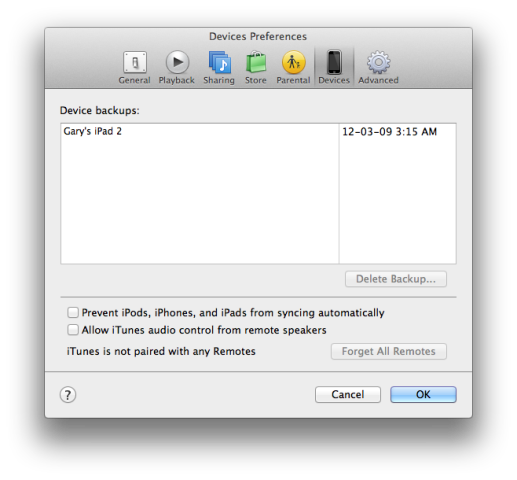
If you don’t use iTunes on your computer to backup your iOS devices, then this will free up a tonne of space. Let me know how much space you were able to recover!



Where are the backups physically located?
For Windows users, it’s:
C:Users[USER NAME]AppDataRoamingApple ComputerMobileSyncBackup
anyone getting the spinning wheel when trying to delete backups?
What really sucks about iTunes is that you cannot change the backup folder location. I have an SSD as a boot drive, and 2TB storage drive. Would be great to have the ability to change the backup folder to my 2TB drive with out hacks.
Actually you can change the folder location. I have the same setup as you, and I have my iOS backups stored to my regular drive. Doesn’t it give you the option to select a location in preferences? I can’t remember how I did it but I’ll find out.
By the way, after doing the backups and analyzing the folder/file sizes, it looks like the iTunes Media Folder (the one you can change the folder) is the largest – it contains all of the apps, books, music, etc.
The actual backup files (which you can’t change the folder) is very small in comparison – and looks like it just contains iPhone data, ie: contacts info., app documents, save game data, etc.
So if you really want to save space, definitely change the path of the iTunes Media Folder in Preferences.
This is a good idea. I bet between the two iPhones and two iPads backed up to iMac I must have a lot of wasted space on back ups.
I was excited when I read this post, but I only had 1 backup listed for my iPhone. Would you see dozens of backup if it had kept them all?
good call! 15GB… had to restart tho for it to update my hard drive
Thank you. I picked up 80G on mine and the wife 75G on hers. Much appreciated.
Great tip! 30 GB in one easy step!
21 GB! Wow! Thanks, I never heard of this before!