iMessage (and FaceTime) is currently suffering from another outage, as most of you probably have noticed by now. If iMessage is down, your message should be sent through as a text message. However, you’ll probably get hit with a ‘did not send’ error then have to resend it manually as a text message.
But what about force sending a text message right away instead of an iMessage? Here’s a neat tip on how to do it in iOS 5/6+ (via OSX Daily):
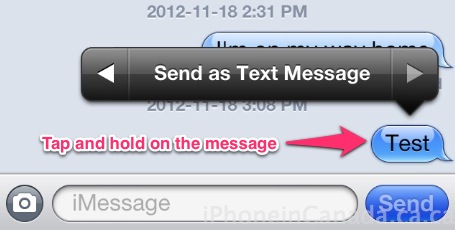
- Send an iMessage, but as it’s sending, tap and hold on the message itself.
- You should see an option to ‘Send as Text Message’ (if iOS text to speech is enabled, tap the right arrow to reveal it). Tap it.
- Voila!
Text messages get sent through any cellular connection quite consistently, so when iMessage is down this is a great tip to force send text messages. Let us know how this tip works for you!



Just so you know, that can be done on ios 5 also. I have an iPhone 4 on 5.1.1 and have been doing that for a while now when i experience imessage problems
He says it can be done in iOS 5 in the article.
There is another way (I use iOS 5.1.1). Just hold the Send button and it will toggle between green (text) and blue (iMessage)
I just tried this, but it doesn’t seem to work for me.
Thanks for posting this, this worked immediately! Only thing it just went through, it didn’t give me options or anything for iMessage or text.
Or just turn off data.
You mean close out of Messages, find and open the Settings app, navigate to a submenu, change a switch, then switch back to Messages, send the message, wait for it to send, then switch back to Settings and turn data back on? Yeah, that sounds easier.
It may not be easier, but it gets the job done, right?
Handy. I didn’t know you could do this.
I just go to settings and turn imessage off. That’s the simplest way for me.
Alas, you need quick reflexes sometimes, as your iPhone sometimes “thinks” it has sent the message successfully via iMessage – and then you don’t get the “send as text message” option when you click on it… Holding down the “Send” button no longer gives the option to send as text… not sure why… Wish you could have that option!!
1. Turn off Mobile Data/Wi-Fi
2. Send message (it will not deliver as data is off)
3. Hold the undelivered message
4. You will get an option “Send as Text Message”, touch it
———Thank You———-