iOS 10 was released yesterday and it introduces a new way to unlock your iPhone, by asking you to “Press home to unlock”, which requires pressing the Home button. This replaces the decade-old “Slide to unlock” and change can be difficult for some.
The lockscreen in iOS 10 now has widgets if you slide to the right—but having Touch ID work via the ‘old’ way would unlock your iPhone to the home screen. So “Press home to unlock” solves this, especially for iPhone 6s and iPhone 6s Plus users with second-gen Touch ID, which is super sensitive (it’s so fast, checking the time can be difficult).
If you want to revert back to the old ‘Slide to unlock’ method for you Home button, here’s how to disable ‘Press home to unlock’ and go back to the old ways.
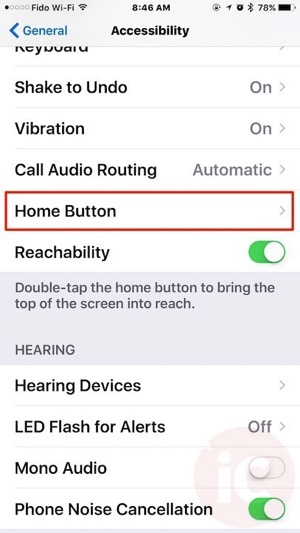
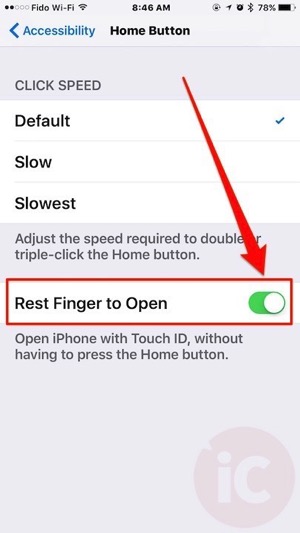
Just go to: Settings > General > Accessibility > Home Button and turn on Rest Finger to Open

You will now be able to unlock your iPhone or iPad using Touch ID without pressing the Home button. It may be hard to find this setting since it’s in Accessibility, and not Touch ID & Passcode.
What method do you like better for iOS 10? ‘Press to unlock’ or ‘Slide to unlock’?



Thank you so much for this, it was driving me a teeny bit batty. Now I’m happy :).
I went through all the settings last night and discovered this little gem. Made me very happy.
I’m actually glad for the new feature of “press home to unlock”. TouchID 2 is super fast on my 6S. I can’t count how many times i had the situation where just pulling my 6S out of my pocket would unlock the phone and then all the notifications would disappear from the screen. I would then have to open the today view/notifications centre to see them which was an extra step. So in my opinion, the “press home to unlock” is an improvement. But I can see how for some it would be an annoyance as well. Bravo to Apple for trying to improve the situation for some but also providing us choice.
Agree. Kept the feature on with the 6s Plus, Touch ID is just too fast!
how about those with an iPad Air with no touch ID? Had to press the home button each time I open the cover to unlock, it is annoying…
Same! My iPad Air does not have the option shown above…. now I am afraid to turn it of; pressing the “home” button just keeps bringing up Siri….
Ah, nice. Thanks for posting this. If I had one of the newer, faster TouchID sensors I’d probably like this new functionality, but I’m glad I can revert back to the old way for my iPhone 6.
Interestingly, even if you toggle that switch, the lock screen will still show “press home to unlock”. It seems it’s hard-coded in the lock screen.
Even with my iPhone 6 I am Actually getting used to this new way of unlocking my phone. Makes sense and the more you use it, the more you get used to it. Personally I won’t be going back to slide to unlock.
This should have been the default on the iPhone 6. Makes no sense to add the extra step on this phone. Thanks for the tip!
I still prefer slide to unlock, this new way i still have some getting used to.
slide to unlock plss
ThE new feature is actually more user friendly but you can’t teach a dog new tricks they say for some. This post is helpful for novices.
By the way if you are interested but yet to purchase the complete training book resource on Cellphone Repairs “Mobile Phones and Tablets Repairs : A Complete Guide for Beginners and Professionals ” , I would advise you check it out on Amazon marketplaces. Barnes and Noble , eBay etc.