If you’re a user of Google’s Chrome web browser and you’re dealing with images not loading properly on web pages, there’s one way to fix it and that’s by disabling Hardware Acceleration in settings.
We haven’t changed any Chrome settings but this bug popped up in recent weeks, as websites such as Twitter on the web weren’t loading properly.
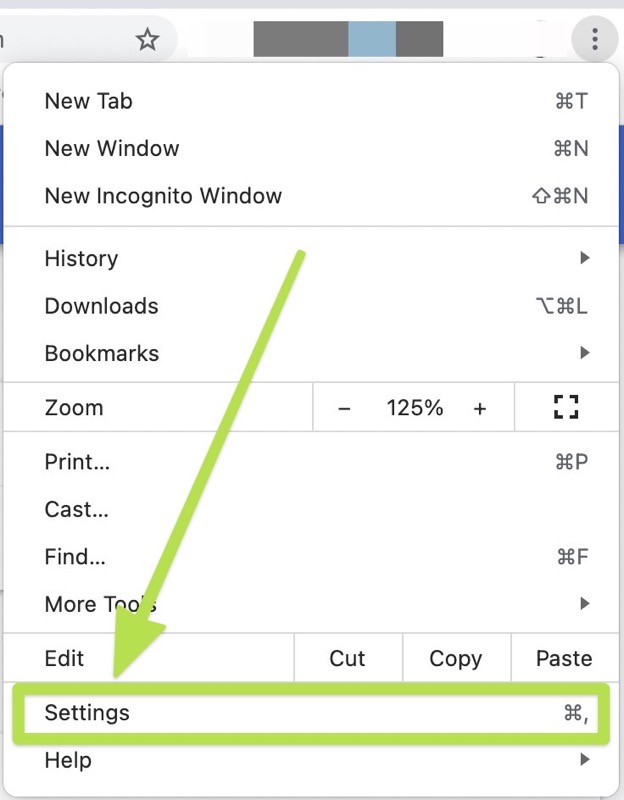
Here’s a quick tutorial on how to fix images not loading in Chrome. First, click on the three ‘dots’ in the top right corner of Chrome, then click on Settings:

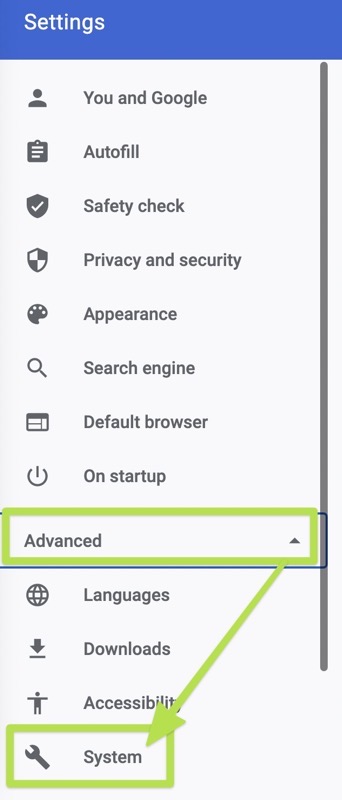
From here, click on Advanced to expand the menu, then click System:

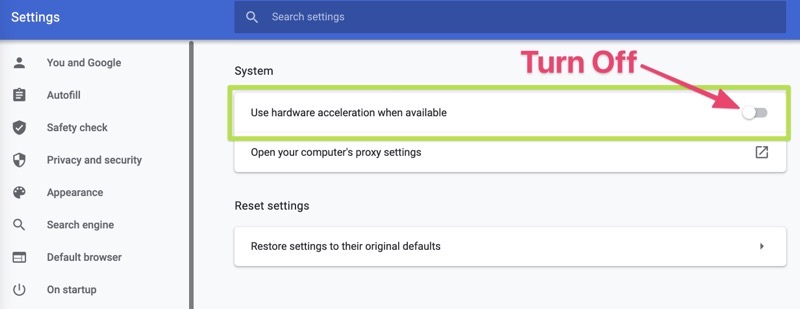
From here, disable the toggle under ‘Use hardware acceleration when available’:

Chrome will ask you to restart after you save the changes. And once that done, images on websites should start loading properly again.