
SpaceX Revives Starlink Mini Hardware Bonus for Top-Tier Subscribers
SpaceX has brought back the popular free Starlink Mini rental perk and 50% Roam discount for Residential Max subscribers in the US and Canada.
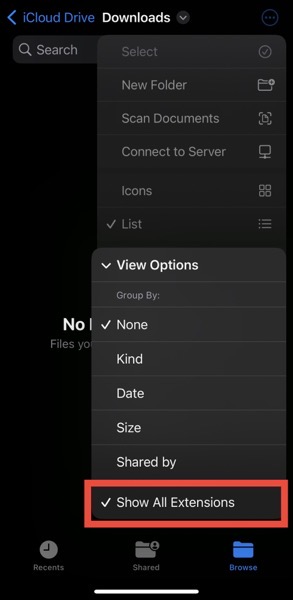
With iOS 16, Apple has updated the native Files app to let users view and change file extensions, making the app work more like an actual file manager.
[via Reddit]
By default, file types such as .mp4, .jpg, .png, and .pdf etc. are hidden in the Files app on iOS 16. So if you change the file name using the Files app, you cannot change the file’s extension.
Simply follow these steps to view and change all file extensions in the iOS 16 Files app:
Now you can press and hold the file for a few seconds and click on Rename option to select and change the file extension.
Keep in mind that when you change file extensions in this manner, some file containers have more information like location, tags, or notes, which may not appear in a new file type.
To stop seeing file extensions, tap the three dots inside a folder, go to View Options and uncheck Show All Extensions.
Want to see more of our stories on Google?

P.S. Want to keep this site truly independent? Support us by buying us a beer, treating us to a coffee, or shopping through Amazon here. Links in this post are affiliate links, so we earn a tiny commission at no charge to you. Thanks for supporting independent Canadian media!

