
PlayStation Plus October 2026 Games Include ‘F1 25,’ ‘Hunt: Showdown 1896’
F1 25, Hunt: Showdown 1896 and Earth Defense Force: World Brothers 2 become available to PlayStation Plus members.
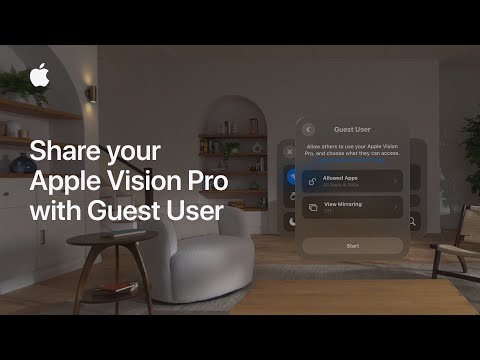
Apple has shared a new video on its YouTube support channel, explaining how you can turn on the “Guest User” mode when someone else wants to experience your Apple Vision Pro.

Because Apple Vision Pro Light Seal and head bands are fitted for you, your guest might not experience an optimal fit if they share these components. You can help your guest find a better fit by letting them try both the Solo Knit and Dual Loop Bands.
Before you start a Guest User session, it’s a good idea to decide whether you want your guest to have access to all apps and data on your Apple Vision Pro, or limit access to only the apps that are open.
To start a Guest User session:
Watch the following video for a better idea on how to start a Guest User session on your Apple Vision Pro.
Want to see more of our stories on Google?

P.S. Want to keep this site truly independent? Support us by buying us a beer, treating us to a coffee, or shopping through Amazon here. Links in this post are affiliate links, so we earn a tiny commission at no charge to you. Thanks for supporting independent Canadian media!

