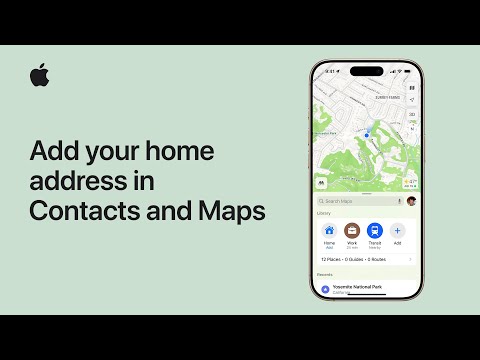
Apple has shared a new video on its YouTube support channel, detailing how you can add and edit your home address in the Contacts app and in the Maps app on your iPhone or iPad.

In iOS 18, you can set different home or work addresses in Contacts and Maps to customize your experience — like how Weather uses the addresses that you set in Contacts to share the weather that’s most relevant to you.
Here’s how to set and edit your home or work address in Contacts on iOS and iPadOS:
- In the Contacts app, tap My Card. If you haven’t set up My Card before, tap the + button and enter your information. Return to your contacts list, touch and hold your name, then tap Make This My Card.
- Tap Edit.
- Tap Add Address then type in your information.
- Tap the label next to your address and choose an option like home, work, school, or other.
- Tap Done.
To set your home or work address in Maps on iOS and iPadOS:
- In the Maps app, scroll to Library and tap Add.
- Begin to type the address that you want to set as home or work, then tap the address when it’s available.
- Scroll down to Type and tap My home or My work.
- Tap Add to Contact Card if you also want to update your address in Contacts, then tap Done.
Watch the following video to learn more.