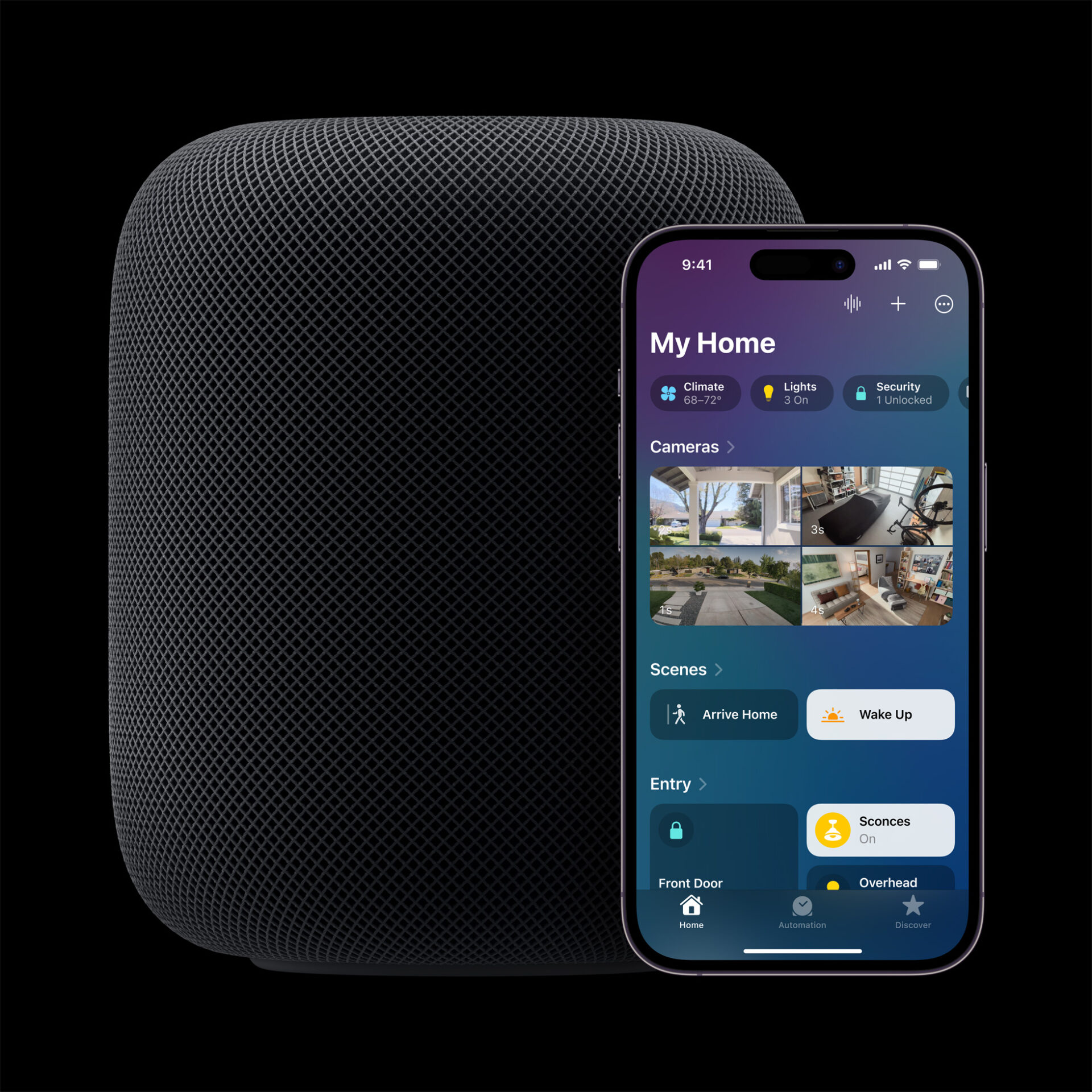
Apple’s Smart Home Hub With Siri AI and Face Recognition Could Launch Next Month
Apple's long-awaited smart home hub could launch as early as next month with facial recognition and Siri AI, according to Mark Gurman.
To help keep track of personal items, like keys or a backpack, you can add an AirTag or other compatible Find My network accessories to Find My. You can add items using AirTag setup or the Find My app.

To set up an AirTag, you need iOS or iPadOS 14.5 or later. To add an AirTag (2nd generation), you need iOS or iPadOS 26.2.1 or later. Simply follow the steps below:
To find out more, watch the following tutorial video from Apple.

Want to see more of our stories on Google?

P.S. Want to keep this site truly independent? Support us by buying us a beer, treating us to a coffee, or shopping through Amazon here. Links in this post are affiliate links, so we earn a tiny commission at no charge to you. Thanks for supporting independent Canadian media!

