
Google Arts & Culture Overhaul Lets You Chat With Dead Artists
Google Arts & Culture turns 15 with a major mobile app redesign featuring AI-powered conversational search and interactive historical tools.
Many of you who have already downloaded and upgraded to iOS 8 released earlier today, may not be aware of the fact that the latest version of iOS has a cool new feature to save storage space. With iOS 8, users get to store device optimized versions of their photos and videos locally, and upload the full resolution versions to their iCloud accounts, saving significant storage space on their devices.
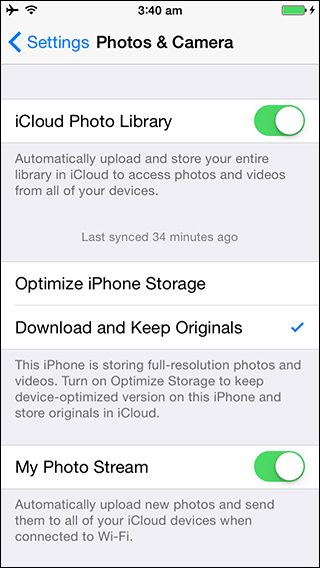
So if you’re running out of storage space, just follow these steps to keep only device optimized versions of photos and videos on your iPhone (via iPhoneHacks). UPDATE: Do note you need to upgrade to iCloud Drive first in order for this option to appear. But, be wary of updating to iCloud Drive if you’re not running Yosemite Beta.
Step 1:
Tap on the Settings app from the Home screen.
Step 2:
Now tap on Photos & Camera. This feature needs iCloud Photo Library, so ensure that iCloud Photo Library toggle is enabled.
Step 3:
Finally, tap on Optimize iPhone Storage to select it (Download and Keep Originals is selected by default).
That’s it, enjoy!
*If you want to access the full resolution image then you have to access it using the web app or turn on Download and Keep Originals option.
Here’s a video walkthrough of the above process:
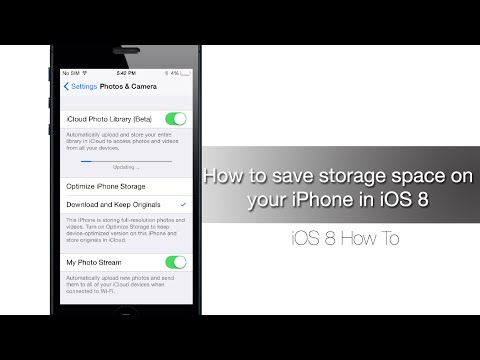
Update: There’s some confusion about this screen in iOS. To clarify, you need to upgrade iCloud Drive first, to enable iCloud Photo Library, which will then enable this option to appear.
Want to see more of our stories on Google?

P.S. Want to keep this site truly independent? Support us by buying us a beer, treating us to a coffee, or shopping through Amazon here. Links in this post are affiliate links, so we earn a tiny commission at no charge to you. Thanks for supporting independent Canadian media!


Anyone else notice this isn’t present in their Settings?
Think it might be iPhone 5S and above
I don’t understand why they would limit it though: my iPhone 5 with iOS 8 does not have this setting either… And I would love it if I did… Can anyone confirm they have it with the public release? Which device do they have?
I have 5S… it’s not there as an option for me either.
Guess my theory is wrong….
I cannot find this on my settings.
This feature didn’t make it to IOS 8 final release. It was removed in the GM. You should only see photo stream.
icloud photos won’t work (for allll iOS devices) until it’s released in October. Likely alongside Yosemite.
Can anyone who does have this working share the file size for an optimized photo?
Usman, I have a 5s and I don’t see this either. What are you running and how are you seeing this?
I upgraded to iCloud Drive and still don’t have this in my settings.
I upgraded my 5s to iOS 8 and enabled iCloud drive with 20gb of storage. I have not seen the iCloud photo library setting appear and glad to see that I am not the only one.
What you need to do is to clean up iOS space so as to free up more space for your device. With iPhone Data Eraser, you can help yourself out in five minutes!