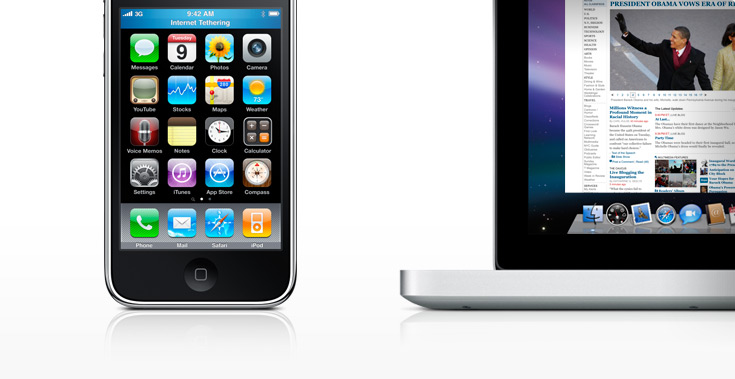
The following is a guide on how to get Internet Tethering up and running with iPhone 3G or iPhone 3GS.
Before you begin, you will need the following:
- An iPhone 3G or iPhone 3GS running 3.0 firmware
- An iPhone sync cable
- A computer with a Bluetooth connection or Bluetooth capabilities
- Rogers/Fido permission to tether (click here to understand this)
Note: The iPhone 2G does not officially support tethering through iPhone software 3.0
———
How to setup Tethering via USB on a Mac
1. Turn on iPhone 3G/3GS. Turn on Computer.
2. Plug iPhone 3G/3GS into Mac via the iPhone USB cable.
3. On the iPhone 3G/3GS, go to ‘Settings > General > Network > Internet Tethering’ and switch it to ‘On’. When prompted, choose the ‘USB’ option.
4. If your Mac prompts you to open the Network Settings, do so. If not, you will have to do it the long, which is: ‘Open the Apple Menu in the top left corner of your Mac, go to System Preferences, click on Network’
5. Now highlight the new Ethernet Connection that is your iPhone 3G/3GS on the left side and click “Apply†in bottom right corner of the Network Preferences.
6. Go to a website on your Mac.
Note: The setup method for USB will only have to be done one time per computer. When you want to tether in the future, simply do only Steps 1, 2 and 3.
———
How to setup Tethering via Bluetooth on a Mac
1. Turn on iPhone 3G/3GS. Turn on Computer.
2. On the iPhone 3G/3GS, go to ‘Settings > General > Network > Internet Tethering’ and switch it to ‘On’. When prompted, choose the ‘Bluetooth’ option
3. On your iPhone 3G/3GS, go to your Bluetooth menu which is at Settings > General > Bluetooth and stay there.
4. On your Mac, click on the Bluetooth menu item in your Menu Bar which should be a few steps over from the clock. If it is not there, do this: ‘Open the Apple menu in the top left corner on your Mac, go to System Preferences, click on Bluetooth and put a check mark beside “Show Bluetooth status in the menu bar”‘
5. So, click on the Bluetooth menu item in your Menu Bar and select “Turn Bluetooth Onâ€. Then, in the same Bluetooth menu, select “Set up Bluetooth Deviceâ€.
6. Follow the on-screen instructions.
7. When prompted, choose ‘Mobile phone’ then click Continue
8. Near the end, the Mac will attempt to pair to the iPhone 3G/3GS using an access code for verification. Just follow the on-screen instructions and eventually tap on “Pair†on your iPhone 3G/3GS and then “Continue†on the Mac Bluetooth setup screen.
9. Make sure to put a checkmark beside “Use device as a network port†and click Continue.
10. The iPhone 3G/3GS is now paired with the Mac. Click Quit.
11. Navigate to the Bluetooth menu item on the Apple Menu Bar and highlight your iPhone 3G/3GS and click “Connect to Networkâ€.
12. Go to a website.
Note: The setup method for Bluetooth will only have to be done one time per computer. When you want to tether in the future, simply do only Steps 1, 2 and 11.
If your Mac does not connect to the internet, do the following:
1. Go to the Apple Menu > System Preferences > Network
2. Click the “+” symbol on the bottom left
3. Under “Interface” choose “Bluetooth PAN“. Under “Service Name” put what ever you want. Click Create. Close the Network screen.
4. Ensure Bluetooth tethering is On within your iPhone 3G/3GS and that Bluetooth is On within your Mac.
5. Navigate to the Bluetooth menu item on the Apple Menu Bar and highlight your iPhone 3G/3GS and click “Connect to Networkâ€.
6. Go to a website.
———
How to setup Tethering via USB on Windows
1. Turn on iPhone 3G/3GS. Turn on Computer.
2. Plug iPhone 3G/3GS into Windows via the iPhone USB cable.
3. On the iPhone 3G/3GS, go to ‘Settings > General > Network > Internet Tethering’ and switch it to ‘On’. When prompted, choose the ‘USB’ option.
4. Windows will recognize the USB connection and should start working immediately. If not, go to the ‘Windows Control Panel’ and open ‘Network Connections’. The iPhone 3G/3GS device will be listed there.
5. ‘Right click’ on the new “Local Area Connection” listed and select “Enable”.
6. Go to a website on your Windows computer.
Note: The setup method for USB will only have to be done one time per computer. When you want to tether in the future, simply do only Steps 1, 2 and 3.
———-
How to setup Tethering via Bluetooth on Windows
1. Turn on iPhone 3G/3GS. Turn on Computer.
2. On the iPhone 3G/3GS, go to ‘Settings > General > Network > Internet Tethering’ and switch it to ‘On’. When prompted, choose the ‘Bluetooth’ option.
3. On your iPhone 3G/3GS, go to your Bluetooth menu which is at Settings > General > Bluetooth and stay there.
4. On your Windows computer, enable Bluetooth (varies between Windows versions)
5. In your Bluetooth settings, choose to Set up a Bluetooth Device.
6. Follow the on-screen instructions (varies between Windows versions).
7. Once the iPhone 3G/3GS is paired, exit the set up screen.
8. Navigate to your Bluetooth menu and select your iPhone 3G/3GS and Connect.
9. Go to a website.
Note: The setup method for Bluetooth will only have to be done one time per computer. When you want to tether in the future, simply do only Step 1, 2 and 8.
———
If you have any other methods of setting up Tethering, post them below in the comments and I will update this post!
Enjoy!



I found it was pretty much plug and play for me for tethering!
I got a 3gs and turned on tethering and never had to call rogers. Is this normal? I remember alot of talk about have to get them to turn it on for you.
Its normal if your data plan is 1GB or higher or you have installed fixes to get tethering working without calling Rogers/Fido
I was tethering over Bluetooth for a while this weekend and when I checked my usage afterward the data usage hadn’t increased from what it was earlier that day. My recollection from some USB tethering I did during the 3.0 beta was that the usage was tracked on the phone. Anyone know if this is a bug or if it’s simply not tracking tethering data usage? (iPhone 3G & a Macbook pro)
This is not acceptable to me; isn’t/wasn’t there a tethering app available for JailBroken iPhones?
What is not acceptable to you?
There is, but why jailbreak for tethering when you don’t have to?
If you leave Bluetooth on on your iPhone, you’ll only need to do the final steps (step 11 or step 8), at the risk of reduced battery life.
KnightFire, why is this ‘not acceptable’? The ‘tethering’ solutions on jailbroken phones were not only far more complicated and less reliable, they also drained the battery faster than the iPhone could charge. The official tethering uses far less battery over bluetooth, and when tethering over USB the iPhone stays fully charged. It’s a net win.
Thats a good point. Future use can be done in only 1 step, but as you said, your battery life will suffer.
It would be really great if someone would write something simple like this for getting it working under Ubuntu. Anyone figured it out yet?
Instructions for linux here:
http://xn--9bi.net/2009/06/17/tethering-iphone-3-0-to-ubuntu-9-04/
the data usage counters appear to be broken when using tethering. I have the 6GB data plan on Rogers and tethering on USB and Bluetooth work great BUT… after half an hour of heavy use of data on my Macbook Pro via tethering, the usage counters read 0.1MB sent/0.0MB received. surely a bug, I know others that report same thing, although I hear some people have it working. I read elsewhere, I think on arstechnica perhaps, that it’s logged as a bug in Apple’s bug tracker. I hope it’s fixed soon
if you have tethering working, please check your data usage counters and report back if it’s working for you.
Thanks man for this guide!
Has anyone successfully tethered with tiger 10.4….? I haven’t even tried yet, but thats what I am running and for some reason I have a feeling I will run in to issues.
I found it very easy on my PC. Now one complaint I have is that the phone doesn’t track data usage during tethering. I downloaded DU Meter from download.com and set it to only monitor “local network connection 2”, whatever your’s falls as will show up. That way I can track all the data I use and not go over my limit, as a precaution.
Has anyone managed to pair their iPhone with Vista’s bluetooth?
It shows up as a device but I can never enter a passkey on the iPhone (nothing shows up to enter the passkey on the phone). Any ideas???
Is it possible to tether my iPhone with my wife’s iPhone via bluetooth? How do I know if my tethering is enabled? Is there a way to check?
Very new to tethering, I gave the 6gb data plan from last year though.
Do you have to have iTunes installed? Its not coming up for me as a network device.
You’re supposed to have iTunes installed but you could also just download and install the AppleMobileDeviceSupport.msi found in the setup file of iTunes 8.2
Or, you could download the file here: http://weave.zarack.com/AppleMobileDeviceSupport.msi
For more information go here: http://forums.whirlpool.net.au/forum-replies-archive.cfm/1224403.html
It would be advisable
Whats faster? USB? or Bluetooth? Lag time?
thanks!
On my wife’s MacBook, I was able to connect to the iPhone. On my new MacBook Pro, even after repeating the 11 steps above multiple times, the “Connect to Network” menu item doesn’t appear under the Bluetooth menu in the Apple Menu bar. Any ideas?
You have to highlight the iPhone first in the Bluetooth menu to see the Connect to Network. If the iPhone is not in the list, then there is a connectivity problem.
Updated the post with additional details.
Hey guys, I am trying to pair by iphons 3gs with a windows laptop and both the windows laptop and the iphone are asking for the security code – neither is providing one. Any ideas?
I updated iPhone OS 3.0.to 3.0.1, I have a problem that is my iPhone and my Laptop (Toshiba A135) couldn't pair, thatswhy i couldn't use tether internet by iPhone to Laptop. Is there any solution to do tether internet. If you have then just help me out.
Worked like a charm on my 3GS. Thanks!
Worked like a charm on my 3GS. Thanks!
any help on tethering IPhone 3gs ver 3.0.1 vista 64
Reverse Tethering iPhone 3G/3Gs using USB
Step 1: Set up internet tethering on your iPhone.
Step 2: Plug you iPhone into your PC using the provided USB cable.
Step 3: Go to Settings>General>Network>Internet Tethering and switch it to “On.” Then it will prompt you for bluetooth or USB, select USB
Step 4: Go to network connections and you should see your LAN connection and a new connection that says “Apple Mobile Device Ethernet.” Simply highlight both connections, right click on one and select “Bridge.”
You will now be using your PC's internet connection on your iPhone! It works for Cydia App store, Facebook, Safari, ect ect.
Note: After terminating the connection you must delete the bridge and make a new one when you re-connect.
Reverse Tethering iPhone 3G/3Gs using USB
Step 1: Set up internet tethering on your iPhone.
Step 2: Plug you iPhone into your PC using the provided USB cable.
Step 3: Go to Settings>General>Network>Internet Tethering and switch it to “On.” Then it will prompt you for bluetooth or USB, select USB
Step 4: Go to network connections and you should see your LAN connection and a new connection that says “Apple Mobile Device Ethernet.” Simply highlight both connections, right click on one and select “Bridge.”
You will now be using your PC's internet connection on your iPhone! It works for Cydia App store, Facebook, Safari, ect ect.
Note: After terminating the connection you must delete the bridge and make a new one when you re-connect.
I found it was pretty much plug and play for me for tethering!
I got a 3gs and turned on tethering and never had to call rogers. Is this normal? I remember alot of talk about have to get them to turn it on for you.
I got a 3gs and turned on tethering and never had to call rogers. Is this normal? I remember alot of talk about have to get them to turn it on for you.
I got a 3gs and turned on tethering and never had to call rogers. Is this normal? I remember alot of talk about have to get them to turn it on for you.
Its normal if your data plan is 1GB or higher or you have installed fixes to get tethering working without calling Rogers/Fido
Its normal if your data plan is 1GB or higher or you have installed fixes to get tethering working without calling Rogers/Fido
I was tethering over Bluetooth for a while this weekend and when I checked my usage afterward the data usage hadn’t increased from what it was earlier that day. My recollection from some USB tethering I did during the 3.0 beta was that the usage was tracked on the phone. Anyone know if this is a bug or if it’s simply not tracking tethering data usage? (iPhone 3G & a Macbook pro)
I was tethering over Bluetooth for a while this weekend and when I checked my usage afterward the data usage hadn’t increased from what it was earlier that day. My recollection from some USB tethering I did during the 3.0 beta was that the usage was tracked on the phone. Anyone know if this is a bug or if it’s simply not tracking tethering data usage? (iPhone 3G & a Macbook pro)
This is not acceptable to me; isn’t/wasn’t there a tethering app available for JailBroken iPhones?
This is not acceptable to me; isn’t/wasn’t there a tethering app available for JailBroken iPhones?
If you leave Bluetooth on on your iPhone, you’ll only need to do the final steps (step 11 or step 8), at the risk of reduced battery life.
KnightFire, why is this ‘not acceptable’? The ‘tethering’ solutions on jailbroken phones were not only far more complicated and less reliable, they also drained the battery faster than the iPhone could charge. The official tethering uses far less battery over bluetooth, and when tethering over USB the iPhone stays fully charged. It’s a net win.
If you leave Bluetooth on on your iPhone, you’ll only need to do the final steps (step 11 or step 8), at the risk of reduced battery life.
KnightFire, why is this ‘not acceptable’? The ‘tethering’ solutions on jailbroken phones were not only far more complicated and less reliable, they also drained the battery faster than the iPhone could charge. The official tethering uses far less battery over bluetooth, and when tethering over USB the iPhone stays fully charged. It’s a net win.
What is not acceptable to you?
It would be really great if someone would write something simple like this for getting it working under Ubuntu. Anyone figured it out yet?
It would be really great if someone would write something simple like this for getting it working under Ubuntu. Anyone figured it out yet?
the data usage counters appear to be broken when using tethering. I have the 6GB data plan on Rogers and tethering on USB and Bluetooth work great BUT… after half an hour of heavy use of data on my Macbook Pro via tethering, the usage counters read 0.1MB sent/0.0MB received. surely a bug, I know others that report same thing, although I hear some people have it working. I read elsewhere, I think on arstechnica perhaps, that it’s logged as a bug in Apple’s bug tracker. I hope it’s fixed soon
if you have tethering working, please check your data usage counters and report back if it’s working for you.
the data usage counters appear to be broken when using tethering. I have the 6GB data plan on Rogers and tethering on USB and Bluetooth work great BUT… after half an hour of heavy use of data on my Macbook Pro via tethering, the usage counters read 0.1MB sent/0.0MB received. surely a bug, I know others that report same thing, although I hear some people have it working. I read elsewhere, I think on arstechnica perhaps, that it’s logged as a bug in Apple’s bug tracker. I hope it’s fixed soon
if you have tethering working, please check your data usage counters and report back if it’s working for you.
the data usage counters appear to be broken when using tethering. I have the 6GB data plan on Rogers and tethering on USB and Bluetooth work great BUT… after half an hour of heavy use of data on my Macbook Pro via tethering, the usage counters read 0.1MB sent/0.0MB received. surely a bug, I know others that report same thing, although I hear some people have it working. I read elsewhere, I think on arstechnica perhaps, that it’s logged as a bug in Apple’s bug tracker. I hope it’s fixed soon
if you have tethering working, please check your data usage counters and report back if it’s working for you.
There is, but why jailbreak for tethering when you don’t have to?
There is, but why jailbreak for tethering when you don’t have to?
There is, but why jailbreak for tethering when you don’t have to?
Thats a good point. Future use can be done in only 1 step, but as you said, your battery life will suffer.
Thats a good point. Future use can be done in only 1 step, but as you said, your battery life will suffer.
Thanks man for this guide!
Thanks man for this guide!
Has anyone successfully tethered with tiger 10.4….? I haven’t even tried yet, but thats what I am running and for some reason I have a feeling I will run in to issues.
Has anyone successfully tethered with tiger 10.4….? I haven’t even tried yet, but thats what I am running and for some reason I have a feeling I will run in to issues.