Looking to jailbreak and/or unlock your iPhone 2G, iPhone 3G, iPhone 3GS, iPod Touch 1G, or iPod Touch 2G? You have come to the right place!

What is ‘Jailbreaking’?
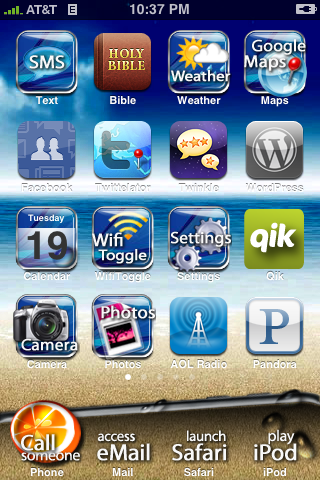
Jailbreaking is a term used that refers to modifying the software on your iPhone/iPod Touch. These modifications essentially “free” your device from the device constraints and allow you to do functions such as applying custom wallpapers, changing the way the icons look, modifying text message tones, changing the device sounds, and about 1 million other things. The list is endless. The image below is an example of what you can do with a jailbroken iPhone/iPod Touch:

Jailbreaking is accomplished by using programs such as ‘redsn0w’ (listed below). Once you do jailbreak however, it is not permanent. At any time you can restore your iPhone/iPod Touch to factory defaults and return the device back to ‘normal’. However until you do the restore, your device will stay jailbroken. Also, it goes without saying that this voids your warranty, but when you restore to factory defaults, the traces of jailbreaking are usually cleaned up.
If you want to know more about Jailbreaking, you can read all about it here.
What is ‘Unlocking’?
The wireless carriers in Canada, such as Rogers and Fido, put “carrier locks” on their devices. What this does is prevent you from using the device on another wireless network. For example, you cannot take a Rogers device and put a Fido SIM card into it and vice versa.
Using similar methods to jailbreaking, one can unlock their iPhone. This allows you to “free” your device and allows the user to put any SIM card into the device. For example, if you unlock your Rogers iPhone, you can now put a Fido SIM in, or AT&T or O2 or whoever.
Unlocking is accomplished by using programs such as ‘ultrasn0w’ (listed below). Once you do the unlock however, it is not permanent. At any time you can restore your iPhone to factory defaults and return the device back to ‘normal’. However until you do the restore, your device will stay unlocked. Also, it goes without saying that this voids your warranty, but when you restore to factory defaults, the traces of the unlock are usually cleaned up.
If you want to know more about Unlocking, you can read all about it here.
Read Me Before Continuing
Before we begin, please take some time to review the notes below as they are very important:
– Do not update to firmware 3.1 if you want to be able to unlock or jailbreak your iPhone/iPod Touch
– The methods listed below can be followed on BOTH a PC or a Mac
– Users experiencing download issues when using Internet Explorer or Safari should use Firefox, as that seems to work fine
– If the 3.0 firmware file downloads as a .ZIP file and is unusable, change the .ZIP extension to .IPSW
– Some users report problems with installing ‘Icy’. If you want, you can avoid installing it by simply not putting a check mark beside it during the redsn0w install process
– Once again, Do not update to firmware 3.1 if you want to be able to unlock or jailbreak your iPhone/iPod Touch
—————
The Jailbreak/Unlock Methods
Below you will find detailed guides (so you do not miss any steps) of how to jailbreak and unlock an iPhone or an iPod Touch. There are five sections:
1.) How To Jailbreak and Unlock the iPhone 2G on 3.0 Firmware
2.) How To Jailbreak and Unlock the iPhone 3G on 3.0 Firmware
3.) How To Jailbreak and Unlock the iPhone 3GS on 3.0 Firmware
4.) How To Jailbreak the iPod Touch 1G/2G on 3.0 Firmware
5.) How To Revert Your iPhone 2G/3G/3GS or iPod Touch 1G/2G Back To “Normal”
—————
1.) How To Jailbreak and Unlock the iPhone 2G on 3.0 Firmware
To jailbreak and/or unlock your iPhone 2G on the 3.0 firmware and so you can put in your Rogers/Fido SIM card (or any other carrier SIM), follow the steps below:
1.) Download redsn0w 0.8 (a more powerful QuickPwn) for Mac here or Windows here and extract the install file “redsn0w” to a folder.
2.) Download the 3.0 firmware for the iPhone 2G here.
3.) Download the Bootloader File 3.9 and Bootloader File 4.6.
4.) Put the downloads from Steps 1, 2, 3 into a single folder together.
5.) Open iTunes and plug your iPhone 2G in via the USB. Backup your iPhone 2G if iTunes allows you to. (If you are already running 3.0, go to Step 7).
6.) When iTunes recognizes the iPhone 2G, click “Check for Updates†in iTunes. This will update your iPhone 2G with the 3.0 firmware.
Note: If firmware 3.1 has been released, skip step 6. Instead, you must do a Restore to 3.0 using the firmware from step 2. On a PC, hold Shift on the keyboard or on a Mac, hold Option on the keyboard, and click “Restore” in iTunes. A window will open. Locate and select the downloaded 3.0 firmware from step 2. After the update is complete, iTunes will prompt you to Set up a New Device or Restore from Back Up from an existing backup (the backup from step 5). Choose which ever method you want and let iTunes process.
7.) After the processing is complete, keep the iPhone 2G plugged in via USB. Eject the iPhone 2G from within iTunes and close iTunes.
8.) Open the redsn0w install file and click “Browse”. A window will open. Locate the downloaded 3.0 firmware from Step 2 and click Open.
9.) Once the firmware is verified, click Next. On the next screen, put a check mark beside Cydia and Unlock and then click Next.
10.) Now click Browse beside each Bootloader file and locate the ones you downloaded from step 3. Then click Next.
11.) Follow the on-screen instructions EXACTLY.
12.) Redsn0w will guide you on how to get your iPhone 2G into Recovery Mode. Recovery mode can be hard to do, so make sure you follow the steps. If the iPhone 2G does not get into Recovery Mode, just quit redsn0w and you will have to try again starting from step 8.
13.) After the processing is complete (about 5 – 6 minutes), your iPhone 2G will be jailbroken and unlocked. Disconnect the USB cable from the iPhone 2G. Turn the iPhone 2G off and then turn the iPhone 2G back on.
14.) Run the Cydia app on your iPhone 2G running 3.0 firmware and apply all of the prompted updates.
15.) Go back into Cydia, tap Search and type in mobilesubstrate. Ensure you are running the latest version. If not, tap Install and then Confirm.
—————
2.) How To Jailbreak and Unlock the iPhone 3G on 3.0 Firmware
To jailbreak and/or unlock your iPhone 3G on the 3.0 firmware and so you can put in your Rogers/Fido SIM card (or any other carrier SIM), follow the steps below:
How to Jailbreak the iPhone 3G
1.) Download redsn0w 0.8 (a more powerful QuickPwn) for Mac here or Windows here and extract the install file “redsn0w” to a folder.
2.) Download the 3.0 firmware for the iPhone 3G here.
3.) Put the downloads from Steps 1 and 2 into a single folder together.
4.) Open iTunes and plug your iPhone 3G in via the USB. Backup your iPhone 3G if iTunes allows you to. (If you are already running 3.0, go to Step 6).
5.) When iTunes recognizes the iPhone 3G, click “Check for Updates†in iTunes. This will update your iPhone 3G with the 3.0 firmware.
Note: If firmware 3.1 has been released, skip step 5. Instead, you must do a Restore to 3.0 using the firmware from step 2. On a PC, hold Shift on the keyboard or on a Mac, hold Option on the keyboard, and click “Restore” in iTunes. A window will open. Locate and select the downloaded 3.0 firmware from step 2. After the update is complete, iTunes will prompt you to Set up a New Device or Restore from Back Up from an existing backup (the backup from step 4). Choose which ever method you want and let iTunes process.
6.) After the processing is complete, keep the iPhone 3G plugged in via USB. Eject the iPhone 3G from within iTunes and close iTunes.
7.) Open the redsn0w install file and click “Browse”. A window will open. Locate the downloaded 3.0 firmware from Step 2.
8.) Once the firmware is verified, click Next. On the next screen, put a check mark beside Cydia and Icy (optional) and then click Next.
9.) Follow the on-screen instructions EXACTLY.
10.) Redsn0w will guide you on how to get your iPhone 3G into Recovery Mode. Recovery mode can be hard to do, so make sure you follow the steps. If the iPhone 3G does not get into Recovery Mode, just quit redsn0w and you will have to try again starting from step 7.
11.) After the processing is complete (about 5 – 6 minutes), your iPhone 3G will be jailbroken. Disconnect the USB cable from the iPhone 3G. Turn the iPhone 3G off and then turn the iPhone 3G back on.
How to Unlock the iPhone 3G
1.) Run the Cydia app on your iPhone 3G running 3.0 firmware and apply all of the prompted updates.
2) Go back into Cydia, tap Search and type in mobilesubstrate. Ensure you are running the latest version. If not, tap Install and then Confirm.
3) Go back into Cydia, tap Manage, Sources, Edit, and Add the repo repo666.ultrasn0w.com. (The “0” in ultrasn0w is the number zero)
4.) Select the newly added Repo in the Sources Menu screen and select ‘ultrasn0w’. Then tap Install and then Confirm. After the install, tap Return to Cydia and then push the iPhone Home Button.
5.) Turn the iPhone 3G off and then turn the iPhone 3G back on.
—————
3.) How To Jailbreak and Unlock the iPhone 3GS on 3.0 Firmware
To jailbreak and/or unlock your iPhone 3GS on the 3.0 firmware and so you can put in your Rogers/Fido SIM card (or any other carrier SIM), follow the steps below:
How to Jailbreak the iPhone 3GS
1.) Download redsn0w 0.8 (a more powerful QuickPwn) for Mac here or Windows here and extract the install file “redsn0w” to a folder.
2.) Download the 3.0 firmware for the iPhone 3GS here.
3.) Put the downloads from Steps 1 and 2 into a single folder together.
4.) Open iTunes and plug your iPhone 3GS in via the USB. Backup your iPhone 3GS if iTunes allows you to. (If you are already running 3.0, go to Step 6).
5.) When iTunes recognizes the iPhone 3GS, click “Check for Updates†in iTunes. This will update your iPhone 3GS with the 3.0 firmware.
Note: If firmware 3.1 has been released, skip step 5. Instead, you must do a Restore to 3.0 using the firmware from step 2. On a PC, hold Shift on the keyboard or on a Mac, hold Option on the keyboard, and click “Restore” in iTunes. A window will open. Locate and select the downloaded 3.0 firmware from step 2. After the update is complete, iTunes will prompt you to Set up a New Device or Restore from Back Up from an existing backup (the backup from step 4). Choose which ever method you want and let iTunes process.
6.) After the processing is complete, keep the iPhone 3GS plugged in via USB. Eject the iPhone 3GS from within iTunes and close iTunes.
7.) Open the redsn0w install file and click “Browse”. A window will open. Locate the downloaded 3.0 firmware from Step 2.
8.) Once the firmware is verified, click Next. On the next screen, put a check mark beside Cydia and Icy (optional) and then click Next.
9.) Follow the on-screen instructions EXACTLY.
10.) Redsn0w will guide you on how to get your iPhone 3GS into Recovery Mode. Recovery mode can be hard to do, so make sure you follow the steps. If the iPhone 3GS does not get into Recovery Mode, just quit redsn0w and you will have to try again starting from step 7.
11.) After the processing is complete (about 5 – 6 minutes), your iPhone 3GS will be jailbroken. Disconnect the USB cable from the iPhone 3GS. Turn the iPhone 3GS off and then turn the iPhone 3GS back on.
How to Unlock the iPhone 3GS
1.) Run the Cydia app on your iPhone 3GS running 3.0 firmware and apply all of the prompted updates.
2) Go back into Cydia, tap Search and type in mobilesubstrate. Ensure you are running the latest version. If not, tap Install and then Confirm.
3) Go back into Cydia, tap Manage, Sources, Edit, and Add the repo repo666.ultrasn0w.com. (The “0” in ultrasn0w is the number zero)
4.) Select the newly added Repo in the Sources Menu screen and select ‘ultrasn0w’. Then tap Install and then Confirm. After the install, tap Return to Cydia and then push the iPhone Home Button.
5.) Turn the iPhone 3GS off and then turn the iPhone 3GS back on.
—————
4.) How To Jailbreak the iPod Touch 1G/2G on 3.0 Firmware
To jailbreak your iPod Touch on 3.0 firmware, follow the steps below:
1.) Download redsn0w 0.8 (a more powerful QuickPwn) for Mac here or Windows here and extract the install file “redsn0w” to a folder.
2.) Download the 3.0 firmware for the iPod Touch 1G here or iPod Touch 2G here.
3.) Put the downloads from Steps 1 and 2 into a single folder together.
4.) Open iTunes and plug your iPod Touch in via the USB. Backup your iPod Touch if iTunes allows you to. (If you are already running 3.0, go to Step 7)
5.) When iTunes recognizes the iPod Touch, on a PC, hold Shift on the keyboard or on a Mac, hold Option on the keyboard, and click “Restore” in iTunes. A window will open. Locate and select the downloaded 3.0 firmware from step 2. This will update your iPod Touch with the 3.0 firmware (for free).
6.) After the restore is complete, iTunes will prompt you to Set up a New Device or Restore from Back Up from an existing backup (the backup from step 4). Choose which ever method you want and let iTunes process.
7.) After the processing is complete, keep the iPod Touch plugged in via USB. Eject the iPod Touch from within iTunes and close iTunes.
8.) Open the redsn0w install file and click “Browse”. A window will open. Locate the downloaded 3.0 firmware from Step 2.
9.) Once the firmware is verified, click Next. On the next screen, put a check mark beside Cydia and Icy (optional) and then click Next.
10.) Follow the on-screen instructions EXACTLY.
11.) Redsn0w will guide you on how to get your iPod Touch into Recovery Mode. Recovery mode can be hard to do, so make sure you follow the steps. If the iPod Touch does not get into Recovery Mode, just quit redsn0w and you will have to try again starting from step 7.
12.) After the processing is complete (about 5 – 6 minutes), your iPod Touch will be jailbroken. Disconnect the USB cable from the iPod Touch. Turn the iPod Touch off and then turn the iPod Touch back on.
—————
5.) How To Revert Your iPhone 2G/3G/3GS or iPod Touch 1G/2G Back To “Normal”
So you have Jailbroken or Unlocked (or both) your iPhone 2G/3G/3GS or iPod Touch 1G/2G but now you want to revert to the factory fresh iPhone 2G/3G/3GS or iPod Touch 1G/2G. To do so, follow the steps below:
1.) Download the 3.0 firmware for your device: iPhone 2G here, iPhone 3G here, iPhone 3GS here, iPod Touch 1G here, and iPod Touch 2G here.
2.) Open iTunes and plug your iPhone 2G/3G/3GS or iPod Touch 1G/2G in via the USB. Backup your iPhone/iPod Touch if iTunes allows you to.
3.) When iTunes recognizes the iPhone/iPod Touch, on a PC, hold Shift on the keyboard or on a Mac, hold Option on the keyboard, and click “Restore” in iTunes. A window will open. Locate and select the downloaded 3.0 firmware for your device from step 1. This will restore your iPhone/iPod Touch with fresh 3.0 firmware.
4.) After the restore is complete, iTunes will prompt you to Set up a New Device or Restore from Back Up from an existing backup (the backup from step 2). Choose which ever method you want and let iTunes process.
5.) After the processing is complete, your iPhone/iPod Touch will be loaded with the fresh 3.0 firmware or loaded with your back up that you may have chosen.
6.) Eject the iPhone/iPod Touch from iTunes and disconnect the USB cable from the iPhone/iPod Touch. Turn the iPhone/iPod Touch off and then turn the iPhone/iPod Touch back on.
—————
If you follow the steps above carefully, you will have success.
Enjoy!



Great job on the How To, Redsn0w 0.8 JB on 3GS works so easy!! It can be done under 5 min and works great!
ITS A MUST TO JB UR IPHONE 3GS! 😉
Great job on the How To, Redsn0w 0.8 JB on 3GS works so easy!! It can be done under 5 min and works great!
ITS A MUST TO JB UR IPHONE 3GS! 😉
The guide is great! I jailbreaked my iPod Touch 2G and it worked great!
The guide is great! I jailbreaked my iPod Touch 2G and it worked great!
Does it work well with vista?
Does it work well with vista?
I have a 3GS and everything goes smoothly until redsn0w starts the actual jailbreak. as soon as the dialog window comes up, the program stops and requires it be closed. Rise and repeat, same problem. Tried deleting the redsn0w files, then downloading and installing them again and still same problem. Maybe its a Vista thing?
I have a 3GS and everything goes smoothly until redsn0w starts the actual jailbreak. as soon as the dialog window comes up, the program stops and requires it be closed. Rise and repeat, same problem. Tried deleting the redsn0w files, then downloading and installing them again and still same problem. Maybe its a Vista thing?
give Purplera1n a try i jailbroke my phone on a Vista machine and it worked the First try 😀
Awesome Job Dev team! wish you wouldnt have held the release back but i somewhat understand
Dont forget about Purplera1n as another solution!
Some users say it works fine on 32bit and 63bit while others say no luck. Windows 7 64bit works great!
after a bit more reading on forums, etc. they suggested that if i didn't install Icy it should work… and it did! although now i don't get to use Icy 🙁
LOL ICY is about the only real difference between purplera1n and redsn0w
thats a bit of a shame although i never really liked Installer/ICY
Hey guys.
I would like to know if someone else has a decreasing battery life since jailbreaking the iPhone 3G. Ive installed nothing except installous and appsync and my battery isnt lasting me more then 4hours! When I restore it it gets back to normal. Does someone has an idea whats goin on!?
Reduced battery life is pretty typical of Jailbroken iPhones. The battery life drain should not be significant, but if you were getting about 1 day before, I would say while jailbroken, you should be getting about 15 – 20 hours (instead of 24)
Wow no, i used to get a day and a half with no jailbroking and now i lose 20% of my battery life in a 25mins phone conversation! It doesnt even last me 5hours!! Before getting an iphone exchange (under 2.2.1) at the apple store, i would not have such problem. Is there any way to get it fixed or should I try to find an excuse at the apple store for an exchange!!?
I lose LOTS of battery life after JB lol So many applications running in the background and just 3G speeds, it kills the battery! Not much u can do, keep plugging it in when ever possible lol Im enjoying my FREE iPhone 😉
I lose LOTS of battery life after JB lol So many applications running in the background and just 3G speeds, it kills the battery! Not much u can do, keep plugging it in when ever possible lol Im enjoying my FREE iPhone 😉
@X1Zero
Can I update my iPod Touch 2G running 2.2.1 to 3.0 using the restore (Shift + click 'restore') way, then point it to the downloaded 3.0 file?
@X1Zero
Can I update my iPod Touch 2G running 2.2.1 to 3.0 using the restore (Shift + click 'restore') way, then point it to the downloaded 3.0 file?
Yes you can.
Also, if you just plug in your iPod and click Check for updates, you'll get 3.0.
Well, that will cost me $10. 🙁
Ah right!
You're on an iPod! I got that mixed up.
In that case, yes, just shift click restore to 3.0 and its free! Make sure to backup your stuff first!
You can still install icy.
From Cydia: Add a new source http://apt.ripdev.com and then install Icy from the Packaging category.
You can still install icy.
From Cydia: Add a new source http://apt.ripdev.com and then install Icy from the Packaging category.
What file do you use from the 3.0 pack that you download? I can't find it!!
What file do you use from the 3.0 pack that you download? I can't find it!!
I having the same problem. still cannot fix it.
I having the same problem. still cannot fix it.
Please help! i started the process on my 2nd Gen Itouch with 3.0 and it is hung at the “Waiting for reboot” I tried with no ICY and got past the first error that I have been getting constantly but now my device won't even turn on…and I am scared 😉
Please help any one!!
Please help! i started the process on my 2nd Gen Itouch with 3.0 and it is hung at the “Waiting for reboot” I tried with no ICY and got past the first error that I have been getting constantly but now my device won't even turn on…and I am scared 😉
Please help any one!!
How do you extract into a file?
I Have done all the steps, but for step one, im not sure how to extract into folder.
hey… thanks for the instructions on how to JB.. everything was running smoothly for me until the end of redsnow.. when it says done.. my iphone shows a black screen and it is still on.. please help me out man.. i dont know what the prob is.. ive tried everything.. thanks in advance…
I just tried to jailbreak my 3G and RedSnow just crashes each time after it has verified the firmware and I start to hold down the home button.
works great, Windows 7RC. thanks!
hi i downloaded the 3.0 but when i hold shift down in itunes and i click on the zip folder it says no files match decription and also when i say browse in redsnow it says no folders can u tell me what to plese thanks
Does my iPhone need to be connected to the internet for me to unlock it?
No
So I can jailbreak and unlock it without having any service?
If you are wondering about an active internet connection, then no. You do not need internet.
As far as cellular service, you do not need that either. If you buy the phone from someone other than a wireless dealer, you will use redsn0w to bypass activation.
My iPhone has been activated and cancelled before. How will I know when It's jailbroken?
Follow the steps above for your device.
When you see Cydia on the Home screen, you'll know.
When I run the Cydia app it ask me “Who Are You?” and gives me 3 options; User (Graphical Only), Hacker(+Command Line) and Developer (No Filters). Which one am I suppose to select?
Alright, everytime I open the Cydia app and click “Manage” it goes back to my home screen.
You're going to have to learn some of this on your own. So in this case, because its an easy choice, use your best judgment. Which do you think you should choose?
Are you a hacker?
Are you a developer that makes apps?
Or are you a user?
Yeah I got past that part. When I try to add “repo666.ultrasn0w.com” it says “Did not Find Respository”.
Help Please JB/Unlock 3GS
I know this is most defiantly a “defective user†issue. Can someone explain to me why when I download the 3.0 firmware it comes to me as a zip file??
Then when I get to “Open the redsn0w install file and click “Browseâ€. A window will open. Locate the downloaded 3.0 firmware from Step 2†it doesn’t automatically place the firmware in. I’ve tried manually placing the unzipped files with epic fails. I know its something I’m doing (or not doing). Can anyone dumb this down and walk me through it??
Thanks
You are not reading the post.
You skipped over the most important section
———-
Read Me Before Continuing
Before we begin, please take some time to review the notes below as they are very important:
– Do not update to firmware 3.1 if you want to be able to unlock or jailbreak your iPhone/iPod Touch
– The methods listed below can be followed on BOTH a PC or a Mac
– Users experiencing download issues when using Internet Explorer or Safari should use Firefox, as that seems to work fine
– If the 3.0 firmware file downloads as a .ZIP file and is unusable, change the .ZIP extension to .IPSW
– Some users report problems with installing ‘Icy’. If you want, you can avoid installing it by simply not putting a check mark beside it during the redsn0w install process
– Once again, Do not update to firmware 3.1 if you want to be able to unlock or jailbreak your iPhone/iPod Touch
This software is the fastest and easiest way to unlock and jailbreak any model of iphone. Visit the site below
easyiphoneunlocker . us