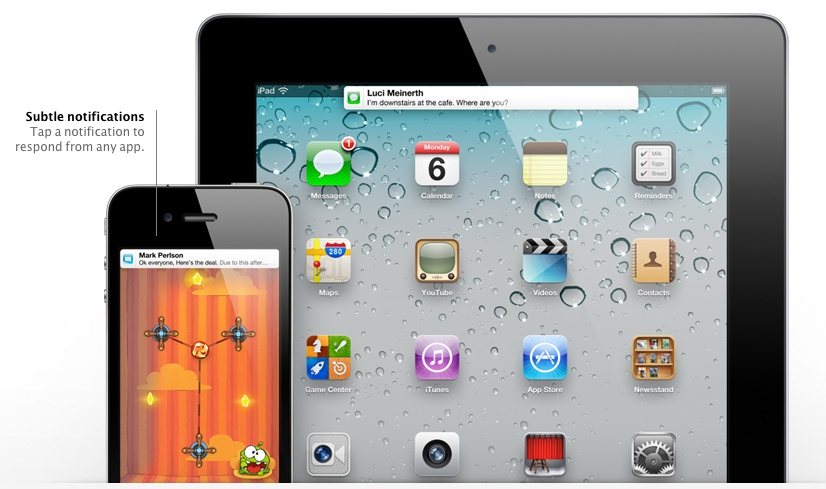
If you have notification banners set in iOS 5, they are a real treat as they can show you relevant information and then disappear quickly. However, if you are in an application that requires concentration, constant notification banners can be distracting and annoying. It might seem like an eternity for them to disappear on their own.
Thankfully there is a quick solution to make them disappear quickly as noticed by TiPB and iDownloadBlog. There are two methods:
1. Pull Notification Center down slightly when notification banners appear, and flick it back to the top
2. Swipe the banner to the left
Method 1 works every single time, however the swipe to the left doesn’t work for me. It appears swiping to the left brings down Notification Center slightly, toggling the effects of method 1. Let me know what works for you in the comments below!



Don’t think it will fix the “Done” button is gone while you are editing a picture and receiving an notification…
So basically, u need to “exit” the photo edit and redo all the works again….
I think swiping right would feel more natural, or at least in both directions, since most of the time you swipe right to delete or remove content.
You can swipe left to delete content as well