Do you have multiple Google Calendars? Want to have them all synced to your iPhone or iPad? I’ve received a few questions about how this is accomplished and it’s fairly straight forward. You’ll need to setup Google Sync (push) on your iPhone first to enable it. If it’s not, you won’t be able to see them on your iOS device.
First: Setup Google Sync on your iPhone
Follow these instructions from Google.
Okay, now you’ve setup Google Sync for your iPhone. Let’s move on to the calendars.
Google Sync will let you sync up to 25 calendars at one time
To select which calendars to sync to your Apple device, follow these steps:
- Open the Safari browser on your device and go to http://m.google.com/sync
- Sign in with your account and select your device from the list of devices you’ve set up for Google Sync.
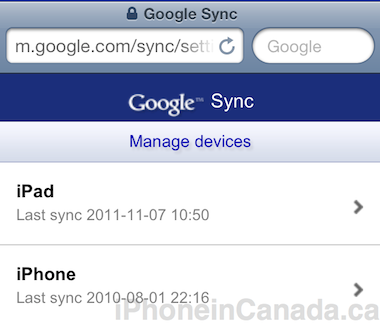

You’ll need to do this setup on each iOS devices that uses Google Sync, to show multiple calendars. There are some known issues with Google Sync for iOS, as documented here.
Don’t forget our previous tip on how to setup which Gmail labels to push to your iPhone.
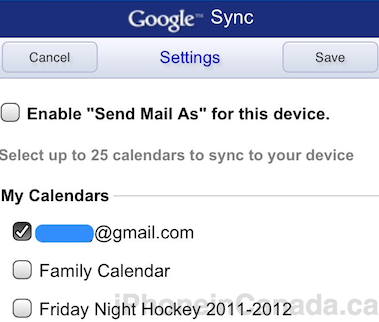



Yes this is not new but it is a refresher for those that forgot or don’t know how to set it up.
Thanks for this – this is a feature I was looking for on my phone!
If I already have my main google calendar synced to my iPhone, should I still choose “keep existing calendars?” per the Google instrux? I get a warning that I may get duplicate entries. All I want to do is add a NEW calendar. Thanks!
Many thanks from a grateful UK new iphone 5 user !
Cheers!