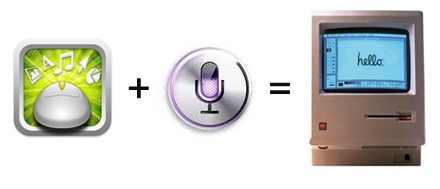
We recently published a post showing how you can send group messages and emails with Siri, the digital voice assistant. Today, we’ll show you how you can use Siri’s voice dictation feature to dictate text to your Mac (via TUAW). All you need is an app on your iPhone 4S that allows you to access your Mac’s keyboard functions remotely such as Mobile Mouse.
Below are the steps:
Step 1:
Download Mobile Mouse from the App Store on your iPhone 4S.
Step 2:
Download and install “Mobile Mouse Server” software on your Mac from here.
Step 3:
Make sure your iPhone 4S and your Mac are connected to the same WiFi network.
Step 4:
When you have your Mac’s keyboard and mouse in control on your iPhone using Mobile Mouse, simply tap the “dictation button” on the keyboard. This will allow you to dictate text straight to your Mac.
Step 5:
As long as you have a cursor inserted into a text field, you can use the dictation button on your iPhone’s keyboard to use Siri to dictate texts directly to your Mac.
Thats it, Enjoy!



AWESOME……WORKS LIKE A CHARM. GREAT FIND
Cheers