If you are lucky enough to have your iDevice attached to a developer’s account, and installed the first beta os iOS 6, you’ve most likely been enjoying all the new features. A beta of any firmware can be a bit buggy, so some functionality may not be working as smoothly as you had hoped. Since iOS 6 is not officially released yet, Apple is still signing iOS 5.1.1. This makes it easy to downgrade your firmware, if you want your device to be a little more stable, or if you want to get your untethered jailbreak back.
Before getting started, make sure you have the iOS 5.1.1 firmware for your device on your computer, and make sure you know where it is. If you can’t find it on you computer, here are the links for the iOS 5.1.1 firmwares. Make sure you download the right firmware for your device. Save it to your desktop, so it’s easy to find later.
5.1.1 (3GS): iPhone2,1_5.1.1_9B206_Restore.ipsw
5.1.1 (4 GSM): iPhone3,1_5.1.1_9B206_Restore.ipsw
5.1.1 (4 GSM Build 9B208): iPhone3,1_5.1.1_9B208_Restore.ipsw
5.1.1 (4 CDMA): iPhone3,3_5.1.1_9B206_Restore.ipsw
5.1.1 (4S): iPhone4,1_5.1.1_9B206_Restore.ipsw
5.1.1 (4G): iPod4,1_5.1.1_9B206_Restore.ipsw
5.1.1 (iPad 1): iPad1,1_5.1.1_9B206_Restore.ipsw
5.1.1 (iPad 2 Wi-Fi): iPad2,1_5.1.1_9B206_Restore.ipsw
5.1.1 (iPad 2 GSM): iPad2,2_5.1.1_9B206_Restore.ipsw
5.1.1 (iPad 2 CDMA): iPad2,3_5.1.1_9B206_Restore.ipsw
5.1.1 (iPad 2 New): iPad2,4_5.1.1_9B206_Restore.ipsw
5.1.1 (iPad 3 Wi-Fi): iPad3,1_5.1.1_9B206_Restore.ipsw
5.1.1 (iPad 3 CDMA): iPad3,2_5.1.1_9B206_Restore.ipsw
5.1.1 (iPad 3 GSM): iPad3,3_5.1.1_9B206_Restore.ipsw
To downgrade your firmware, you need to do a fresh restore. This means your device will be wiped clean, and set to factory settings. Make sure you back up everything you want to save. Another thing to note is that typically, you can not do a “Restore from Back up” of a newer firmware, so any back ups of iOS 6 you have will have to be slightly modified to be able to use them. Follow this simple guide at JailbreakQA.
Once you have you back up all sorted out, here’s the easy steps to downgrade your firmware.
1. The first thing we need to do is put your device in to DFU mode (Device Firmware Update). Connect your device to your computer. Shut off the power to your device. Then, press and hold both the power and home buttons for 10 seconds. Then release the power button while continuing to hold the home button for an additional 10 seconds, or until iTunes recognizes your device again.
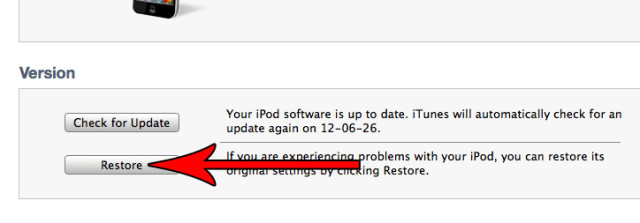
2. In iTunes, on the summary page for your device, you need to hold “Option” on the keyboard and click “Restore”. (On a Windows PC hold “Shift” and click restore).
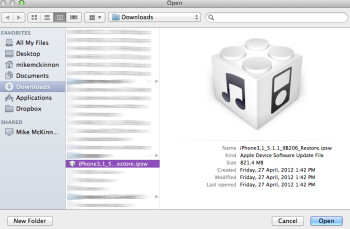
3. Navigate to where you saved the iOS 5.1.1 firmware for your device. Select it and click “Open”.

That’s it. iTunes will do the rest for you. Once your device has been restored to iOS 5.1.1, you can then do a “Restore from Backup” to get all your old settings back, or you can just set it up as a new device.



Is this post still valid now? :-/
No this doesn’t work