With iOS 6 there is a flood of ‘hidden’ features that you may be unaware of. We recently revealed a guided access tip and we will now reveal how to set your alarm tone to the music within your own library. It’s a feature that Apple has been bugged to add for years; users even began downloading third-party applications to add the ability.
Follow the instructions below to learn how to wake up to your own music. Some of you may already know how to do this, but this is aimed for the crowd unaware of the addition.
Step 1:
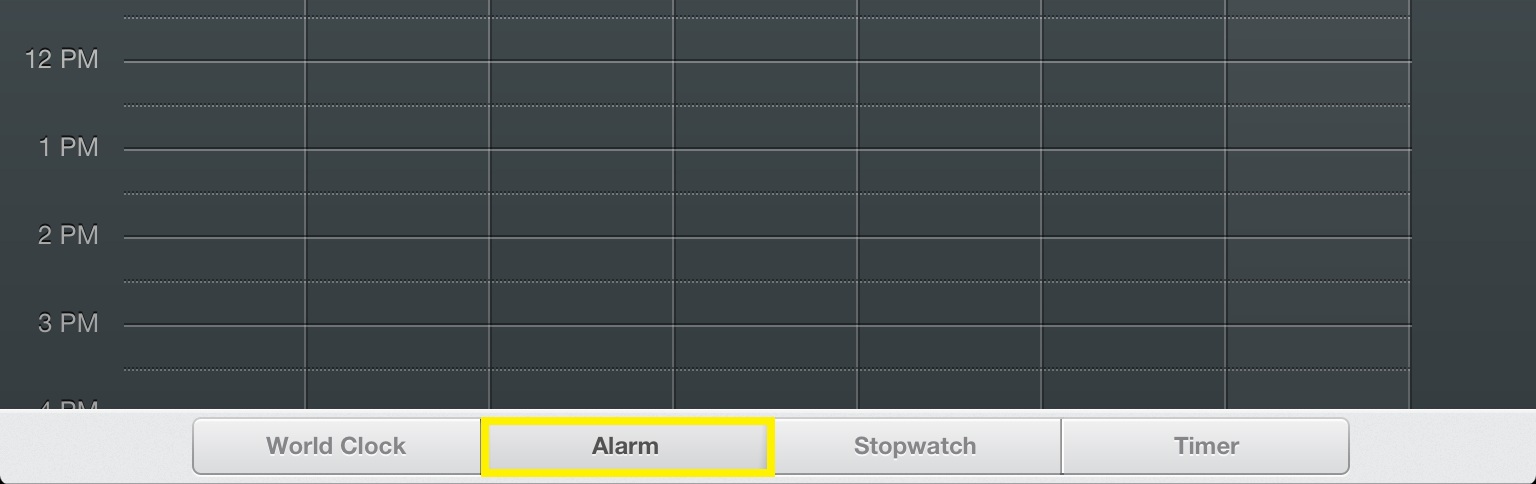
Enter an iPhone, iPod touch, or iPad’s clock application; then follow ahead to the ‘Alarm’ tab. (On an iOS 6 device)
Step 2:
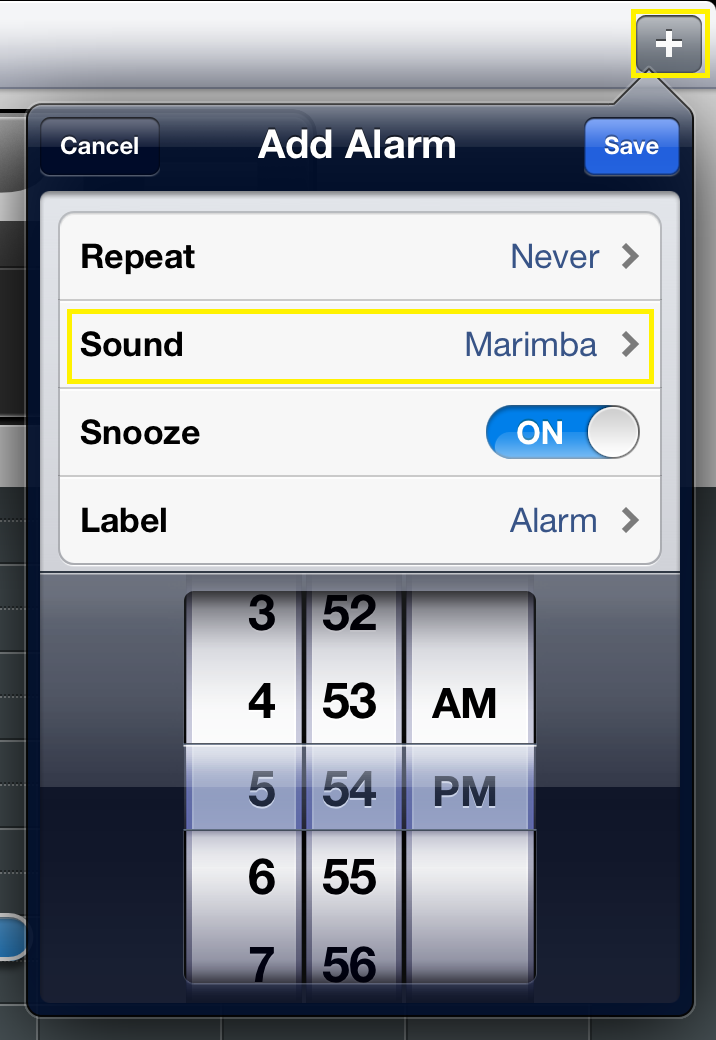
Tap the plus button at the upper-right-hand corner to add a new alarm. Once completed, click on the text following ‘Sound.’

Step 3:
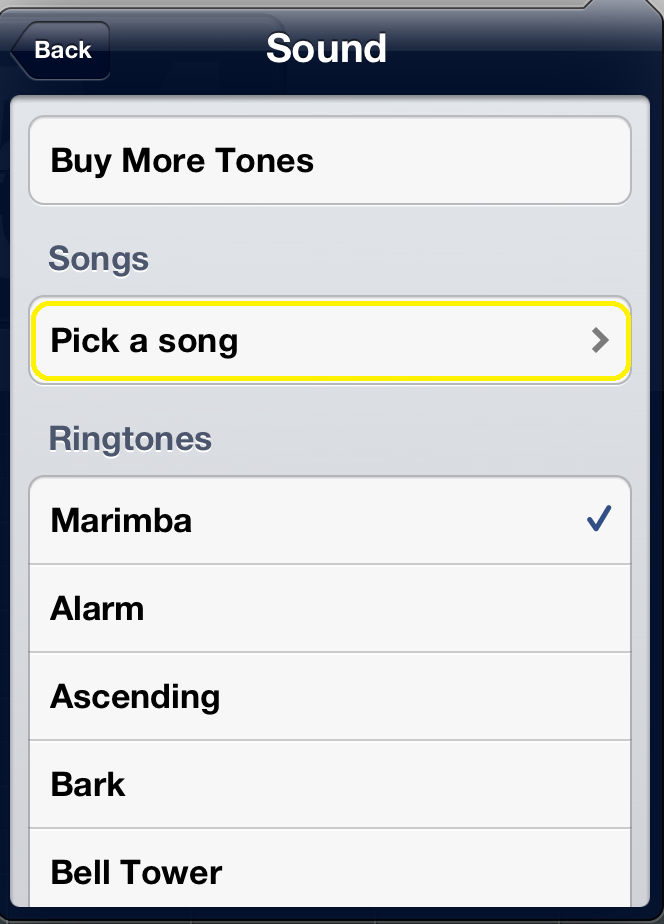
Under the ‘Songs’ category you can pick a song from your very own music library.
After that just complete the typical steps of choosing your alarm time, repeat, and snooze settings. Now when you wake up tomorrow morning it will be to the tune of your music rather than Apple’s famous marimba ringtone.
If you have music stored additionally in iCloud follow these steps to activate them in the alarm section: Settings > Music > Show All Music (via CNET). Just take note that if you choose an iCloud song, than internet connection is required. If the connection fails, the alarm may not sound when requested.


Wait does iPad now support Alarms like it should?
Yupp, it has it’s own Clock app now in iOS 6! I’m happy about it too!
Great tip!
Thanks! I’ve been using this feature since iOS 6 beta 1, and just realized it would be a nice tip to share.
Doesn’t work if you’re only using iTunes Match for your music. Must have songs physically on the device.
Lol wow they finally are able to that about being behind
yes – but the Clock Pro App HD allows for whole playlists to be played for those slow risers!
A lot of other Apps do that. The problem is that they have to be the “front” program before you go to sleep. Apple’s clock will always wake you so this makes a big difference. I have been using PlayAwake which is the only reason for me to jailbreak my iPhone. I’m happy with one song, so let’s see …
had this feature when i had an android..i ended up hating the song i chose for my alarm lol so went back to my regular ringer.
Created a custom cropped ringtone, and I use that as my alarm and have been for over a year…