iOS 7.1 is the version of iOS 7 that should have launched in the first place as it fixed a plethora of bugs and brought improvements as well. However, some design quirks for one are still in place (like the shift key icon), which includes being able to quickly access list view within the Calendar.
In iOS 7.1, Apple has made two different ways to access list view within the Calendar on iPhone and iPad, which has confused users and led some to believe it’s actually missing or hidden because it’s so hard to find. Let’s clarify how to locate list view shall we?
How to find Calendar List View on your iPhone in iOS 7.1
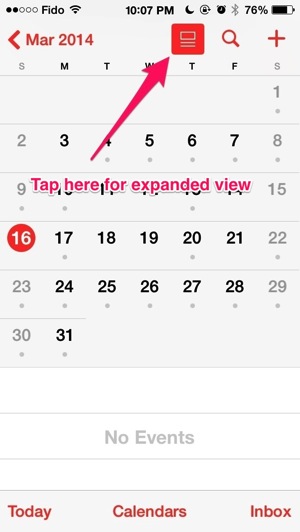
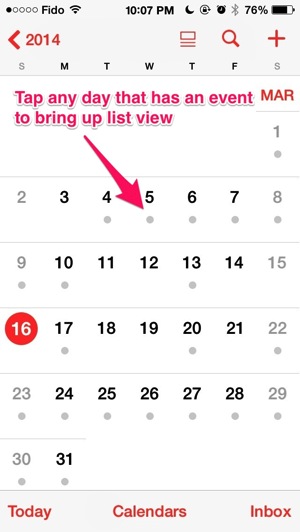
Tap on the ‘expand’ icon to the left of search. Then, tap on any day that has an event.

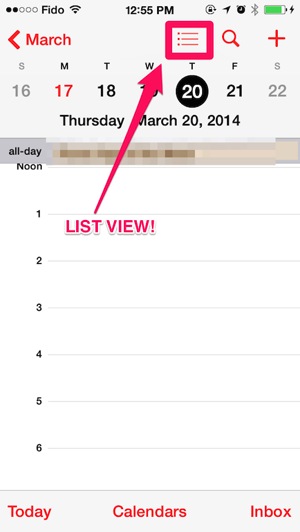
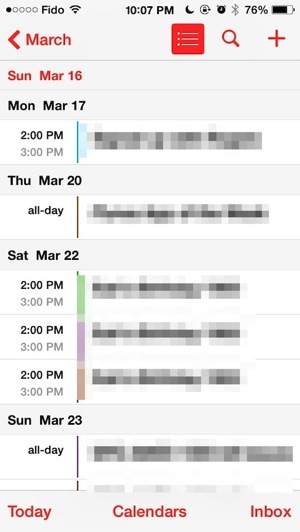
This will bring back the ‘list view’ icon beside search. Tap it to get list view:
Seriously, not sure why this is buried like this. Apple needs to look into this and change it.
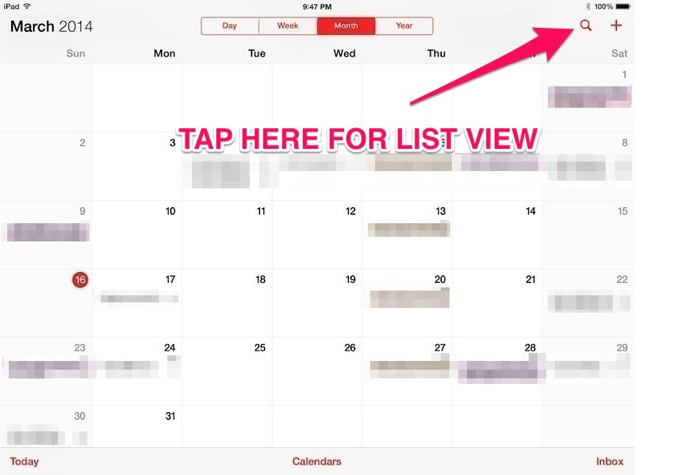
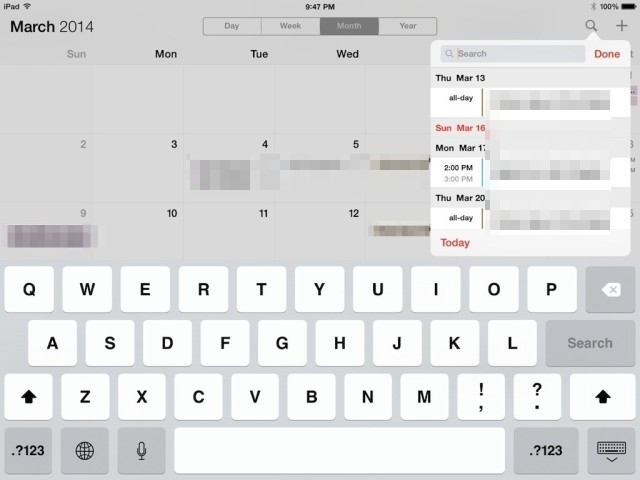
How to find Calendar List View on your iPad in iOS 7.1
Tap the the search icon and list view will appear, as shown in the below screenshots.

Ta-da! How’s that for confusion?

Let us know if this helped you ‘get back’ list view within your Calendar in iOS 7.1!



about time! now we need apple to bring back calendar list view in the Notification drop down. Current ‘tomorrow summary’ can’t replace seeing a list view of the next 6 events, regardless of date.
Hello Apple, can you bring back the “all day” event in the notification center…
It’s still not good. I will keep using Calendars+ until they improve it.
I’ve been using Calendars 5 since the launch. Fantastic app.
You make it sound more difficult that it is. I never noticed, because I’m in Day View so often, but all you have to do is go to any day (with or without events) and and select list from there. Since the List View depends on knowing a day to build from, being in Day View is the point from which a list can be built.
I tried your method and only Gary’s method works for me. I also Calendars +
Interesting. All I need do is choose any day, and touch list view; no need for it to be one containing events. Of course if you have already chosen to be in Events View, (which is where Gary started) then you need exit it, and return to the base calendar view which simply shows dates. Remember, the default view is just the calendar dates – you have to enter Events view by selecting the box icon with the two lines below it (whereupon it becomes red). From the default view choosing a date allows you to select list view. Of course you have to exit this view and return to the default view to access the Events view again.
I have no found this counterintuitive at all.
Didn’t work for me either. Edward got mine working
Thank you SO much for this step by step explanation! It helped ever so much in “re-finding” my list view!
Yesterday I updated the software on my iPhone 5 to vs. 7.1. After doing that, I discovered that I could NO longer view my Calendar items in a continuous-day list view. I can only view items I’ve put on my calendar under the Month view for EACH day at a time. This is Awful ! Is there ANY way I can view items in a continuous list where I can Scroll? That was available prior to this update?? PS: I did discover that if you go to Search and type in a “common” letter, a Continuous List view will appear. I use the letter “s” since it is in almost every Item I put on my Calendar.
I followed the steps exactly but the ‘list’ view’ icon never appeared on my phone. Am I the only one that this did not work for? Can anyone help?
after clicking a day with an event, click the icon at the top again and then after that it will change to the list icon if it did not the first time.
Thanks so much .It is the only thing that works. You should be working for Apple
Cheers! Share our article with friends 🙂
It doesn’t work on my iPhone 5.
It didn’t work for me, either. I have an iPhone 5. I’ve tried it repeatedly and it doesn’t work.
OMG!!! UNBELIEVEABLE they would make it THAT difficult! Another CLASSIC waste of my valuable time by Apple. Thanks for the answer. iPhone support wanted $20 for the same info. CROOKS!!! Much appreciated.
I know this is an old post, but was thinking about this while adding something to my Calendars+. While it’s nice to have everything in an OS, why do we always want expect to have everything? There are always great add on’s, which is an ecosystem that supports an OS. An OS never just stands on its own,
Yay, I was wondering where the heck that had gone! Thanks 🙂
I have tried this suggestion and it does not work on my iPhone.
Yay! Thank you!!!!! My iPhone may not have taken much more of my finger tapping frustration regarding this!
Omg! Thank you so much! I thought it was a bug, I just couldn’t work out how to call it up on purpose…now I know 🙂
Thank you!!!!!
nah…. solution offered did not work for iPhone 5 with 7.1 I still can’t get the disappearing list icon nor the list
try this , In any calendar menu, hit the Search button, then press “L” on the keyboard. My list came up immediately.
Got it! Solution only works when you tap on a date already past
I’ve tried all these comments and still can’t get my list back!!!!!!!! HELP
This is absolutely terrible.
Shameful UI choices here.
thank you!!!!! this has been driving me nuts!
Thanks so much. Before I just kept hitting buttons until the list decided to appear. Now I know the secret combination. 😛
Apple puts these things in on purpose, right? Part of the mYsTiQuE of APPLE . . . we are so privileged to be their minions in our millions . . . ooooohhhhh . . . the CLAAAAAW . . .
A better description might be this:
In Calendar you have views for year, month, week and day. List view can only be gotten to thru the week view, which in turn is accessed via the month view. However, in month view the split view (which you label as the expand button) must not be selected (meaning red). Then when you tap on any day you will go to week view, where the list button will be available (unless you previously left it in list view, in which case you will immediately be in list view and by deselecting the list button you will return to week view).
Oh, somehow I just got the List view again, and I’m not even sure how. They sure make it hard to find! I think what I did was go into Week view, or try to, and it didn’t work, because I had to tap a specific date from the Month view, and then tap the icon to the left of the search button, and voila! it worked. The thing is, it seems like I’d been tapping that same icon repeatedly before and List view DIDN’T come up. Very confusing!
Thank you!! That took me a couple of hours of trawling through endless complaints about ical on the apple forum before I gave up and found your website. You saved me a lot of pain, and thanks again
Cheers! Glad we were able to help 🙂
Going out of my MIND trying to find List View no matter how I hit that top Computer looking icon. Had no idea you had to hit a date with something on it to bring up the list. Geez Apple, really?!
thank you, that is a horrible UI design. cmon Apple, get your act together!
Thanks! So helpful, it took a a couple tries but I finally got it!
I am trying to figure out how to sync my iPhone and Mac through out the day. When I add appt on home computer how can I get it to automatically show up on phone with out being near it
Amazing! Thank you! For 7 months I’ve been pining for the old list view, and today I finally did a quick google search to see if there was any way to get the old style calendar back. Can’t believe it’s as simple as pressing a button! Thank you!
Cheers 🙂