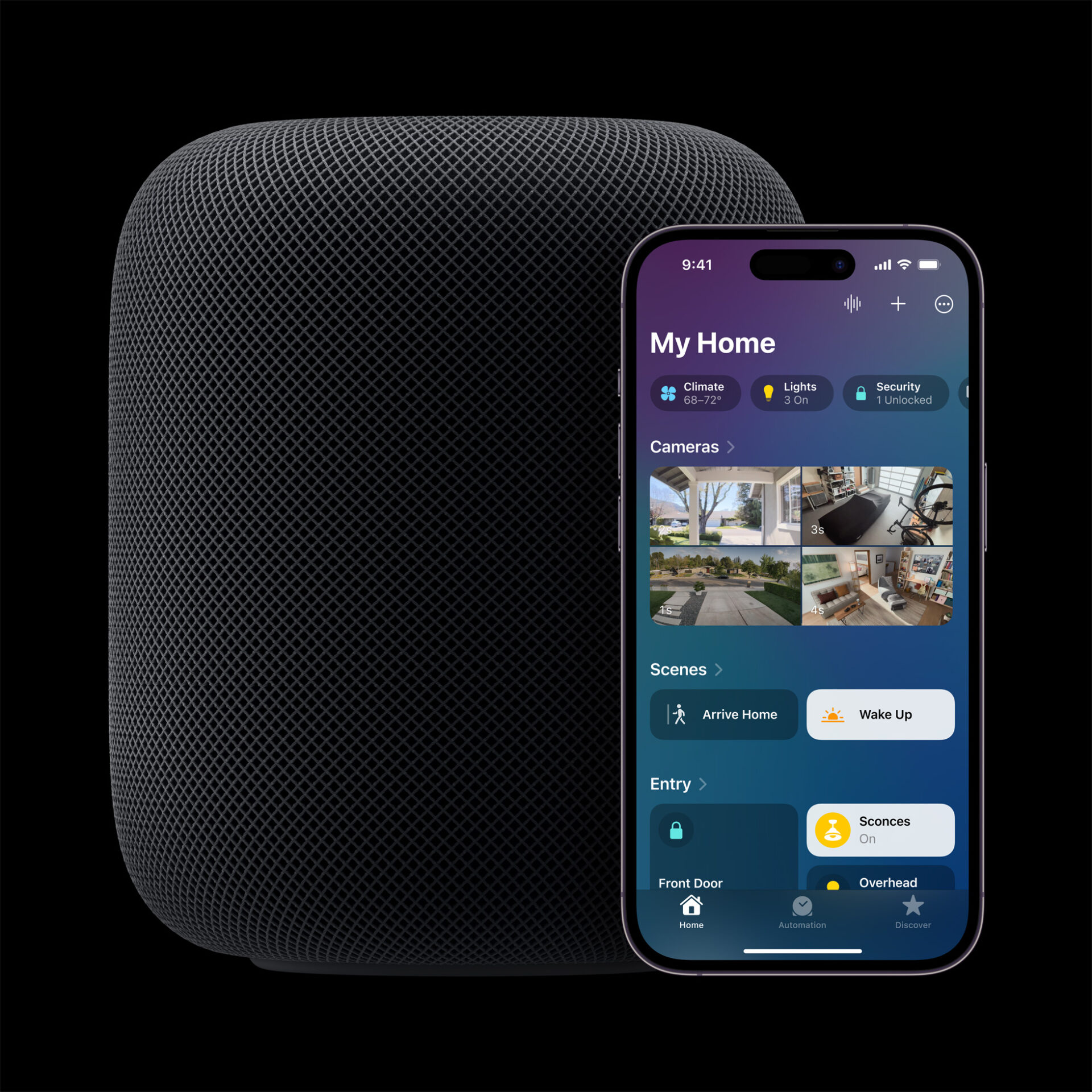
Apple’s Smart Home Hub With Siri AI and Face Recognition Could Launch Next Month
Apple's long-awaited smart home hub could launch as early as next month with facial recognition and Siri AI, according to Mark Gurman.
Apple’s latest support video explains if you no longer use the primary email address that’s associated with your Apple Account, you can change it to another address.

Even if you don’t have access to your primary email address associated with your Apple ID, you can change it without losing access to your contacts, purchases, or other account information.
The easiest way to change the primary email address is with your iPhone or other trusted device. A trusted device is a device that you’re already signed in to with your Apple Account. Keep in mind that you can’t use an email address that’s already in use by another Apple Account.
Here’s how to change your Apple Account primary email address on your iPhone or iPad:
Watch the video below to learn more.

Want to see more of our stories on Google?

P.S. Want to keep this site truly independent? Support us by buying us a beer, treating us to a coffee, or shopping through Amazon here. Links in this post are affiliate links, so we earn a tiny commission at no charge to you. Thanks for supporting independent Canadian media!

