Were you one of the first to upgrade to iOS 8.0.1 on your iPhone? Well, by now you probably encountered no cellular signals and broken Touch ID, like us on our iPhone 6 Plus and others with their iPhone 6 and some iPhone 5s users.
Here’s how to restore back to iOS 8.0 on your Mac or Windows computer using iTunes. Before we begin–backup your device in iTunes or via iCloud.
First, you need to download iOS 8.0 to your computer—use the download links below (update: sorry mixed up the iPhone 6 Plus and iPhone 6 version–now fixed):
- iPhone 6 Plus (iPhone7,1) version 8.0 (Build 12A366), Download
- iPhone 6 (iPhone7,2) version 8.0 (Build 12A365), Download
- iPhone 5s (GSM, Rogers, Telus, Bell) (iPhone6,1) version 8.0 (Build 12A365), Download
- iPhone 5s (CDMA Verizon) (iPhone6,2) version 8.0 (Build 12A365), Download
- iPad 2 (Wi-Fi) (iPad2,1) version 8.0 (Build 12A365), Download
- iPad 2 (GSM) (iPad2,2) version 8.0 (Build 12A365), Download
- iPad 2 (CDMA) (iPad2,3) version 8.0 (Build 12A365), Download
- iPad 2 (Mid 2012) (iPad2,4) version 8.0 (Build 12A365), Download
- iPad mini (Wi-Fi) (iPad2,5) version 8.0 (Build 12A365), Download
- iPad mini (GSM) (iPad2,6) version 8.0 (Build 12A365), Download
- iPad mini (CDMA) (iPad2,7) version 8.0 (Build 12A365), Download
- iPad 3 (Wi-Fi) (iPad3,1) version 8.0 (Build 12A365), Download
- iPad 3 (GSM) (iPad3,2) version 8.0 (Build 12A365), Download
- iPad 3 (CDMA) (iPad3,3) version 8.0 (Build 12A365), Download
- iPad 4 (Wi-Fi) (iPad3,4) version 8.0 (Build 12A365), Download
- iPad 4 (GSM) (iPad3,5) version 8.0 (Build 12A365), Download
- iPad 4 (CDMA) (iPad3,6) version 8.0 (Build 12A365), Download
- iPad Air (Wi-Fi) (iPad4,1) version 8.0 (Build 12A365), Download
- iPad Air (GSM) (iPad4,2) version 8.0 (Build 12A365), Download
- iPad Air (CDMA) (iPad4,3) version 8.0 (Build 12A365), Download
- iPad mini Retina (Wi-Fi) (iPad4,4) version 8.0 (Build 12A365), Download
- iPad mini Retina (GSM) (iPad4,5) version 8.0 (Build 12A365), Download
- iPad mini Retina (CDMA) (iPad4,6) version 8.0 (Build 12A365), Download
- iPhone 4s (iPhone4,1) version 8.0 (Build 12A365), Download
- iPhone 5 (GSM, Rogers, Telus, Bell) (iPhone5,1) version 8.0 (Build 12A365), Download
- iPhone 5 (CDMA) (iPhone5,2) version 8.0 (Build 12A365), Download
- iPhone 5c (GSM, Rogers, Telus, Bell) (iPhone5,3) version 8.0 (Build 12A365), Download
- iPhone 5c (CDMA) (iPhone5,4) version 8.0 (Build 12A365), Download
- iPod touch 5G (iPod5,1) version 8.0 (Build 12A365), Download
Next, connect your iPhone (or iOS device) to your Mac/PC with your USB cable. Launch iTunes.
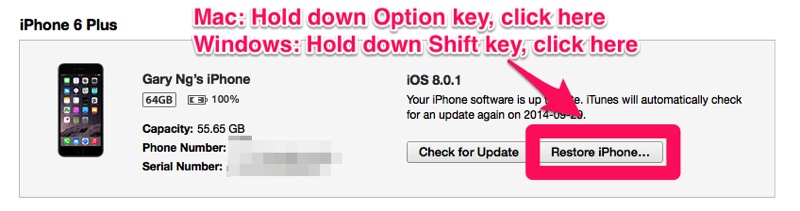
At the screen below, hold down the Option key (Mac) or Shift key (Windows) on your keyboard, then click ‘Restore iPhone’. A pop-up window will launch–locate where you downloaded iOS 8 above, agree to the prompts and restore your device.
Update: Alternatively, you can hold down Option/Shift and click ‘Check for Update’ instead of restore, as that’s faster (thanks JS).
Once your device is restored to a fresh copy of iOS 8, restore from your iTunes or iCloud backup. There you have it–back on iOS 8 with a cellular signal and working Touch ID.
Let us know if you had restore to iOS 8 today and how this quick tutorial worked out for you.



says the firmware is not compatable.
Sorry mixed up the firmware numbers–try again.
I found that holding the Option key and clicking Check For Update worked for me, therefore not requiring a full long restore. This is on the iPhone 6.
Good to know, will add to our article. Thanks.
i didnt think this would work because of downgrading but… it did
The ipsw files for the 6 models are wrong.
iPhone 6 is iPhone 7,2
iPhone 6 Plus is iPhone 7,1
Yes, we discovered this shortly but have fixed them. Thanks and apologies!
iPhone 6 worked for me!! Thanks!
FYI, didn’t work the first time but probably because the wifi on my computer was off.