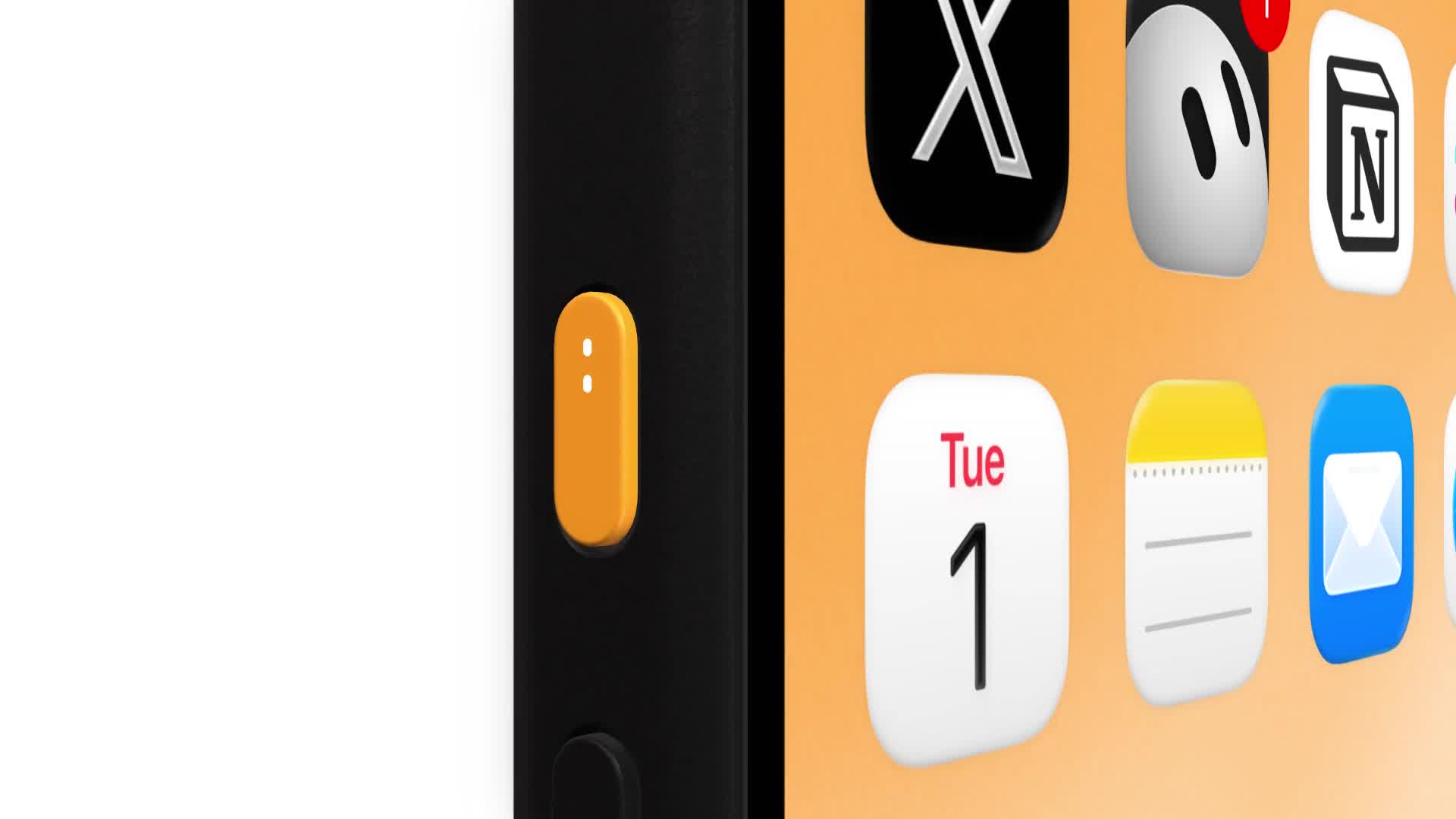
Grok Bot can now be set as your iPhone’s Action Button, so pressing the button starts a voice chat with your Bot without opening the app first.
That’s according to Grok Bot’s official X account, which shared the news on October 19 with a short demo video. “Grok Bot is now one step closer. Set it as your iPhone’s Action Button and press it to talk with Bot,” the post reads.
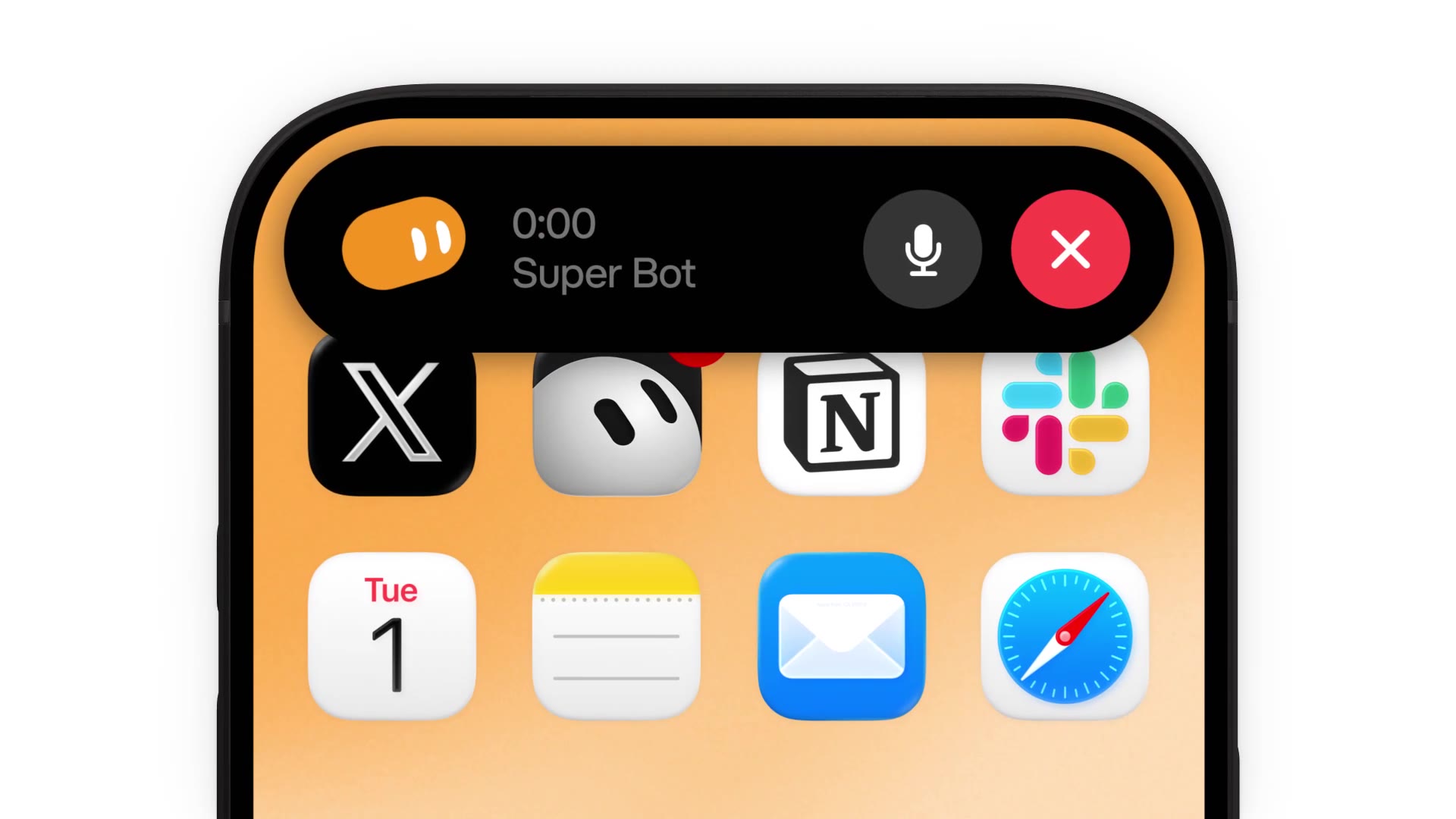
The 13-second clip shows Grok Bot’s orange mascot shrinking down into the Action Button, which turns orange in the animation. After the press, the Dynamic Island expands into what looks like a phone call, first showing “Calling…” and then a running timer with the Bot’s name, a mute button and a red end button. It then tucks back into a small timer at the top of the screen while the home screen stays in use. Grok Bot’s iPhone app already supports live voice chats with your Bots, so the button looks like a faster way into that.
Grok Bot is SpaceXSI’s always-on AI agent service, and the Action Button support comes two days after Friday’s Grok Bot update, which added email support, more connectors and faster voice calls.
How to set it up
Neither the post nor Grok Bot’s help pages spell out the exact steps yet, so Grok Bot’s own setup may look a little different. In iOS, third-party apps get onto the Action Button through the Controls or Shortcut options:
- Install Grok Bot from the App Store, sign in and update to the latest version.
- Open Settings > Action Button.
- Swipe to Controls or Shortcut, tap the button below it, then search for Grok Bot and pick the action it offers.
- Press and hold the Action Button to try it.
If no Grok Bot action shows up yet, you can still choose Shortcut and set the button to open the Grok Bot app, though that won’t drop you straight into a voice chat. Apple notes that for Controls and Shortcut, the Action Button does nothing until you pick a specific option.

Which iPhones have the Action Button
Apple introduced the Action Button on the iPhone 15 Pro and iPhone 15 Pro Max. It’s also on every iPhone 16 model, the iPhone 16e, iPhone 17, iPhone 17 Pro and Pro Max, iPhone Air, iPhone 17e, and iPhone 18 Pro and Pro Max. All of those can run Grok Bot, which needs iOS 18 or later.
Apple’s new iPhone Duo is the exception, as its spec sheet lists volume buttons, Camera Control and a side button, with no Action Button. Spend at least $2,999 on Apple’s first foldable and you lose the one button Grok Bot wants. Duo owners and anyone on an older iPhone can assign a shortcut to Back Tap in Settings > Accessibility > Touch instead.
How it compares with Siri, ChatGPT and Gemini
The side button still belongs to Siri, and Siri keeps the advantage on built-in iPhone jobs like alarms, timers, messages and settings, especially now that Siri AI handles personal context and app actions. Siri AI still handles dumb simple actions and is far from an AI agent.
Grok Bot takes a different approach, since your Bots run on their own cloud computer and keep going after you close the app. That means a request you speak into the Action Button can turn into a task that runs across your apps and websites, with Grok Bot coming back to your phone when it needs your approval.
ChatGPT and Google’s Gemini were already common Action Button picks for people who want a quick voice chat. Those are chatbots first, though, while OpenAI’s agent answer is Dots, which sits closer to what Grok Bot does.
For those that want a free AI agent, Meta’s Muse is also available and very capable right now too.
Availability and pricing in Canada
Grok Bot is a free download in the Canadian App Store, but you’ll need an eligible paid plan to use it, starting from $34.99 CAD per month as part of an X Premium plan.
Would you give up your Action Button for Grok Bot, or is it staying on Silent mode?