iPhone Duo Review: Apple’s Imperfect Foldable is Also its Most Exciting Device in Ages
Two weeks in, I'm still enamoured every time I open the iPhone Duo.
When looking for a laptop to integrate into my workflow, I often find myself weighing three things: portability, performance, and display quality. As someone who regularly travels for work, I need a device that handles everything from writing a few articles at an airport to editing videos from a hotel room. However, I also want something that doubles as an entertainment device when the workday is over.
Asus’ Zenbook series has routinely delivered on these fronts. I’ve previously spoken highly of the Zenbook Duo’s versatility and how its dual-screen design complements my workflow. However, there’s also something to be said about the simplicity of Asus’ more traditional $1,299.99 Zenbook 14.
With Qualcomm’s Snapdragon X processor, an OLED display, and a relatively lightweight chassis, the Zenbook 14 encompasses many of the qualities I look for in a portable workstation. While some concessions have been made on the hardware front, Asus has put together a device that serves as an approachable entry point into the Windows on Arm ecosystem.
One of the more appealing aspects of the Zenbook 14 is how little space it takes up. Measuring as little as 13.9mm thick, the device is exceptionally easy to accommodate in a backpack. Asus Canada’s specifications list the laptop as weighing 1.1kg.
Between a camera, microphones, charging accessories, and occasionally a gaming handheld, my backpack’s weight can quickly add up when travelling. Having a laptop that doesn’t contribute significantly to that weight is a perk I appreciate more and more.
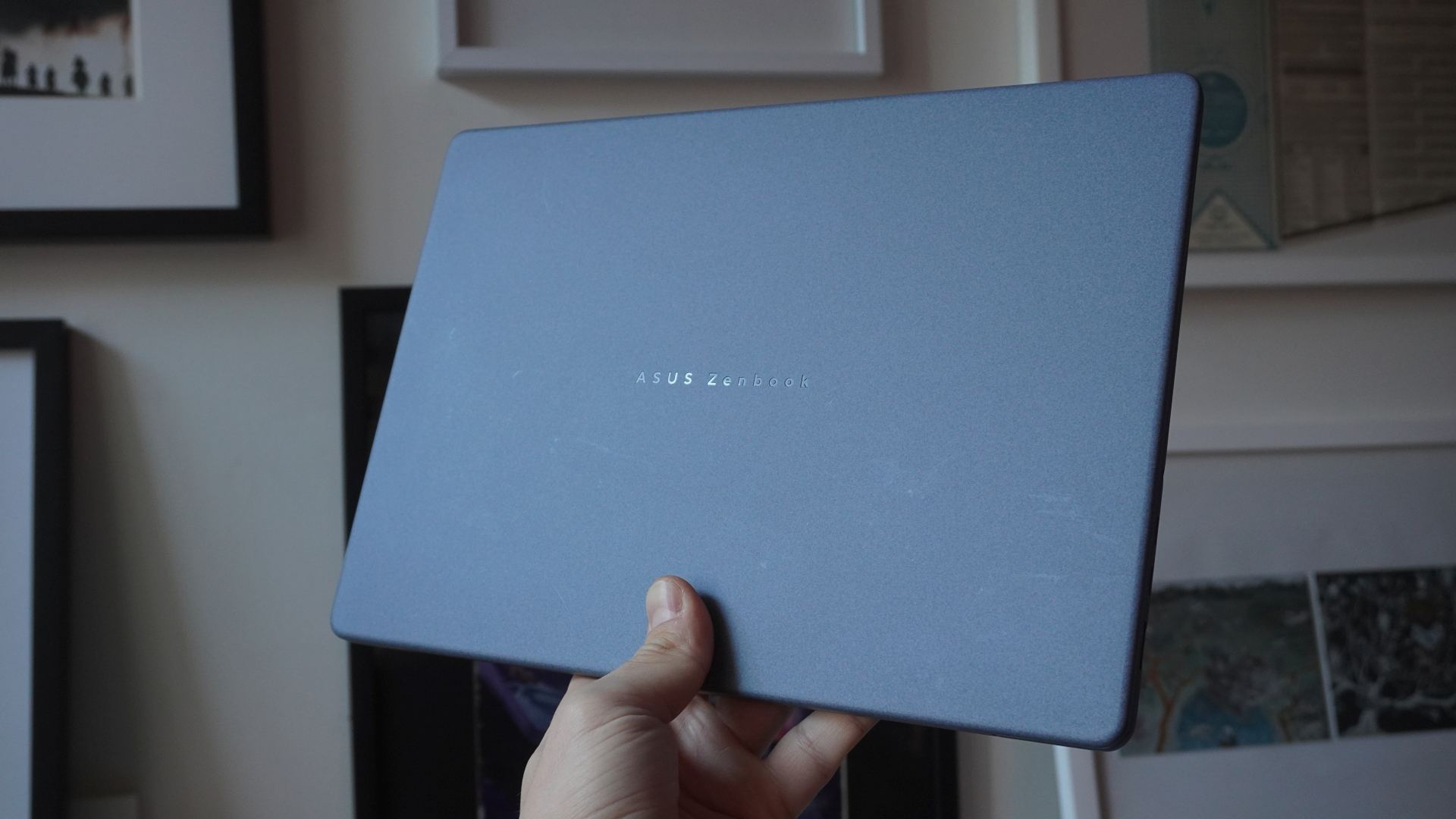
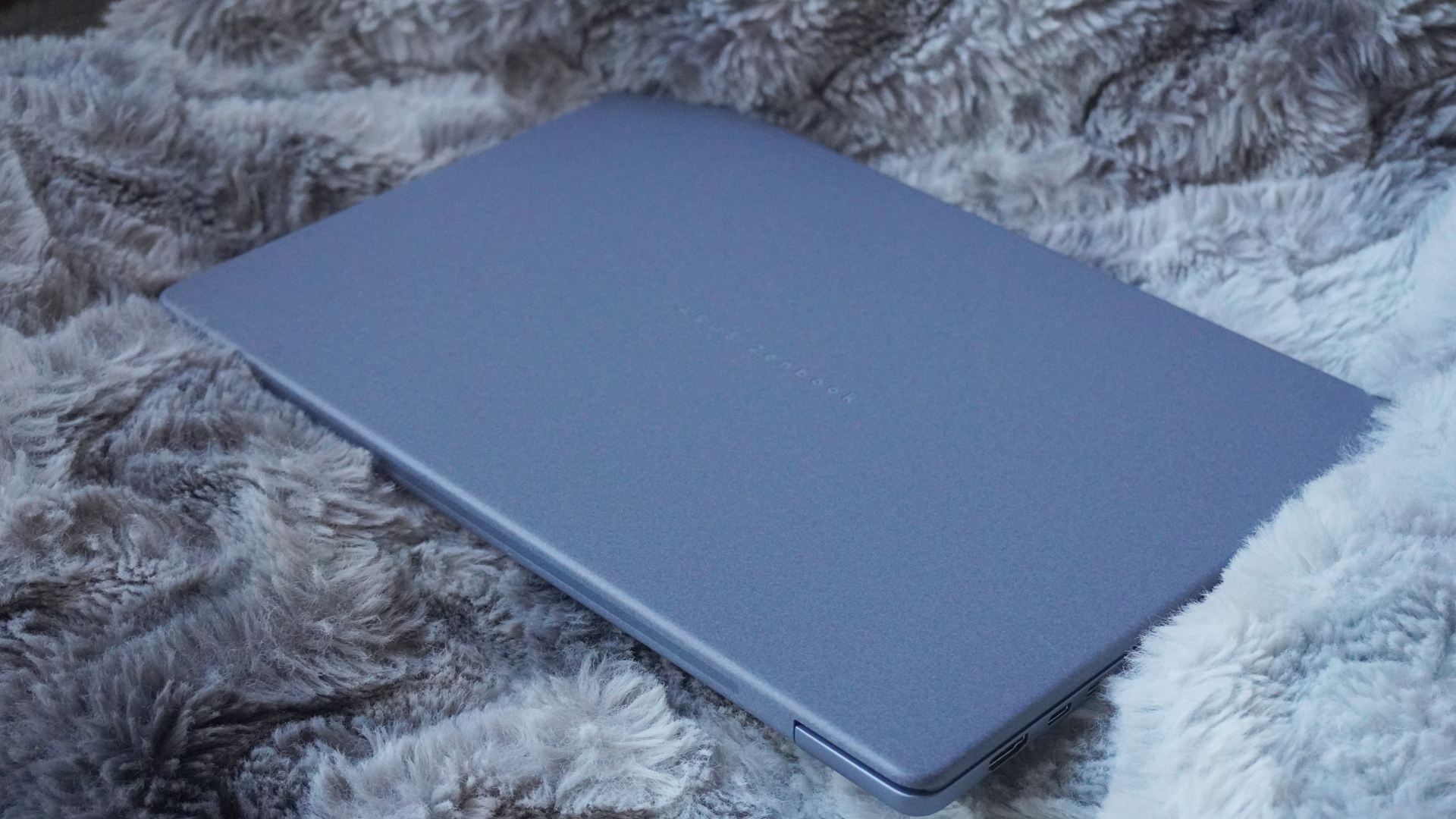
Available in Arctic Blue and Komodo Coral, the Zenbook 14 has a fairly minimalist design. I quite like that Asus is introducing more personality into its hardware through its colour selection without making the laptop look particularly ostentatious. I have noticed that with its Ceraluminum lid, the Zenbook 14 can get marked up quite a bit. Even with careful handling, a few smudges have formed. While the material is designed to resist scratches and fingerprints, odd oil smudges can still appear and be difficult to remove.
One area where I would have liked to see Asus dedicate a bit more attention is connectivity. The Zenbook 14 features two USB 3.2 Gen 2 USB-C ports, both supporting power delivery and external displays, alongside a 3.5mm audio jack. The USB-C ports support transfer speeds of up to 10Gbps. Given the number of accessories I regularly connect to my laptop, I’ve found myself bringing my Anker USB-C hub with me for more flexibility. Between charging the laptop, connecting external storage, and transferring footage from a camera’s SD card, having a hub on hand remains important.
I’d still love to see Asus integrate an SD or microSD card reader into more of its Zenbook devices, especially given how well suited these laptops are to travelling content creators.
Across many of the Asus laptops I’ve covered over the past few years, the company’s OLED panels have consistently stood out. This was particularly evident when I reviewed the Zenbook S 14. The Snapdragon-powered Zenbook 14 continues this trend, albeit with a more modest display. Asus has outfitted the laptop with a 14-inch WUXGA OLED panel featuring a 1920 x 1200 resolution, a 60Hz refresh rate, and 100 percent coverage of the DCI-P3 colour gamut. The non-touch display is rated for 300 nits of brightness.
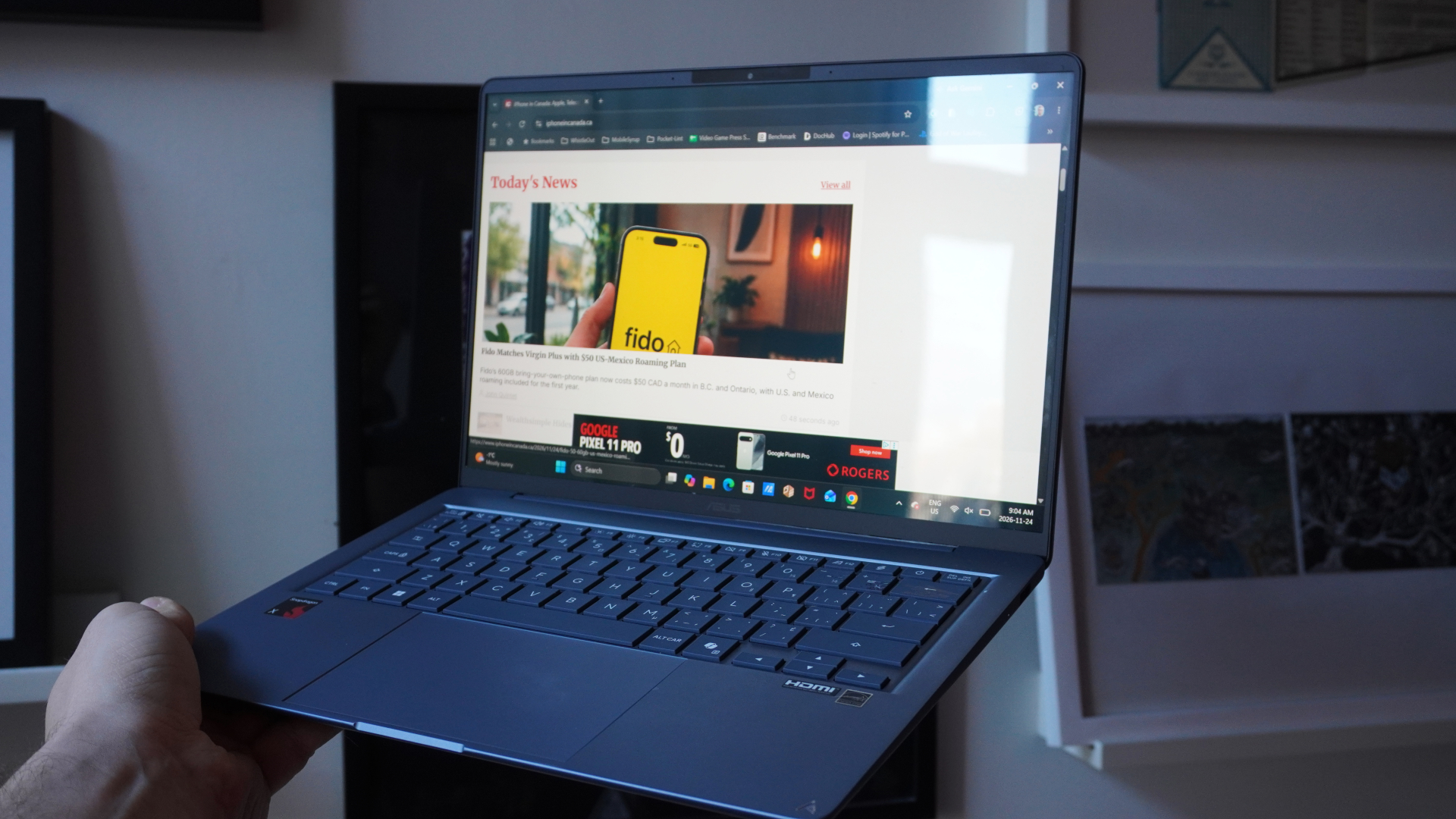
While it doesn’t quite reach the heights of Asus’ 3K 120Hz OLED panels, there’s still a lot to appreciate about the display. Much of my day-to-day workflow involves looking at Google Docs and WordPress windows. Having a 16:10 aspect ratio provides additional vertical real estate when reviewing lengthy articles or researching a story. At 14 inches, the resolution is also perfectly adequate for reading and writing.
I do miss the added fluidity of a 120Hz refresh rate, particularly when scrolling through news feeds and navigating Windows 11. However, given the type of work I’m predominantly doing on the Zenbook 14, it’s a concession I can live with. Naturally, the OLED panel lends itself well to entertainment. When travelling, my laptop often becomes my primary way to watch movies and catch up on shows. Hotel televisions can be a mixed bag, especially when it comes to image quality and access to streaming services.
The Zenbook’s OLED display makes for a compelling alternative. The deep black levels and contrast are especially appealing when watching movies in a dimly lit hotel room. It’s also a lovely display for catching up on YouTube content between work assignments. One drawback is the display’s glossy finish. Paired with its relatively modest brightness, working near a large airport window or in a brightly lit coffee shop can introduce distracting reflections. It’s something to consider if your work regularly takes you into environments where you have little control over the lighting.
The keyboard is arguably one of the most important aspects of a laptop for someone in my profession. I can easily spend several hours bouncing between writing news stories, outlining reviews, and putting together video scripts.
Asus has equipped the Zenbook 14 with a chiclet keyboard featuring 1.7mm of key travel. Given the laptop’s relatively thin profile, Asus has managed to allocate a respectable amount of space to the keyboard without sacrificing the size of the touchpad. I much prefer having a noticeable amount of travel underneath my fingertips rather than typing on an overly shallow keyboard. It’s especially important when working through a longer review or transcribing notes from an interview.
Unfortunately, the lack of keyboard backlighting on this particular model is a disappointing omission. It’s a feature I’ve largely come to expect from Zenbook devices. Whether working during an evening flight or finishing an article in a hotel room, I value being able to comfortably see the keys without relying on overhead lighting.
Asus also includes a precision touchpad. While I often prefer a wireless mouse for more involved editing work, a touchpad is more convenient when working on an airplane tray table or in other confined spaces. The Zenbook 14 also features a 1080p webcam with infrared support for Windows Hello, allowing users to sign into Windows using facial recognition.
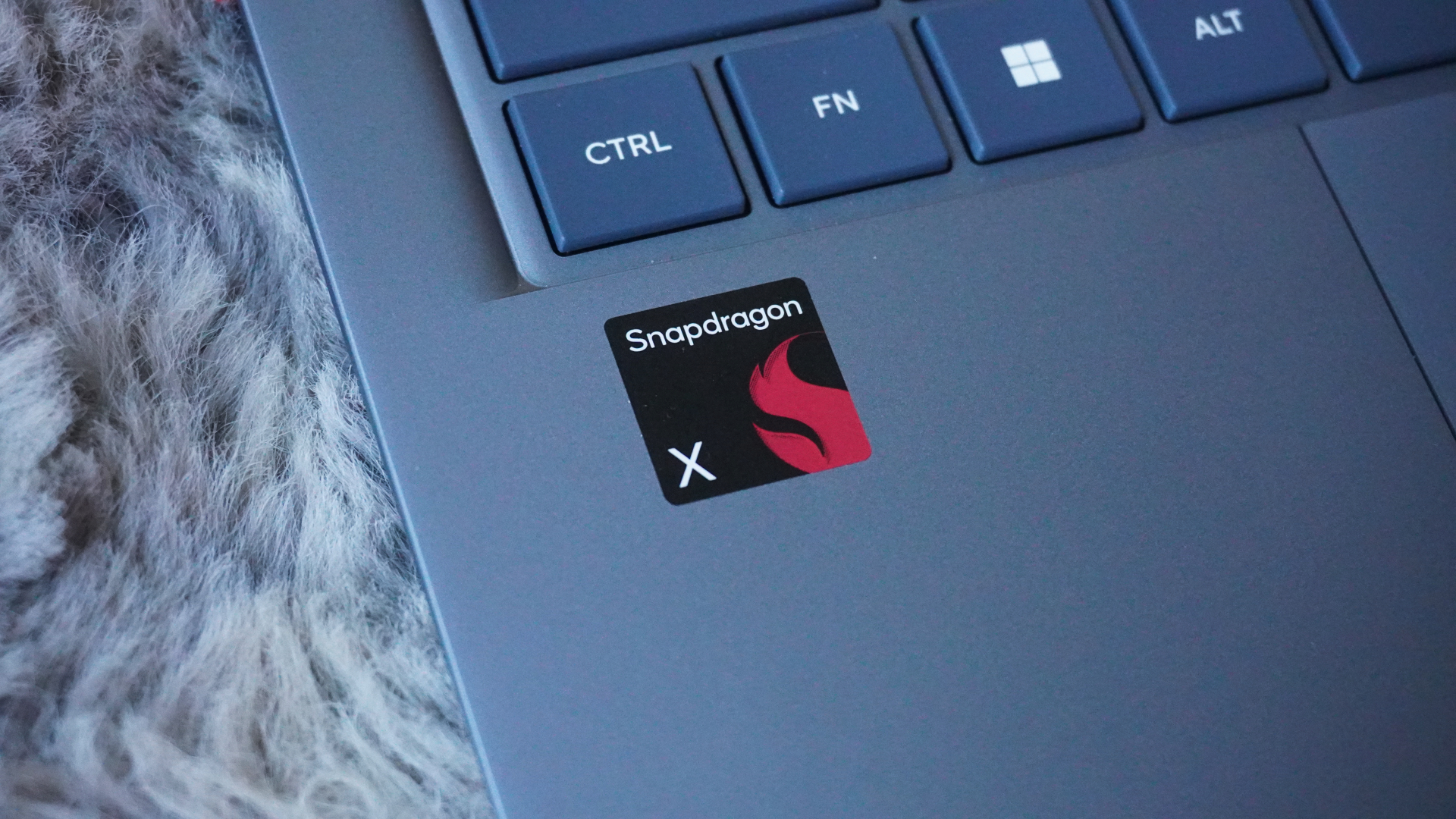
Under the hood, the Asus Zenbook 14 UX3480 is powered by Qualcomm’s Snapdragon X X1-26-100 processor. The Arm-based chip features eight CPU cores clocked at up to 2.97GHz, integrated Adreno graphics, and a Hexagon NPU capable of delivering up to 45 TOPS.
Asus offers configurations with LPDDR5X memory and either 256GB or 512GB of SSD storage. The company’s Canadian specifications list 8GB of onboard memory, though 16GB configurations are available in other markets.The Snapdragon X represents a more accessible entry point into Qualcomm’s PC processor lineup. It isn’t necessarily designed to compete with the more powerful Snapdragon X Elite chips or the dedicated graphics found in Asus’ ProArt and ROG devices.
However, there’s a lot you can accomplish within the confines of this hardware. My typical workflow involves having numerous browser tabs open at any given time. Between researching a story, sourcing images, keeping up with emails, communicating with editors, and monitoring social media, it’s surprising how quickly a relatively simple writing assignment can evolve into a memory-intensive workload.
Thankfully, much of what I do throughout the day revolves around browser-based applications. With Google Chrome supporting Windows on Arm natively, transitioning much of my workflow to a Snapdragon-powered laptop is relatively straightforward. I do wish Asus offered more flexibility with memory configurations in Canada. Given the choice, I’d much prefer 16GB of RAM, especially when considering the device’s longevity.
I’ve increasingly come to rely on my laptop for producing short-form video content. Whether putting together a quick news explainer or editing footage captured during a hands-on preview event, I don’t always have the luxury of waiting until I’m back at my desktop PC.
A typical short-form video involves importing footage, cutting down a talking-head segment, layering B-roll, adjusting audio, and adding captions before exporting a vertical video for Instagram, TikTok, or YouTube Shorts.
The Snapdragon X and its integrated Adreno graphics are better suited to these lighter editing workloads than more ambitious productions. The OLED panel also comes in handy when reviewing footage and making preliminary colour adjustments. However, with an Arm-based Windows laptop, there’s an additional consideration beyond raw performance: software compatibility.
While Windows on Arm has come a long way, I would encourage anyone purchasing the Zenbook 14 for creative work to check whether their preferred editing applications, plug-ins, and accessories are supported. Microsoft’s Prism emulation technology enables many traditional Windows applications to run on Arm processors. However, performance and compatibility can still vary depending on the software you’re using.
More intensive 4K projects with numerous video layers, complicated effects, and extensive colour grading are workloads I’d still reserve for a system equipped with dedicated graphics and more memory.
Asus has equipped the Zenbook 14 with a 50Wh battery. Although it’s noticeably smaller than the 75Wh batteries found in some of Asus’ other Zenbook laptops, Qualcomm’s emphasis on power efficiency helps compensate for the reduced capacity. Depending on how I’m using the laptop throughout the day and my workload, I’m typically able to get around eight hours of use on a single charge.
While travelling, I’m not always within reach of a power outlet. Covering an event can involve moving between briefing rooms, finding somewhere to publish a quick story, and compiling notes while waiting for transportation.
Having enough battery capacity to accommodate these responsibilities without constantly unpacking a charger is important. Of course, writing articles and checking emails are considerably less demanding than rendering videos. Streaming content and increasing the display’s brightness can also affect how long the laptop lasts between charges.
Asus includes a 68W USB-C power adapter with the Zenbook 14. Rather than dedicating additional space in my backpack to a proprietary laptop charger, I can consolidate charging accessories across several devices with a sufficiently powerful USB-C Power Delivery adapter.
The MyASUS application also provides access to battery management options, fan profiles, and display settings. It’s worth familiarizing yourself with these features if you’re regularly switching between working at a desk and travelling.
There’s a practicality to the Asus Zenbook 14 that I appreciate. While some hardware concessions have been made compared to more premium Zenbook devices, Asus has largely maintained the qualities that attract me to the lineup. Its biggest strengths are its portability, OLED display, and the efficiency of Qualcomm’s Snapdragon X processor. The keyboard is also a particularly appealing aspect for someone who spends as much time writing as I do.
That said, at $1,299.99 in Canada, I’d have loved to see Asus offer more memory, a backlit keyboard, and a more versatile selection of ports. The software compatibility considerations associated with Windows on Arm also mean this particular Zenbook won’t suit everyone’s workflow.
For my responsibilities, however, there’s a lot to like about having a compact Windows laptop that accommodates writing articles while travelling, lighter short-form video production, and unwinding with a movie at the end of the day.
The Asus Zenbook 14 (UX3480) is available in Canada for $1,299.99.
Want to see more of our stories on Google?

P.S. Want to keep this site truly independent? Support us by buying us a beer, treating us to a coffee, or shopping through Amazon here. Links in this post are affiliate links, so we earn a tiny commission at no charge to you. Thanks for supporting independent Canadian media!