Apple has shared another useful video on its YouTube support channel, explaining how you can find and copy the password of the Wi-Fi network you’re currently on or any you’ve previously connected to.
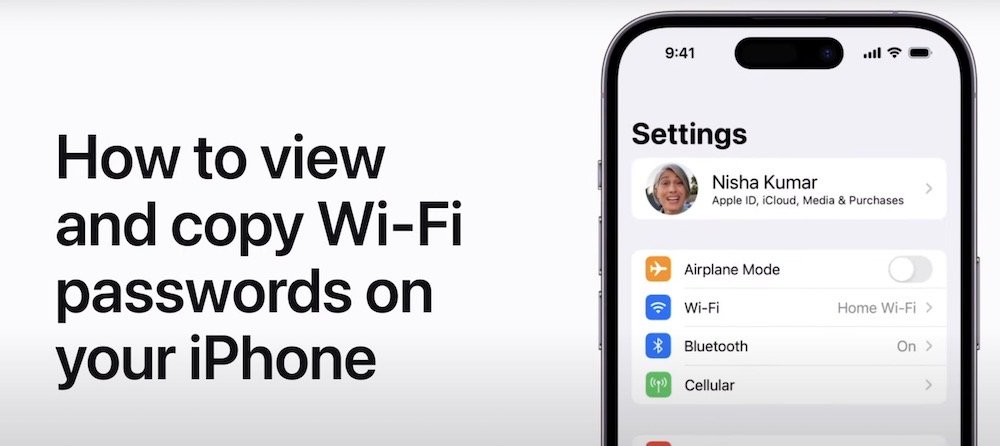
In iOS 16, iPadOS 16.1, and later, you can use Face ID to see and copy Wi-Fi passwords.
Simply follow these steps to reveal Wi-Fi passwords with Face ID or Touch ID in the Settings app:
- In the Settings app, tap Wi-Fi.
- Find the Wi-Fi network that you want to see the password for, then tap the Info button.
- Tap on the hidden password.
- Use Face ID or Touch ID to unlock and reveal the password.
To view saved Wi-Fi passwords, you must use Face ID or Touch ID. You can only view and copy a saved password if you’ve successfully connected to that Wi-Fi network before.
Watch the following video tutorial from Apple and learn how to view and copy saved Wi-Fi passwords on your iPhone.




